Anchore Enterprise and its components are delivered as Docker container images which can be deployed as co-located, fully distributed, or anything in-between. Anchore Enterprise can run on a single host or be deployed in a scale out pattern for increased analysis throughput.
To get up and running, jump to the following guides of your choosing:
Anchore Enterprise Container Images
You need a Dockerhub PAT from Anchore Customer Success in order to download the Anchore Enterprise Container Images
This section details the general requirements for running Anchore Enterprise. For a conceptual understanding of Anchore Enterprise, please see the Overview topic prior to deploying the software.
Runtime
Anchore Enterprise requires a Docker compatible runtime (version 1.12 or higher) on either linux/amd64 (AMD or
Intel-based) or linux/arm64 hosts.
Deployment is supported on:
Docker Compose (only recommended for testing, for example demo or proof-of-concept < 1000 SBOMs)
Any Kubernetes Certified Service Provider (KSCP) as certified by the Cloud Native Computing Foundation (CNCF) via Helm.
Any Kubernetes Certified Distribution as certified by the Cloud Native Computing Foundation (CNCF) via Helm.
Amazon Elastic Container Service (ECS) via Helm.
Architectures
Anchore Enterprise v6.1.0 and later publish multi-architecture images, so the same image tag resolves to the right
platform on both linux/amd64 and linux/arm64 hosts. A deployment must not mix architectures within a single cluster
node pool unless your scheduler places pods by platform.
Component
linux/amd64
linux/arm64
Enterprise
Supported
Supported
Enterprise UI
Supported
Supported
AnchoreCTL
Supported
Supported
Anchore Kubernetes Inventory
Supported
Supported
Anchore ECS Inventory
Supported
Supported
Kubernetes Admission Controller
Supported
Supported
FIPS builds are also available for the Kubernetes Inventory and ECS Inventory
integrations, published as separate linux/amd64 images under a -fips tag suffix — for example
anchore/k8s-inventory:v1.8.4-fips and anchore/ecs-inventory:v1.4.3-fips-amd64. Deploy these on linux/amd64
hosts.
Resourcing
Use-case and usage patterns will determine the resource requirements for Anchore Enterprise. When deploying via Helm (package manager for Kubernetes), requests and limits are set in the values.yaml file. When deploying via Docker Compose, add reservations and limits into your Docker Compose file. The following recommendations can get you started:
Requests specify the desired resource amounts for the container, while limits specify the maximum resource amounts the container is allowed. To achieve best QoS (quality-of-service) with Helm deployments, it’s recommended to set requests equal to limits for allocated memory units and to set requests only with no limits set for allocated CPU units.
It’s not recommended to set less than 1 CPU unit for any container. Less than this could result in unexpected behaviour and should only be used in testing scenarios.
For the api, catalog, policy, and postgresql service containers, a minimum of 2 CPU units is recommended.
For Production use with Helm deployments, it’s recommended to set memory units to a minimum of 16G for the analyzer and policy services and 8G for all other services - where requests equals limits for all services. Less than these values could result in OOM errors or containers restarting unexpectedly.
If you intend on using Kubernetes, the default values.yaml found in the Anchore Enterprise Helm Chart provides some resourcing recommendations to get you started.
The memory footprint for Production use is recommended to better support performance improvements with the image analysis system in recent versions of Anchore Enterprise in addition to high-volume workloads, where a substantial number of images are being analyzed.
When considering horizontal scaling, generally look to maintain a 4:1 analyzer service to core services (api, catalog, and policy) ratio. For example, an 4 analyzer deployment should generally have 1 api, 1 catalog, and 1 policy replica. An 8 analyzer deployment should generally have 2 api, 2 catalog, and 2 policy replicas.
Database
The only service dependency strictly required by Anchore Enterprise is a PostgreSQL database (17.x or higher) that all services connect to. The database is centralized simply for ease of management and operation. For an architectural overview, go to Anchore Enterprise Architecture.
Anchore Enterprise v6 now requires the pg_cron extension in addition to PostgreSQL 17 or higher. We also recommend setting cron.use_background_workers = on in the PostgreSQL configuration.
Use a managed service such as Amazon RDS for PostgreSQL, or a self-managed instance such as CloudNativePG (CNPG).
For production deployments, Anchore Enterprise does not ship with a database service.
Helm: The Anchore Enterprise Helm chart does not include a bundled PostgreSQL database. Provision an external PostgreSQL 17 instance with the pg_cron extension before deploying. This may mean building a custom PostgreSQL 17 image that includes pg_cron and pushing it to a registry your cluster can reach.
Docker Compose: The Compose deployment includes a PostgreSQL container, built from a Dockerfile that adds pg_cron automatically. Docker Compose is intended for testing and evaluation only; use an external, managed database for production.
Anchore Enterprise is database-intensive. Depending on the scale of the deployment, hundreds to thousands of concurrent connections may be required. The PostgreSQL database used for Anchore Enterprise should be dedicated and not co-located with any other applications that use a PostgreSQL backend. Anchore Enterprise requires a readable and writable PostgreSQL endpoint; read replica endpoints are not supported at this time.
Anchore Enterprise uses this database to provide persistent storage for image, policy and analysis data. Database storage requirements are based on the number of SBOMs and how long these need to be stored in the active set (i.e. not archived to analysis archive/s3 or deleted). Each SBOM and its respective packages are indexed in the DB, so SBOM complexity also requires increased database storage. Runtime adds a further requirement here.
As an Anchore Enterprise deployment grows (whether through a larger volume of SBOMs, higher analysis throughput, or longer data retention), the database requires proportionally more storage, CPU, and memory. Plan to scale these resources in step with your deployment’s growth.
We suggest configuring a default artifact lifecycle policy and/or archival rules and monitoring database storage usage closely according to your use-case. Size your initial DB as roughly 50MB per image in your active set and use object storage for archive (see below).
For production deployments, we recommend monitoring database storage, CPU, and memory usage continuously (for example, using Prometheus and Grafana). Set alerts for approaching resource thresholds so you can scale proactively. Also keep in mind that certain backup strategies (for example, logical dumps or snapshot-based backups) may temporarily require a significant amount of additional free storage on the database volume.
Anchore Enterprise upgrade paths are forward-only; rollback is not supported. A database backup taken immediately before an upgrade is your only recovery path. Due to the wide variation in deployment methodologies and configurations inherent to on-premise software, Anchore cannot prescribe a specific backup strategy. You are responsible for establishing and testing a backup and recovery procedure that is appropriate for your environment.
We recommend against using connection pooling for your database (such as pg_bouncer), as it has been known to cause issues with Anchore Enterprise, which does its own connection pooling using SQLAlchemy.
Database Sizing and Scaling
The database’s storage, CPU, and memory should scale together as the deployment grows. Use the values below as starting points and adjust based on continuous monitoring rather than provisioning for a fixed target once.
Resource
Starting Point
Scale Up When
Storage
Roughly 50MB per image in the active set (SBOMs not archived or deleted) when analysis data is stored in the database. Configuring an external object store offloads a significant portion of that data and reduces the per-image database footprint accordingly.
The active SBOM count grows, SBOMs become more complex (more packages per image), the data retention window lengthens, or runtime inventory increases. Keep additional headroom for backups — logical dumps and snapshot-based backups can temporarily require significant extra free space on the data volume.
CPU
A minimum of 2 dedicated vCPUs.
Concurrent analysis throughput, connection count, or query concurrency rises. Sustained high CPU utilization or steadily increasing query latency are the signals to add more.
Memory
Size so that the working set (frequently accessed tables and indexes) fits in memory; a common starting point is shared_buffers at roughly 25% of instance RAM.
The largest tables and indexes grow. In Anchore Enterprise these are typically the SBOM/package indexes, feed data, and — if the packages.verify trigger is in use — image_package_db_entries.
As tables grow, periodically identify your largest tables and indexes (for example with pg_total_relation_size) so you can direct memory and vacuuming attention where it matters. See Reducing Database Storage Usage for options that reduce the size of the largest tables.
Database Tuning
Beyond sizing, several PostgreSQL parameters can improve performance for the Anchore Enterprise workload. These are optional and depend on your storage backend, workload size, and instance resources, so treat them as knobs to turn while monitoring — not one-size-fits-all defaults. Check an instance’s current value with SHOW <parameter>; before changing it, and change one category at a time so you can attribute any effect.
Parameter
Suggested Value
What It Does and When To Change It
work_mem
8MB–64MB (default 4MB)
Memory available to each sort or hash operation. Larger SBOMs (many thousands of packages), more complex queries, and larger active policy sets all benefit from more. Increase gradually (8MB → 16MB → 32MB → 64MB) while watching memory. This is allocated per operation, and a single query can use several, so peak usage is roughly work_mem × concurrent operations — setting it too high risks out-of-memory errors. Coordinate with the Shared Memory sizing below.
random_page_cost
1.1 (default 4.0)
Tells the query planner how expensive random disk reads are relative to sequential reads. Lower to 1.1 on SSD/NVMe-backed storage (for example AWS gp2, gp3, or io1) so the planner favors index scans. Leave at the default for spinning disks.
effective_io_concurrency
200 (default 1)
The number of concurrent I/O operations the planner assumes the storage can service. Raise to 200 on SSD-backed storage; keep it low for spinning disks.
autovacuum_max_workers
5 (default 3)
The number of autovacuum worker processes. Increase for large deployments with many actively written tables so vacuuming keeps pace with write churn. Requires a database restart.
autovacuum_vacuum_cost_limit
2000–3000 (default 200)
How much work autovacuum performs before pausing. Raising it lets autovacuum keep up on high-write deployments, reducing table bloat and stale planner statistics. Takes effect on configuration reload, without a restart.
For self-managed deployments (for example CloudNativePG), the following are reasonable starting points for a moderately sized, write-active deployment. Scale them with instance memory and write volume:
shared_buffers — PostgreSQL’s dedicated cache. Roughly 25% of instance RAM is a common target (the 5GB example suits an instance with around 20GB of RAM); avoid exceeding ~40%. Requires a database restart.
min_wal_size / max_wal_size — Larger WAL limits reduce checkpoint frequency under heavy write load, such as high analysis throughput, which smooths I/O spikes. Increase for write-heavy deployments and ensure the data volume has room for the larger WAL.
How you apply these depends on the deployment. On a managed service (for example Amazon RDS or Aurora) set them through a DB parameter group; note that static parameters such as shared_buffers and autovacuum_max_workers require a reboot. On self-managed or CloudNativePG deployments, set them in postgresql.conf or the CNPG cluster’s postgresql.parameters and reload; static parameters still require a restart.
These parameters interact. For example, raising work_mem increases dynamic shared-memory demand — see Shared Memory below. Change one category at a time and observe the effect with monitoring (for example Prometheus and Grafana) before making further adjustments.
Shared Memory
Anchore Enterprise ingests SBOMs through PostgreSQL queries that may execute in parallel. PostgreSQL’s parallel workers communicate via dynamic shared memory (/dev/shm on Linux), and ingesting large SBOMs can request 20 MiB or more per query. Ensure the database host has sufficient shared memory available:
Kubernetes / Helm: If running PostgreSQL in-cluster, mount a tmpfs volume at /dev/shm of at least 1 GiB on the database container, with 2-4 GiB recommended for high-throughput deployments or when work_mem is tuned above defaults. When using an external managed database, this is handled by your provider.
Amazon RDS / Aurora: AWS sizes shared memory per instance class. No customer-side tuning is required, but very small instance classes (for example db.t3.micro) may struggle with large SBOMs under concurrency. Size your instance to your expected SBOM workload.
Self-managed PostgreSQL: The Linux tmpfs default (typically half of system RAM) is generally sufficient. If you have explicitly constrained /dev/shm, size it as roughly work_mem × max_parallel_workers_per_gather per concurrent query, with a minimum of 1 GiB.
Insufficient shared memory typically manifests as transient could not resize shared memory segment errors during SBOM upload, particularly for SBOMs containing many thousands of packages.
External Object Store
Configuring an external object store can significantly reduce database size and total cost of ownership (TCO) by offloading analysis data to object storage (for example, Amazon S3).
When using an external object store alongside the database, both must be backed up at the exact same point in time to ensure data consistency. Use a coordinated backup service (for example, AWS Backup) that can snapshot both resources simultaneously. For an AWS-specific example, see S3 Object Storage in the EKS deployment guide.
Network
An Anchore Enterprise deployment requires the following three categories of network access:
Service Access
Connectivity between Anchore Enterprise services, including access to an external database.
Registry Access
Network connectivity, including DNS resolution, to the registries from which Anchore Enterprise needs to download images.
Anchore Data Service (ADS) Access
Anchore Enterprise requires access to the datasets in order to perform analysis and vulnerability matching. See Anchore Enterprise Data Feeds for more information.
The Data Syncer service needs to communicate with the Anchore Data Service and it may be necessary to whitelist the Anchore Data Service endpoint if it’s blocked within your environment for proper dataset retrieval. See Data Feeds for more information.
Security
Anchore Enterprise is deployed from source repositories or container images that can be run manually using Docker Compose, Kubernetes, or any other supported container platform.
By default, Anchore Enterprise does not require any special permissions. It can be run as an unprivileged container with no access to the underlying Docker host.
Anchore Enterprise can be configured to pull images through the Docker socket. However, this configuration is not recommended, as it grants the Anchore Enterprise container added privileges and may incur a performance impact on the underlying Docker host.
Storage
Anchore Enterprise can be configured to depend on other storage for various artifacts. For full details on storage configuration, see Storage Configuration.
Configuration volumes:
this volume is used to provide persistent storage to the container from which it will read its configuration files, and optionally - certificates. Requirement: Less than 1MB.
[Optional] Scratch space:
this temporary storage volume is recommended but not required. During the analysis of images, Anchore Enterprise downloads and extracts all of the layers required for an image. These layers are extracted and analyzed, after which, the layers and extracted data are deleted. If a temporary storage is not configured, then the container’s/worker node’s ephemeral storage will be used to store temporary files. However, performance is likely be improved by using a dedicated volume. Scratch volumes do not need storage redundancy. For further information see Scratch
[Optional] Layer cache:
another temporary storage volume may also be used for image-layer caching to speed up analysis. This caches image layers for re-use by analyzers when generating an SBOM / analyzing an image. For further information see Layer Caching
When configuring scratch and layer cache, the size of these volumes should generally be three times the uncompressed image size to be analyzed.
A temporary volume is required to work around a kernel driver bug for container hosts that use OverlayFS or OverlayFS2 storage, with a kernel older than 4.13.
[Optional] Object Storage and Analysis Archiving:
Anchore Enterprise stores image analysis data and policy documents as JSON objects. By default these are stored in PostgreSQL. For larger deployments, the active data set can be offloaded to Amazon S3 or an S3-compatible provider, and completed analyses can be moved to a separate archive to reduce database load. Requirement: approximately 10MB per image. For further information, see Object Storage Configuration and Analysis Archive Configuration.
The estimated storage requirements for object should be the total number of images x 10MB
Anchore Enterprise UI
The Anchore Enterprise UI module interfaces with Anchore API using the external API endpoint. The UI requires access to the Anchore database where it creates its own namespace for persistent configuration storage. Additionally, a Redis database deployed and managed by Anchore Enterprise through the supported deployment mechanisms is used to store session information.
Network
Ingress
The Anchore Enterprise UI module publishes a web UI service by default on port 3000, however, this port can be remapped.
Egress
The Anchore Enterprise UI module requires access to three network services at the minimum:
External API endpoint (typically port 8228)
Redis Database (typically port 6379)
PostgreSQL Database (typically port 5432)
Redis Service
Version 7.4.6 or higher
Optimize Your Deployment
Optimizing your Anchore Enterprise deployment on Kubernetes, involves various strategies to enhance performance, reliability, and scalability. Here are some key tips:
Ensure that your Analyzer, API, Catalog, and Policy service containers have adequate CPU and memory resources. Each service has reference recommendations which can be found in the Anchore Enterprise chart values.yaml.
Each pod can make between 30 and 100 connections to the database so ensure max_connections is set appropriately (at least 500).
Integrate with monitoring tools like Prometheus and Grafana to monitor key metrics like CPU, memory usage, analysis times, and feed sync status. You can also Set up alerts for critical thresholds. Follow our guide on Prometheus and Grafana setup Monitoring guides
For large deployments, it is good practice to schedule regular vacuuming, indexing, and performance tuning to keep the database running efficiently. See Database Tuning for the specific PostgreSQL parameters we recommend adjusting.
Layer caching in Docker can significantly speed up the image build process by reusing layers that haven’t changed, reducing build times and improving efficiency. Follow our guide on Layer Caching setup
Keep in mind Anchore Enterprise supports tenancy by means of Accounts. We suggest at a minimum creating an
account besides the admin account to use for normal Anchore Enterprise tasks.
Next Steps
If you feel you have a solid grasp of the requirements for deploying Anchore Enterprise, we recommend following one of our installation guides.
2 - Deploy using Docker Compose
In this topic, you’ll learn how to use Docker Compose to get up and running with a stand-alone Anchore Enterprise deployment.
Deploying in an air-gapped (offline) environment? Start with Deploy Air-Gapped using Docker Compose, which covers preparing and moving the container images before you return to the deployment steps on this page.
Docker Compose is only recommended for testing (e.g. demo or proof-of-concept) (< 1000 SBOMs), production is by support exception from Anchore Customer Success. For all other usage patterns, customers should use either the Anchore Enterprise Cloud Image, or a Helm-based deployment on K8s which enables easier scaling, modular deployment and fine-grained configuration
Before moving further with Anchore Enterprise, it is highly recommended to read the Overview sections to gain a deeper understanding of fundamentals, concepts, and proper usage.
The anchore-db service is built from the provided Dockerfile.anchore-db, which produces the PostgreSQL 17 image with the pg_cron extension that Anchore Enterprise requires.
System Requirements
The following instructions assume you are using a system running Docker Engine v20.10 or later, with access to APT (Advanced Package Tool, the Debian/Ubuntu package manager) repositories for installing packages, and a version of Docker Compose that supports at least v2 of the Compose configuration format.
To keep analysis performance responsive, 4 or more vCPUs and at least 32GB of RAM is recommended.
Plan for at least 40GB of disk space, although 100GB or more is recommended. Anchore Enterprise needs room to store and analyze the container images and SBOMs you submit, so the extra headroom prevents analysis failures as your usage grows.
To access Anchore Enterprise, you need a valid license.yaml file that has been issued to you by Anchore Customer Success. If you do not have a license yet, visit the Anchore Contact page to request one.
You need root or sudo access to the system where you will be running docker and deploying Anchore Enterprise, all commands in this document are run as root.
Get Started
Follow the steps below to get up and running!
Step 1: Authenticate with the Official Anchore Registry
You’ll need authenticated access to the anchore/enterprise and anchore/enterprise-ui repositories on Docker Hub to pull the images. The Anchore Account or Customer Success team will provide a Docker Hub PAT (Personal Access Token) for access to images. Log in with your Docker PAT to push and pull images from Docker Hub:
Create a dedicated project directory to store your configuration files, system license, and database variables. Subsequent steps assume you are working from this directory.
mkdir anchore-enterprise && cd anchore-enterprise
Step 3: Download the Deployment Files
Download the Docker Compose file and the Dockerfile database into your working directory, alongside the license file you received from Anchore. You may need to rename that file to license.yaml.
Place your license.yaml file in the working directory:
cp /path/to/your/license.yaml ./license.yaml
Download the official Anchore Enterprise v6.2.2 Docker Compose configuration file:
Edit docker-compose.yaml to set the deployment secrets. Several of the variables ship commented out and must be uncommented and given a value, while others ship with a default. The secrets fall into two groups, configured in different services.
We strongly recommend changing any default secret values you find before starting the stack.
Database password — set this on the anchore-db service only:
Variable
Description
POSTGRES_PASSWORD
The password PostgreSQL initializes with. Set on the anchore-db service only. ANCHORE_DB_PASSWORD (below) must be set to this same value.
For example, the environment block of the anchore-db service looks like this:
The ui service connects to the database through its ANCHORE_APPDB_URI variable, which embeds the default database password (postgres://postgres:mysecretpassword@anchore-db:5432/postgres). If you change POSTGRES_PASSWORD from the default, update the password in ANCHORE_APPDB_URI on the ui service to match, or the GUI will fail to connect to the database.
Anchore Enterprise service secrets — set these on every Anchore Enterprise service, but not on the anchore-db service. Each value must be identical across all of those services:
Variable
Description
ANCHORE_ADMIN_PASSWORD
Strong password for the Anchore Enterprise admin account.
ANCHORE_AUTH_SECRET
Shared authentication secret used for internal service communication.
ANCHORE_DB_PASSWORD
Database password the Anchore Enterprise services use to connect to PostgreSQL. Must match POSTGRES_PASSWORD above.
For example, the environment block of each Anchore Enterprise service should look like this:
The Anchore Enterprise service secrets must be identical across every Anchore Enterprise service, and ANCHORE_DB_PASSWORD must match POSTGRES_PASSWORD on the anchore-db service. Mismatched secrets prevent services from starting or authenticating.
Optionally, you can enable database column encryption for sensitive values such as registry credentials, either now or at any time later. See Encrypting Database Secrets at Rest for the procedure.
Step 5: Start the Deployment
Start your environment from the working directory. This builds the database image and starts Anchore Enterprise:
docker compose up -d
[+] up 14/14
 ✔ Network anchore-6022_default               Created                      0.4s
 ✔ Container anchore-6022-anchore-db-1        Healthy                      43.5s
 ✔ Container anchore-6022-ui-redis-1          Healthy                      43.6s
 ✔ Container anchore-6022-queue-1             Healthy                      37.3s
 ✔ Container anchore-6022-catalog-1           Healthy                      43.4s
 ✔ Container anchore-6022-reports_worker-1    Started                      43.3s
 ✔ Container anchore-6022-analyzer-1          Started                      42.8s
 ✔ Container anchore-6022-notifications-1     Started                      43.3s
 ✔ Container anchore-6022-component-catalog-1 Started                      43.3s
 ✔ Container anchore-6022-reports-1           Started                      42.8s
 ✔ Container anchore-6022-api-1               Healthy                      53.6s
 ✔ Container anchore-6022-data-syncer-1       Healthy                      48.4s
 ✔ Container anchore-6022-policy-engine-1     Started                      48.7s
 ✔ Container anchore-6022-ui-1                Started                      54.0s
Step 6: Install AnchoreCTL
anchorectl is the native CLI utility used to manage and orchestrate Anchore Enterprise.
In this step, we’ll install the lightweight Anchore Enterprise client tool, quickly test it using the version operation, and set up a few environment variables to allow it to interact with your deployment using the admin password you set during configuration.
In this guide, AnchoreCTL is installed to /usr/local/bin/ and uses environment variables throughout. For more details on using and configuring AnchoreCTL, see Using AnchoreCTL.
Download and Install the Binary
Run the curl command below to download anchorectl and install it into your /usr/local/bin directory, which should be in your $PATH:
To persist these settings for future terminal sessions, append these lines to your shell profile (~/.bashrc or ~/.zshrc).
Step 7: Verify Service Availability
After a few minutes (depending on system speed) Anchore Enterprise and Anchore UI services should be up and running, ready to use. You can verify the containers are running with docker compose, as shown in the following example.
docker compose ps
NAME                               IMAGE                                                 COMMAND                  SERVICE             CREATED         STATUS                   PORTS
anchore-6022-analyzer-1            docker.io/anchore/enterprise:v6.2.2          "/docker-entrypoint.…"   analyzer            2 minutes ago   Up 2 minutes (healthy)   8228/tcp
anchore-6022-anchore-db-1          anchore-6022-anchore-db                               "docker-entrypoint.s…"   anchore-db          2 minutes ago   Up 2 minutes (healthy)   5432/tcp
anchore-6022-api-1                 docker.io/anchore/enterprise:v6.2.2          "/docker-entrypoint.…"   api                 2 minutes ago   Up 2 minutes (healthy)   0.0.0.0:8228->8228/tcp, [::]:8228->8228/tcp
anchore-6022-catalog-1             docker.io/anchore/enterprise:v6.2.2          "/docker-entrypoint.…"   catalog             2 minutes ago   Up 2 minutes (healthy)   8228/tcp
anchore-6022-component-catalog-1   docker.io/anchore/enterprise:v6.2.2          "/docker-entrypoint.…"   component-catalog   2 minutes ago   Up 2 minutes (healthy)   8228/tcp
anchore-6022-data-syncer-1         docker.io/anchore/enterprise:v6.2.2          "/docker-entrypoint.…"   data-syncer         2 minutes ago   Up 2 minutes (healthy)   0.0.0.0:8778->8228/tcp, [::]:8778->8228/tcp
anchore-6022-notifications-1       docker.io/anchore/enterprise:v6.2.2          "/docker-entrypoint.…"   notifications       2 minutes ago   Up 2 minutes (healthy)   0.0.0.0:8668->8228/tcp, [::]:8668->8228/tcp
anchore-6022-policy-engine-1       docker.io/anchore/enterprise:v6.2.2          "/docker-entrypoint.…"   policy-engine       2 minutes ago   Up 2 minutes (healthy)   8228/tcp
anchore-6022-queue-1               docker.io/anchore/enterprise:v6.2.2          "/docker-entrypoint.…"   queue               2 minutes ago   Up 2 minutes (healthy)   8228/tcp
anchore-6022-reports-1             docker.io/anchore/enterprise:v6.2.2          "/docker-entrypoint.…"   reports             2 minutes ago   Up 2 minutes (healthy)   0.0.0.0:8558->8228/tcp, [::]:8558->8228/tcp
anchore-6022-reports_worker-1      docker.io/anchore/enterprise:v6.2.2          "/docker-entrypoint.…"   reports_worker      2 minutes ago   Up 2 minutes (healthy)   8228/tcp
anchore-6022-ui-1                  docker.io/anchore/enterprise-ui:v6.2.0   "/docker-entrypoint.…"   ui                  2 minutes ago   Up 2 minutes (healthy)   0.0.0.0:3000->3000/tcp, [::]:3000->3000/tcp
anchore-6022-ui-redis-1            docker.io/library/redis:7.4.6                         "docker-entrypoint.s…"   ui-redis            2 minutes ago   Up 2 minutes (healthy)   6379/tcp
You can then run a command to get the status of the Anchore Enterprise services:
anchorectl system status
 ✔ Status system
┌───────────────────┬────────────────────┬───────────────────────────────┬──────┬────────────────┬────────────┬──────────────┐
│ SERVICE           │ HOST ID            │ URL                           │ UP   │ STATUS MESSAGE │ DB VERSION │ CODE VERSION │
├───────────────────┼────────────────────┼───────────────────────────────┼──────┼────────────────┼────────────┼──────────────┤
│ simplequeue       │ anchore-quickstart │ http://queue:8228             │ true │ available      │ 6020       │ 6.2.2       │
│ data_syncer       │ anchore-quickstart │ http://data-syncer:8228       │ true │ available      │ 6020       │ 6.2.2       │
│ reports_worker    │ anchore-quickstart │ http://reports_worker:8228    │ true │ available      │ 6020       │ 6.2.2       │
│ notifications     │ anchore-quickstart │ http://notifications:8228     │ true │ available      │ 6020       │ 6.2.2       │
│ reports           │ anchore-quickstart │ http://reports:8228           │ true │ available      │ 6020       │ 6.2.2       │
│ analyzer          │ anchore-quickstart │ http://analyzer:8228          │ true │ available      │ 6020       │ 6.2.2       │
│ component_catalog │ anchore-quickstart │ http://component-catalog:8228 │ true │ available      │ 6020       │ 6.2.2       │
│ catalog           │ anchore-quickstart │ http://catalog:8228           │ true │ available      │ 6020       │ 6.2.2       │
│ apiext            │ anchore-quickstart │ http://api:8228               │ true │ available      │ 6020       │ 6.2.2       │
│ policy_engine     │ anchore-quickstart │ http://policy-engine:8228     │ true │ available      │ 6020       │ 6.2.2       │
└───────────────────┴────────────────────┴───────────────────────────────┴──────┴────────────────┴────────────┴──────────────┘
The first time you run Anchore Enterprise, vulnerability data will sync to the system in a few minutes. For the best experience, wait until the core vulnerability data feeds have completed before proceeding.
You can check the status of your feed sync using AnchoreCTL:
As soon as you see RecordCount values set for all vulnerability groups, the system is fully populated and ready to present vulnerability results. Note that data syncs are incremental, so the next time you start up Anchore Enterprise it will be ready immediately. The AnchoreCTL includes a useful utility that will block until the feeds have completed a successful sync:
anchorectl system wait
 ✔ API available                                                                                        system
 ✔ Services available                        [10 up]                                                    system
 ✔ Vulnerabilities feed ready                                                                           system
Step 8: Verify Functionality and Start Using Anchore Enterprise
Add an image to confirm that analysis works end to end. The --wait flag blocks until analysis completes:
If the command prints the success message, point your browser at the Anchore Enterprise GUI at http://localhost:3000/ and log in with the username admin and the ANCHORE_ADMIN_PASSWORD you set in Step 4. If it instead reports a connection error, wait a few moments for the ui service to finish starting and try again.
To put your deployment to work, follow the end-to-end workflows in the documentation:
Uncomment the following section at the bottom of the docker-compose.yaml file:
# # Uncomment this section to add a prometheus instance to gather metrics. This is mostly for quickstart to demonstrate prometheus metrics exported# prometheus:# image: docker.io/prom/prometheus:latest# depends_on:# - api# volumes:# - ./anchore-prometheus.yml:/etc/prometheus/prometheus.yml:z# logging:# driver: "json-file"# options:# max-size: 100m# ports:# - "9090:9090"#
For each service entry in the docker-compose.yaml file, enable metrics in the API by changing:
ANCHORE_ENABLE_METRICS=false
to
ANCHORE_ENABLE_METRICS=true
Download the example Prometheus configuration into the same directory as the docker-compose.yaml file, with the name anchore-prometheus.yml:
curl https://docs.anchore.com/current/docs/deployment/anchore-prometheus.yml > anchore-prometheus.yml
docker compose up -d
Result: You should see a new container started, and can access Prometheus via your browser at http://localhost:9090.
Enable Swagger UI
Uncomment the swagger-ui-nginx and swagger-ui services at the bottom of the docker-compose.yaml file (the section is labelled with a “Uncomment this section to run a swagger UI service” comment).
Download the nginx configuration into the same directory as the docker-compose.yaml file, with the name anchore-swaggerui-nginx.conf:
curl https://docs.anchore.com/current/docs/deployment/anchore-swaggerui-nginx.conf > anchore-swaggerui-nginx.conf
docker compose up -d
Result: You should see a new container started, and can access Swagger UI via your browser at http://localhost:8080.
2.1 - Deploy Air-Gapped using Docker Compose
Anchore Enterprise can run in an air-gapped environment with no outbound internet access. The only air-gapped-specific work is getting the container images onto the air-gapped network: you pull and build them on an internet-connected system, then move them across. Once the images are in place, deployment follows the standard Docker Compose procedure.
Throughout this guide, the low side is the internet-facing system and the high side is the air-gapped system.
Prerequisites
Low side (internet-facing) — the Docker static binary, used only to pull, build, and save images.
High side (air-gapped) — Docker Engine/CE and a Docker Compose that supports at least v2 of the Compose configuration format, used to run Anchore Enterprise.
Detailed sizing and other requirements are in System Requirements on the Docker Compose page.
The anchore-db image is built from the provided Dockerfile.anchore-db, which produces the PostgreSQL 17 image with the pg_cron extension that Anchore Enterprise requires. The build installs pg_cron using APT (Advanced Package Tool, the Debian/Ubuntu package manager), so the low side needs access to APT repositories. If APT resources are not reachable on your network, work with Anchore Customer Success for alternatives.
Prepare the Images (low side)
Run these commands on the low side. You will need the Anchore-provided Docker Hub credentials and PAT (Personal Access Token), and roughly 2–4 GB of free disk space for the pulled images.
Download the current Docker Compose file and the database Dockerfile:
Build the database image from Dockerfile.anchore-db. This Dockerfile produces the PostgreSQL 17 image with the pg_cron extension that Anchore Enterprise requires.
Choose one of the following. A private container registry is the recommended path; use a local image tarball only if no registry is available on the air-gapped network.
Re-tag the images for your private registry, replacing <registry> with your registry domain (for example, core.harbor.domain):
docker tag docker.io/anchore/enterprise:v6.2.2 \
  <registry>/anchore/enterprise:v6.2.2
docker tag docker.io/anchore/enterprise-ui:v6.2.0 \
  <registry>/anchore/enterprise-ui:v6.2.0
docker tag docker.io/redis:7.4.6 <registry>/redis:7.4.6
docker tag anchore:db <registry>/anchore:db
If the registry is only reachable from the high side, save the tagged images and transfer them across (along with docker-compose.yaml, Dockerfile.anchore-db, and your license.yaml), then load them on the high side:
# Low sidedocker save -o anchore-airgap-images.tar \
<registry>/anchore/enterprise:v6.2.2 \
<registry>/anchore/enterprise-ui:v6.2.0 \
<registry>/redis:7.4.6 \
<registry>/anchore:db
# High sidedocker load -i anchore-airgap-images.tar
Push the images to your private registry from a system that can reach it:
Besides the images, the air-gapped host needs your docker-compose.yaml and license.yaml in the working directory. You downloaded the Compose file on the low side in Prepare the Images; if you have not already copied it and the license across with the images, do so now. The database is deployed from the pre-built anchore:db image you moved, so there is nothing to build here. Configure the deployment as described in Step 4: Configure Secrets, with two additional air-gapped-specific changes:
Point every image: line at your air-gapped images instead of Docker Hub. Use your private-registry tags for Option 1, or the local names you loaded for Option 2. The enterprise image is referenced by many services (api, catalog, analyzer, policy-engine, and others), so update every instance. The anchore-db service builds its image from the Dockerfile by default, so replace its build: section with a reference to the anchore:db image you built and moved earlier.
For example, the api service ships referencing Docker Hub, and anchore-db builds its image locally:
Remove the build: section (the context and dockerfile lines) from the anchore-db service when you add its image: line. The database image was already built and moved, so there is no need to build it again on the air-gapped host.
Configure the deployment for air-gapped feed handling. Because the deployment cannot reach the Anchore Data Service, you must disable the Data Syncer’s automatic feed sync and then download and import feed bundles manually with AnchoreCTL. Both steps are described in Air-Gapped Feed Configuration.
Until you complete the air-gapped feed configuration, you will not be able to upload feed bundles into the system, and the deployment will have no vulnerability data.
2. Build the custom DB image
docker build -t anchore-6020-anchore-db:latest -f Dockerfile.anchore-db .
3. Save and compress two tars
docker save anchore/enterprise:v6.2.2 anchore/enterprise-ui:v6.2.0 anchore-6020-anchore-db:latest redis:7.4.6 | gzip > anchore-v6.2.2-airgap.tar.gz
 Swagger images (optional, only if swagger UI is needed)
 docker save \
   nginx:latest \
   swaggerapi/swagger-ui:latest \
   | gzip > swagger-images.tar.gz[3:42 PM]You can find this(Dockerfile.anchore-db) here: https://docs.anchore.com/current/docs/deployment/docker_compose/Dockerfile.anchore-db
Verify images loaded
docker images | grep -E “anchore|redis|nginx|swagger”
You should see: anchore/enterprise:v6.0.0, anchore/enterprise-ui:v6.0.0, anchore-6020-anchore-db:latest, redis:7.4.6, nginx:latest, swaggerapi/swagger-ui:latest
Start the stack
docker compose -f docker-compose.airgap.yaml up -d
Check everything is healthy
docker compose -f docker-compose.airgap.yaml ps
Expect 13 containers — db-preflight will show Exited (0) which is normal (it’s a one-shot task).
3 - Deploy on Kubernetes using Helm
The supported method for deploying Anchore Enterprise on Kubernetes is with Helm. The Anchore Enterprise Helm Chart includes configuration options for a full Enterprise deployment.
Always consult the chart README and release notes prior to deployment or upgrade, as they contain the most current information on deployment configuration.
The chart is split into global and service-specific configurations for the core features, as well as global and service-specific configurations for the optional Anchore Enterprise services.
The anchoreConfig section of the values file contains the application configuration for Anchore Enterprise. This includes the database connection information, credentials, and other application settings.
Anchore Enterprise services run as Kubernetes deployments when installed with the Helm chart. Each service has its own section in the values file for making customizations and configuring the Kubernetes deployment spec.
As of Anchore Enterprise 6.0, the chart no longer includes a bundled PostgreSQL database. You must provision an external PostgreSQL 17 database with the pg_cron extension before deploying. See Provision the Database below. Redis, used by the Enterprise UI, is still deployed by the chart.
Prerequisites
Before deploying, ensure you have the following in place:
Requirement
Details
Kubernetes
Any CNCF-certified Kubernetes within the chart’s supported range. The chart declares this in its kubeVersion constraint (1.23–1.36 at the time of writing).
Helm
v3.8 or above
kubectl
Configured for your target cluster
Anchore Enterprise license
A valid license.yaml file
Docker Hub credentials
Access to pull the anchore/enterprise and anchore/enterprise-ui images. Contact Anchore Support to obtain access.
PostgreSQL
An external PostgreSQL 17+ database with the pg_cron extension enabled. See Requirements.
Docker or Podman
Docker Engine 28+ or Podman 6.0+ to build the CNPG image if needed**
See the chart prerequisites in the README for the most current details.
Provision the Database
Anchore Enterprise 6.x requires a customer-managed PostgreSQL 17 database with the pg_cron extension installed and enabled, cron.use_background_workers turned on, and USAGE on the cron schema granted to the Anchore database user. Provision this database before installing the chart. There are two common approaches:
Managed PostgreSQL service (recommended for production) — Use a cloud-provider managed database such as Amazon RDS, Google Cloud SQL, or Azure Database for PostgreSQL. Each cloud-provider deployment guide includes the provider-specific steps to enable pg_cron:
The pg_cron extension is not included in the default PostgreSQL container images. When running PostgreSQL in-cluster, you must build and host a PostgreSQL 17 image that includes pg_cron.
Run PostgreSQL In-Cluster with CloudNativePG
CloudNativePG is a Kubernetes operator that manages the full lifecycle of PostgreSQL clusters. This is a good option for teams who want to run PostgreSQL in-cluster while still getting operator-managed reliability. For production, Anchore still recommends a managed database service.
Build a PostgreSQL 17 image that includes pg_cron. The default CNPG images do not ship with pg_cron, so build and push your own:
Use the CNPG base image (ghcr.io/cloudnative-pg/postgresql) rather than the generic postgres image. The CNPG image includes the tooling the operator expects for lifecycle management, backups, and WAL archiving. This image is your responsibility to maintain and is not an Anchore-supported artifact.
If you are unable to build with APT resources please reach out to Anchore Customer Success for alternative solutions.
Create the PostgreSQL cluster. Create cnpg-cluster.yaml, referencing your custom image. The postgresql.parameters and resources below are starting points — size them to your instance memory and workload, and see Database Tuning for the parameters Anchore recommends adjusting in production:
apiVersion:postgresql.cnpg.io/v1kind:Clustermetadata:name:anchore-pgnamespace:anchorespec:instances:1imageName:<YOUR_REGISTRY>/postgresql-pgcron:17postgresql:shared_preload_libraries:- pg_cronparameters:# These are starting points — size them to your instance/pod memory and workload.# See the Database Tuning guidance on the Requirements page for details and defaults.max_connections:"2000"# each Anchore pod opens ~30-100 connections; size for your replica count (minimum 500)shared_buffers:"4GB"# PostgreSQL's dedicated cache; ~25% of the pod's memory (requires restart)effective_cache_size:"12GB"# planner hint for total cache available (~50-75% of memory); not an allocationwork_mem:"32MB"# memory per sort/hash operation (default 4MB); larger SBOMs/policies benefit.# Allocated per operation, so peak ~= work_mem x concurrent operations — raise graduallymaintenance_work_mem:"512MB"# memory for VACUUM, index builds, and similar maintenancemin_wal_size:"2GB"# WAL floormax_wal_size:"8GB"# larger WAL reduces checkpoint frequency under heavy write/analysis loadrandom_page_cost:"1.1"# lower for SSD/NVMe (gp3/io1) so the planner favors index scans; leave 4.0 for spinning disksautovacuum_max_workers:"5"# more autovacuum workers for write-heavy deployments (requires restart)autovacuum_vacuum_cost_limit:"3000"# let autovacuum do more before pausing; reduces table bloat (reload, no restart)"cron.database_name": "anchore"# database pg_cron runs its jobs in"cron.use_background_workers": "on"# required by Anchore Enterprisebootstrap:initdb:database:anchoreowner:anchorepostInitApplicationSQL:- "CREATE EXTENSION IF NOT EXISTS pg_cron;"- "GRANT USAGE ON SCHEMA cron TO anchore;"- "GRANT ALL PRIVILEGES ON ALL TABLES IN SCHEMA cron TO anchore;"- "GRANT EXECUTE ON ALL FUNCTIONS IN SCHEMA cron TO anchore;"storage:size:100Gi# storageClass: gp3 # set for your environmentresources:requests:memory:"16Gi"cpu:"4"limits:memory:"32Gi"# No CPU limit is set intentionally. Anchore does not recommend a CPU limit on the# database — CPU throttling under load causes query latency spikes. Use requests to# guarantee capacity, and size requests/limits to your workload.
CNPG automatically creates a secret named anchore-pg-app containing the database credentials, and exposes a read-write service (anchore-pg-rw) that always points to the current primary. Use the -rw service as the database endpoint for Anchore Enterprise.
Deleting the CNPG Cluster resource (for example, kubectl delete cluster anchore-pg) permanently destroys the associated PVCs and all data, because CNPG sets owner references on the PVCs. To remove a cluster without losing data, use a StorageClass with reclaimPolicy: Retain, kubectl cnpg destroy --keep-pvc, or declarative hibernation. See the CNPG documentation for details.
Install the Chart
This guide covers deploying Anchore Enterprise with the default configuration against your external database. Refer to the Configuration section of the chart README for additional guidance on production deployments.
Create a Kubernetes secret for Docker Hub credentials. These credentials are required for authenticated access to the private Anchore Enterprise repositories on Docker Hub. Contact Anchore Support to obtain access.
Create a custom values file named anchore_values.yaml to override chart parameters. There are two ways to provide the database connection details: directly in the values file, or via pre-created Kubernetes secrets. Choose one approach.
Option A: Credentials in the values file. The chart creates the necessary Kubernetes secrets for you from these values.
licenseSecretName:anchore-enterprise-licenseimagePullSecretName:anchore-enterprise-pullcredspostgresql:externalEndpoint:<DB_HOSTNAME> # e.g. anchore-pg-rw.anchore.svc for CNPG, or your RDS endpointauth:username:<DB_USERNAME>password:<DB_PASSWORD>database:<DB_NAME>port:5432## Optional: connect to the database over TLS. This requires mounting the## database CA certificate via certStoreSecretName.# certStoreSecretName: anchore-certs# anchoreConfig:# database:# ssl: true# sslMode: verify-full# sslRootCertFileName: <CA_CERT_KEY>
Option B: Using existing Kubernetes secrets. For environments where credentials should not be stored in values files (for example, GitOps workflows), create the secrets manually and reference them. See the Existing Secrets section of the chart README for the full secret format. Your values file then references them:
Default passwords are specified in the chart and must be changed before deploying. The password for the admin user is set via the anchoreConfig.default_admin_password parameter in your custom anchore_values.yaml file. This value is only used during initial creation of the admin user; the password can be changed post-installation via the UI.
Add the chart repository and deploy Anchore Enterprise:
There are 11 Anchore Enterprise pods plus the chart-managed Redis pod (anchore-ui-redis-master-0). PostgreSQL is not listed because it runs externally.
Post-Installation Steps
Anchore Enterprise takes some time to initialize. After the bootstrap phase, it begins a vulnerability feed sync. Image analysis will show zero vulnerabilities and the UI will show errors until the sync is complete. The initial sync typically completes in minutes rather than hours, though low network throughput or high latency to the Anchore Data Service can extend it. The sync process takes place in the background; while it is in progress, anchorectl can be installed and the commands below can be used to check system status.
Feeds are not bundled with Anchore Enterprise. In an air-gapped environment the automatic sync cannot reach the Anchore Data Service, so you must explicitly enable air-gapped operation and upload at least one dataset for your running Anchore Enterprise version. See Air-Gapped Operation.
Export the required parameters to invoke anchorectl:
The port forwarding shown above is intended only for POC purposes or an initial Anchore Enterprise installation and is not recommended for Production use. In a Production environment, an ingress controller or load balancer is recommended for exposing the Anchore Enterprise API and UI services. See the cloud-provider–specific Helm deployment guides (AKS, EKS, GKE, OpenShift) for ingress examples.
List all Helm releases using helm list -n ${NAMESPACE}.
Next Steps
Now that you have Anchore Enterprise running, you can begin learning more about Anchore Enterprise architecture, concepts, and usage.
To learn more about Anchore Enterprise, go to Overview
To learn more about Anchore Enterprise Concepts, go to Concepts
3.1 - Deploying Anchore Enterprise on Azure Kubernetes Service (AKS)
This document walks you through the deployment of Anchore Enterprise in an Azure Kubernetes Service (AKS) cluster and exposes it on the public internet.
Prerequisites
A running AKS cluster with worker nodes launched. See AKS Documentation for more information on this setup.
As of Anchore Enterprise 6.0, the chart no longer includes a bundled PostgreSQL database. You must provision an external PostgreSQL 17 database with the pg_cron extension. See Azure Database for PostgreSQL below.
Once you have an AKS cluster up and running with worker nodes launched, you can verify it via the following command:
$ kubectl get nodes

NAME                                STATUS   ROLES    AGE   VERSION
aks-agentpool-22798629-vmss000005   Ready    <none>   30h   v1.34.9
aks-agentpool-22798629-vmss000006   Ready    <none>   31h   v1.34.9
Anchore Enterprise Helm Chart Deployment
Anchore maintains a Helm chart to simplify the software deployment process. An Anchore Enterprise deployment of the chart includes the following:
Anchore Enterprise software
Redis (7 or higher)
To make the necessary configurations to the Helm chart, create a custom anchore_values.yaml file and reference it during deployment. There are many options for configuration with Anchore Enterprise; this document is intended to cover the minimum required changes to successfully deploy Anchore Enterprise in AKS.
Azure Database for PostgreSQL
For production deployments, Anchore recommends a cloud-provider managed database over running PostgreSQL in-cluster. This ensures the database is isolated from workloads, allowing it to use CPU and memory without contention. We suggest selecting a storage option that allows for automatic size increase.
If you use Azure Database for PostgreSQL Flexible Server, make the following changes in Settings > Server parameters for compatibility with Anchore Enterprise:
pgbouncer.enabled: false — it is very important that this setting be turned off.
idle_in_transaction_session_timeout: 0
max_connections: should be at least 2,000. The default is based on the amount of instance memory. This value may need to be increased for heavier workloads.
Enable pg_cron
Anchore Enterprise 6.x requires the pg_cron extension. On Azure Database for PostgreSQL Flexible Server, pg_cron cannot be loaded with CREATE EXTENSION alone — it must first be added to the server’s preloaded libraries.
Make the following changes in Settings > Server parameters:
azure.extensions: include pg_cron
shared_preload_libraries: include pg_cron
cron.database_name: set to the name of your database (Ex: anchore)
Parameter changes can also be made via the Azure CLI:
az postgres flexible-server parameter set --resource-group <RESOURCE_GROUP> --server-name <SERVER_NAME> --name shared_preload_libraries --value pg_cron
az postgres flexible-server parameter set --resource-group <RESOURCE_GROUP> --server-name <SERVER_NAME> --name azure.extensions --value PG_CRON
az postgres flexible-server parameter set --resource-group <RESOURCE_GROUP> --server-name <SERVER_NAME> --name cron.database_name --value anchore
Restart the server so the parameter changes take affect.
Connect to the database instance (Settings > Connect) and create the database you wish to use for Anchore. Then grant the Anchore user access to the cron schema:
Refer to the chart External Database documentation for the values-file settings. Configuring an external database in the chart is essentially the same for RDS or Azure Database for PostgreSQL.
There are multiple methods in Azure to expose your Anchore Enterprise deployment for access. The example below uses Web App Routing, which provides a more streamlined, low-complexity approach.
If your load balancer or reverse proxy terminates TLS on behalf of Anchore Enterprise, you should set enable_ssl and enable_proxy to True in the Enterprise UI configuration. Without these settings, the UI may not correctly detect the HTTPS connection, which could result in unexpected behavior with session cookies and authentication. For more details, see Enterprise UI Configuration.
Create Namespace and Required Secrets
When configuring the deployment with existing secrets (useExistingSecrets: true), all required secrets must be pre-created in the cluster before installing the Helm chart.
First, create the target namespace:
kubectl create namespace anchore
Next, create the individual secrets for registry credentials, licensing, database authentication, core service environment variables, and UI environment variables:
Image pull credentials for private Anchore Enterprise registry
PostgreSQL is not listed because it runs externally on Azure Database for PostgreSQL.
Check UI Access
Browse to your ingress URL to access the web UI.
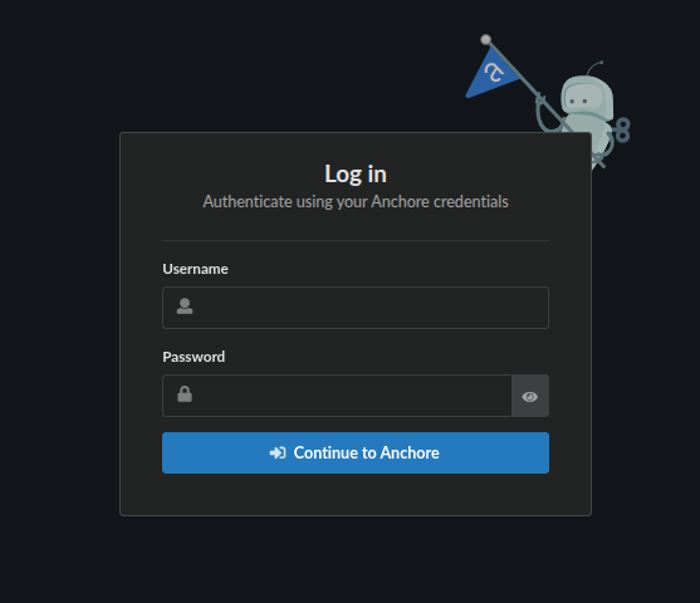
Anchore Enterprise login page.
From there you can login using the secret you set for the admin user.
Anchore Enterprise Feeds
It can take a few minutes to fetch all of the vulnerability feeds from the Anchore Data Service. Check on the status of feeds under System > Health.
AnchoreCTL
To access the Anchore API via CLI, see Deploying AnchoreCTL to get started with anchorectl
3.2 - Deploying Anchore Enterprise on Amazon EKS
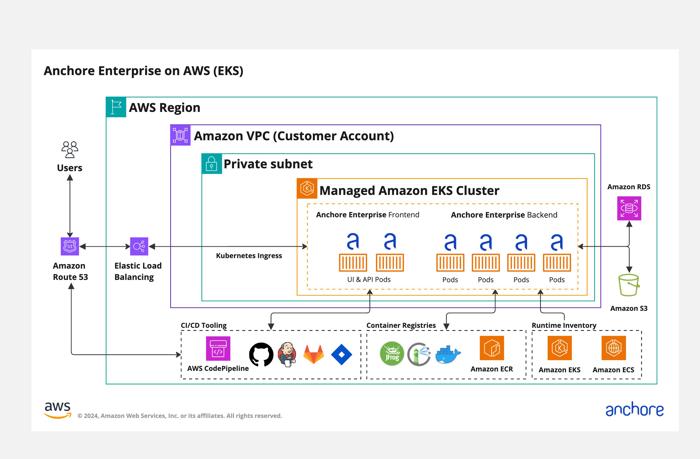
This section provides information on how to deploy Anchore Enterprise onto Amazon EKS. Here is the recommended architecture on AWS EKS:
AWS EKS deployment architecture.
Prerequisites
You’ll need a running Amazon EKS cluster with worker nodes. See EKS Documentation for more information on this setup.
Once you have an EKS cluster up and running with worker nodes launched, you can verify it using the following command:
$ kubectl get nodes
NAME                             STATUS   ROLES    AGE   VERSION
ip-192-168-2-164.ec2.internal    Ready    <none>   10m   v1.30.3-eks-a737599
ip-192-168-35-43.ec2.internal    Ready    <none>   10m   v1.30.3-eks-a737599
ip-192-168-55-228.ec2.internal   Ready    <none>   10m   v1.30.3-eks-a737599
To deploy the Anchore Enterprise services, you’ll then need the Helm client installed on your local host. Anchore maintains a Helm chart to simplify the software deployment process.
To make the necessary configurations to the Helm chart, create a custom anchore_values.yaml file and reference it during deployment. There are many options for configuration with Anchore Enterprise. The following is intended to cover the recommended changes for successfully deploying Anchore Enterprise on Amazon EKS.
Configuration
The following configurations should be used when deploying on EKS.
Amazon RDS for PostgreSQL
Anchore Enterprise 6.x requires an external PostgreSQL 17 database with the pg_cron extension; the chart no longer ships a bundled PostgreSQL. On AWS, Anchore strongly recommends Amazon RDS for PostgreSQL as a managed, isolated database service, so the database can scale independently of your cluster workloads. It is suggested to allow the storage to automatically increase as needed.
For details on configuring an external database in the chart, see the chart External Database documentation and the Provision the Database section of the main Helm deployment guide.
Amazon RDS is the strongly recommended database for Anchore Enterprise on EKS. If you cannot use RDS, you can instead run PostgreSQL in-cluster with CloudNativePG, or use any PostgreSQL 17+ instance you manage yourself — provided it has the pg_cron extension enabled and configured as described below.
Enable pg_cron
Anchore Enterprise 6.x requires the pg_cron extension. On Amazon RDS, enable it as follows:
In the DB parameter group attached to your instance, add pg_cron to the shared_preload_libraries parameter.
Set the cron.database_name parameter to your Anchore database name (for example, anchore).
Reboot the instance so the static parameters take effect.
Connect to the Anchore database and create the extension, then grant the Anchore user access to the cron schema:
RDS enables the PostgreSQL background workers that pg_cron needs by default. Confirm your instance class provides sufficient max_worker_processes for your workload. See the AWS guide on scheduling maintenance with pg_cron.
S3 Object Storage
Anchore Enterprise can use S3 as its external object store, offloading large objects — SBOM documents, analysis archives, and other analysis data — out of the database. This reduces database size and total cost of ownership. See the Amazon S3 object store configuration for details. Consider using the iamauto: True option to use IAM roles for access to S3.
When you use an external object store alongside the database, the two hold a single logical dataset and must be backed up together at the same point in time to stay consistent. AWS Backup can protect the RDS database and the S3 bucket together as a coordinated, point-in-time backup. Backing up an S3 bucket with AWS Backup requires S3 Versioning to be enabled on the bucket; adding a lifecycle rule to expire old noncurrent versions is recommended to control storage cost. For the general requirement, see External Object Store.
PVCs
Anchore Enterprise by default uses ephemeral storage for pods, but we recommend configuring Analyzer scratch space, at a minimum. See Scratch Space configuration for further details.
Anchore generally recommends providing EBS-backed storage for analyzer scratch of the gp3 type. Note that you will need to follow the AWS guide on storing K8s volumes with Amazon EBS. Once the CSI driver is configured for your cluster, configure your Helm chart with values similar to this:
analyzer:scratchVolume:details:ephemeral:volumeClaimTemplate:metadata:{}spec:accessModes:- ReadWriteOnceresources:requests:# must be 3xANCHORE_MAX_COMPRESSED_IMAGE_SIZE_MB + analyzer_cache_size# Setting this to 100G would mean the largest image you can scan is 30G (not counting analysis cache if you choose to configure that)storage:100Gi# this would refer to whatever your storage class was namedstorageClassName:"gp3"
We also suggest using a vanity domain (anchore.mydomain.com in the example below) over TLS with Route 53 and ACM; however, this goes beyond the scope of this document.
If your load balancer or reverse proxy terminates TLS on behalf of Anchore Enterprise, you should set enable_ssl and enable_proxy to True in the Enterprise UI configuration. Without these settings, the UI may not correctly detect the HTTPS connection, which could result in unexpected behavior with session cookies and authentication. For more details, see Enterprise UI Configuration.
Here is a sample manifest for use with the AWS LBC or EKS Auto Mode ALB ingress:
ingress:enabled:trueapiPaths:- /v2/- /version/uiPath:/ingressClassName:albannotations:# See https://github.com/kubernetes-sigs/aws-load-balancer-controller/blob/main/docs/guide/ingress/annotations.md for further customization of annotationsalb.ingress.kubernetes.io/scheme:internet-facing# If you do not plan to bring your own hostname (i.e. use the AWS supplied CNAME for the load balancer) then you can leave apiHosts & uiHosts as empty lists:#apiHosts: []#uiHosts: []# If you plan to bring your own hostname then you'll likely want to populate them as follows:apiHosts:- anchore.mydomain.comuiHosts:- anchore.mydomain.com
There are alternative ways to access services within your EKS cluster besides LBC ingress.
You must also configure/change the following from ClusterIP to NodePort:
Anchore Enterprise API Service
# Pod configuration for the Anchore Enterprise API service.api:# kubernetes service configuration for anchore external APIservice:type:NodePortport:8228annotations:{}
Anchore Enterprise UI Service
ui:# kubernetes service configuration for anchore UIservice:type:NodePortport:80annotations:{}sessionAffinity:ClientIP
Amazon ALB Parameters
Users of ALB may want to align the timeout between gunicorn and ALB. The AWS ALB connection idle timeout defaults to 60 seconds. The Anchore Enterprise Helm chart has a timeout setting that defaults to 5 seconds, which should be aligned with the ALB timeout setting. Sporadic HTTP 502 errors may be emitted by the ALB if the timeouts are not in alignment. See this reference.
Change timeout_keep_alive from 5 to 65 to align with the ALB’s default timeout of 60.
anchoreConfig:server:timeout_keep_alive:65
Install Anchore Enterprise
Deploy Anchore Enterprise by following the instructions in the main Helm deployment guide, using the RDS database and anchore_values.yaml customizations described above.
Verify Ingress
Run the following command for details on the deployed ingress resource using the ELB:
$ kubectl describe ingress
Name: anchore-enterprise
Namespace: default
Address: xxxxxxx-default-anchoreen-xxxx-xxxxxxxxx.us-east-1.elb.amazonaws.com
Default backend: default-http-backend:80 (<none>)Rules:
Host Path Backends
---- ---- --------
*
/v2/* anchore-enterprise-api:8228 (192.168.42.122:8228) /* anchore-enterprise-ui:80 (192.168.14.212:3000)Annotations:
alb.ingress.kubernetes.io/scheme: internet-facing
kubernetes.io/ingress.class: alb
Events:
Type Reason Age From Message
---- ------ ---- ---- -------
Normal CREATE 14m alb-ingress-controller LoadBalancer 904f0f3b-default-anchoreen-d4c9 created, ARN: arn:aws:elasticloadbalancing:us-east-1:077257324153:loadbalancer/app/904f0f3b-default-anchoreen-d4c9/4b0e9de48f13daac
Normal CREATE 14m alb-ingress-controller rule 1 created with conditions [{ Field: "path-pattern", Values: ["/v2/*"]}] Normal CREATE 14m alb-ingress-controller rule 2 created with conditions [{ Field: "path-pattern", Values: ["/*"]}]
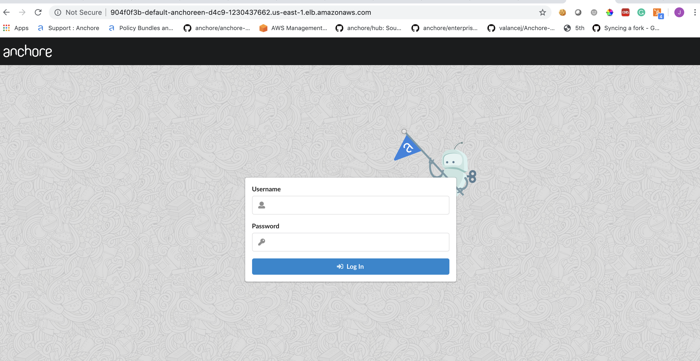
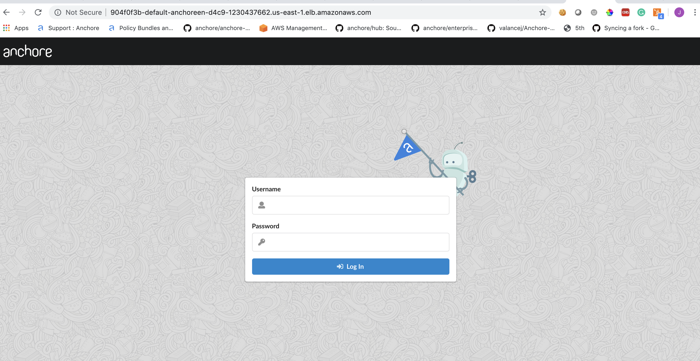
The output above shows that an ELB has been created. Next, try navigating to the specified URL in a browser:
Anchore Enterprise login page.
Verify Anchore Enterprise Service Status
Check the status of the system with AnchoreCTL to verify all of the Anchore Enterprise services are up:
ANCHORECTL_URL=http://xxxxxx-default-anchoreen-xxxx-xxxxxxxxxx.us-east-1.elb.amazonaws.com ANCHORECTL_USERNAME=admin ANCHORECTL_PASSWORD=<ADMIN_PASSWORD> anchorectl system status
3.3 - Deploying Anchore Enterprise on Google Kubernetes Engine (GKE)
Get an understanding of deploying Anchore Enterprise on a Google Kubernetes Engine (GKE) cluster and exposing it on the public internet.
When using Google Cloud, use Cloud SQL for PostgreSQL as a managed database service. Anchore Enterprise 6.x requires an external PostgreSQL 17 database with the pg_cron extension.
Prerequisites
A running GKE cluster with worker nodes launched. See GKE Documentation for more information on this setup.
An external PostgreSQL 17 database with the pg_cron extension. See Cloud SQL for PostgreSQL below.
Once you have a GKE cluster up and running with worker nodes launched, you can verify it by using the following command:
$ kubectl get nodes
NAME                                                STATUS   ROLES    AGE   VERSION
gke-standard-cluster-1-default-pool-c04de8f1-hpk4   Ready    <none>   78s   v1.30.3-gke.1639000
gke-standard-cluster-1-default-pool-c04de8f1-m03k   Ready    <none>   79s   v1.30.3-gke.1639000
gke-standard-cluster-1-default-pool-c04de8f1-mz3q   Ready    <none>   78s   v1.30.3-gke.1639000
Anchore Enterprise Helm Chart
Anchore maintains a Helm chart to simplify the software deployment process. An Anchore Enterprise deployment of the chart includes the following:
Anchore Enterprise software
Redis (7 or higher)
As of Anchore Enterprise 6.0, the chart no longer includes a bundled PostgreSQL database. You must provision an external PostgreSQL 17 database with the pg_cron extension. See Cloud SQL for PostgreSQL below.
To make the necessary configurations to the Helm chart, create a custom anchore_values.yaml file and reference it during deployment. There are many options for configuration with Anchore Enterprise. The following is intended to cover the minimum required changes to successfully deploy Anchore Enterprise on Google Kubernetes Engine.
For production deployments, Anchore recommends a cloud-provider managed database over running PostgreSQL in-cluster. On Google Cloud, use Cloud SQL for PostgreSQL. We suggest selecting a storage option that allows for automatic size increase and setting max_connections to at least 2,000.
Refer to the chart External Database documentation for the values-file settings needed to connect Anchore Enterprise to Cloud SQL.
Cloud SQL is a recommendation, not a requirement. You can instead run PostgreSQL in-cluster with CloudNativePG, or use any PostgreSQL 17+ instance you manage yourself — provided it has the pg_cron extension enabled and configured as described below.
Enable pg_cron
Anchore Enterprise 6.x requires the pg_cron extension. On Cloud SQL for PostgreSQL, enable it as follows:
Set the cloudsql.enable_pg_cron database flag to on. This requires an instance restart.
Make the following changes to your anchore_values.yaml.
Ingress
ingress:enabled:trueapiPaths:- /v2/*uiPath:/*
Configuring ingress is optional. It is used throughout this guide to expose the Anchore Enterprise deployment on the public internet.
If your load balancer or reverse proxy terminates TLS on behalf of Anchore Enterprise, you should set enable_ssl and enable_proxy to True in the Enterprise UI configuration. Without these settings, the UI may not correctly detect the HTTPS connection, which could result in unexpected behavior with session cookies and authentication. For more details, see Enterprise UI Configuration.
Anchore Enterprise API Service
api:replicaCount:1# kubernetes service configuration for anchore external APIservice:type:NodePortport:8228annotations:{}
Changed the service type to NodePort.
Anchore Enterprise UI
ui:# kubernetes service configuration for anchore UIservice:type:NodePortport:80annotations:{}sessionAffinity:ClientIP
Changed the service type to NodePort.
Anchore Enterprise Deployment
Create Secrets
Enterprise services require an Anchore Enterprise license, as well as credentials with permission to access the private Docker Hub repository containing the enterprise software.
Create a Kubernetes secret containing your license file:
ANCHORECTL_URL=http://34.96.64.148 ANCHORECTL_USERNAME=admin ANCHORECTL_PASSWORD=<ADMIN_PASSWORD> anchorectl system status
Anchore Enterprise Feeds
It can take some time to fetch all of the vulnerability feeds from the upstream data sources. Check on the status of feeds with AnchoreCTL:
ANCHORECTL_URL=http://34.96.64.148 ANCHORECTL_USERNAME=admin ANCHORECTL_PASSWORD=<ADMIN_PASSWORD> anchorectl feed list
It is not uncommon for the above command to return [] while the initial feed sync occurs.
Once the vulnerability feed sync is complete, Anchore Enterprise can begin to return vulnerability results on analyzed images. Please continue to the Vulnerability Management section of our documentation for more information.
3.4 - Deploying Anchore Enterprise on OpenShift
This document walks through the deployment of Anchore Enterprise on an OpenShift 4.x cluster and exposes it on the public internet.
An external PostgreSQL 17 database with the pg_cron extension. See Provision the Database below.
Anchore Enterprise Helm Chart
Anchore maintains a Helm chart to simplify the software deployment process. An Anchore Enterprise installation of the chart includes the following:
Anchore Enterprise software
Redis (7 or higher)
As of Anchore Enterprise 6.0, the chart no longer includes a bundled PostgreSQL database. You must provision an external PostgreSQL 17 database with the pg_cron extension. See Provision the Database below.
To make the necessary configurations to the Helm chart, create a custom anchore_values.yaml file and reference it during deployment. There are many options for configuration with Anchore Enterprise; this document is intended to cover the minimum required changes to successfully deploy Anchore Enterprise on OpenShift.
Provision the Database
Anchore Enterprise 6.x requires a PostgreSQL 17 database with the pg_cron extension. On OpenShift, provision this with either:
A cloud-provider managed database (for example, Amazon RDS if running OpenShift on AWS). See the Enable pg_cron steps in the EKS guide.
Any other PostgreSQL 17+ instance you manage yourself, provided it has the pg_cron extension enabled.
The pg_cron extension is not included in the default PostgreSQL container images. When running PostgreSQL in-cluster, you must build and host a PostgreSQL 17 image that includes it.
OpenShift Configurations
Create a New Project
Create a new project called anchore-enterprise:
oc new-project anchore-enterprise
Create Secrets
Two secrets are required for an Anchore Enterprise deployment.
Verify these secrets are in the correct namespace (anchore-enterprise):
oc describe secret <secret-name>
Link ImagePullSecret
Link the above Docker registry secret to the default service account:
oc secrets link default anchore-enterprise-pullcreds --for=pull --namespace=anchore-enterprise
Verify this by running the following:
oc describe sa
Validate your OpenShift SCC. Based on the security constraints of your environment, you may need to change the SCC: oc adm policy add-scc-to-user anyuid -z default.
Anchore Enterprise Configurations
Create a custom anchore_values.yaml file for your Anchore Enterprise deployment. Configure the connection to your external PostgreSQL 17 database, and relax the security contexts as needed for OpenShift:
# NOTE: This is not a production-ready values file for an OpenShift deployment.securityContext:fsGroup:nullrunAsGroup:nullrunAsUser:null# Connection details for your external PostgreSQL 17 (with pg_cron) databasepostgresql:externalEndpoint:<DB_HOSTNAME>auth:username:<DB_USERNAME>password:<DB_PASSWORD>database:<DB_NAME>port:5432ui-redis:master:podSecurityContext:enabled:falsecontainerSecurityContext:enabled:false
Install Software
Run the following commands to install the software:
PostgreSQL is not listed because it runs externally.
Create Route Objects
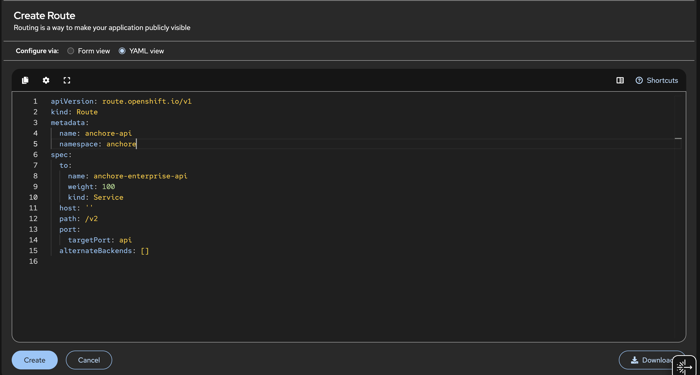
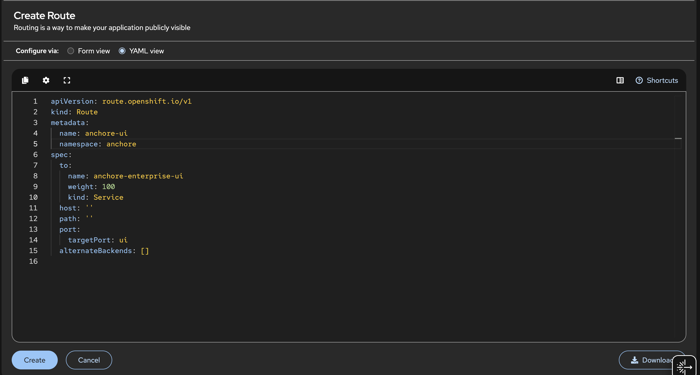
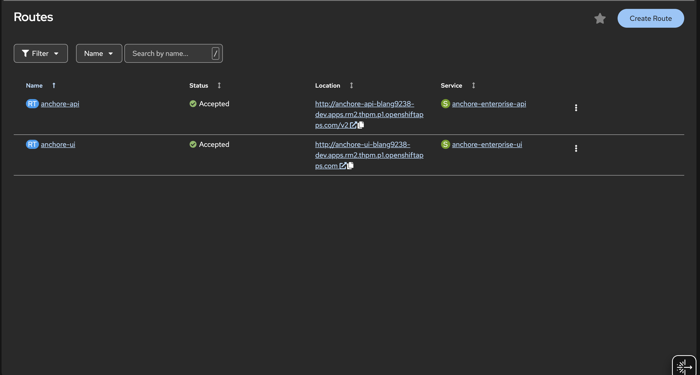
Create two route objects in the OpenShift console to expose the UI and API services on the public internet:
Route configuration is optional. It is used throughout this guide to expose the Anchore Enterprise deployment on the public internet.
If your route or reverse proxy terminates TLS on behalf of Anchore Enterprise, you should set enable_ssl and enable_proxy to True in the Enterprise UI configuration. Without these settings, the UI may not correctly detect the HTTPS connection, which could result in unexpected behavior with session cookies and authentication. For more details, see Enterprise UI Configuration.
API Route
Route configuration for the API service.
UI Route
Route configuration for the UI service.
Routes
Configured routes for the deployment.
Verify by navigating to the anchore-enterprise-ui route hostname. You should see the Anchore Enterprise login page.
Anchore Enterprise System
First, retrieve the admin password. This is stored as a secret during the helm install process:
You can customize your Helm anchore_values.yaml file to use an existing/custom secret rather than have Helm generate one for you with a generated password.
ANCHORECTL_URL=http://<anchore-api-anchore.apps.rm2.thpm.p1.openshiftapps.com> \
  ANCHORECTL_USERNAME=admin \
  ANCHORECTL_PASSWORD=<ADMIN_PASSWORD> \
  anchorectl system status
Anchore Enterprise Vulnerability Data
Anchore Enterprise has a datasyncer service that pulls the vulnerability and other data sources, such as the ClamAV malware database, into your Anchore Enterprise deployment. You can check on the status of these feeds using AnchoreCTL:
ANCHORECTL_URL=http://<anchore-ui-anchore.apps.rm2.thpm.p1.openshiftapps.com> \
  ANCHORECTL_USERNAME=admin \
  ANCHORECTL_PASSWORD=<ADMIN_PASSWORD> \
  anchorectl feed list
Please continue to the Vulnerability Management section of our documentation for more information about Vulnerability Management within Anchore Enterprise.
3.5 - Deploy Air-Gapped using Helm
Anchore Enterprise can run in an air-gapped Kubernetes cluster with no outbound internet access. The air-gapped-specific work is getting the Helm chart and container images into a registry reachable from the cluster: you pull and package them on an internet-connected system, then move the tarball to the destination network(s). Once the chart and images are in place, deployment follows the standard Kubernetes with Helm procedure.
Throughout this guide, the low side is the internet-facing system and the high side is the air-gapped cluster.
Configure Air-Gapped Feed Handling
Anchore Enterprise syncs vulnerability feed data from the Anchore Data Service automatically. In an air-gapped cluster this sync cannot reach the internet, so before deploying you must disable the Data Syncer’s automatic feed sync in your values file, and plan to download and import feed bundles manually with AnchoreCTL once the deployment is running. Both steps are described in Air-Gapped Feed Configuration.
Until you complete the air-gapped feed configuration, you will not be able to upload feed bundles into the system, and the deployment will have no vulnerability data.
Prerequisites
Low side (internet-facing) — Helm v3.8 or above and the Docker static binary, used only to pull and package the chart and images.
Low side (internet-facing) — Docker or Podman, if you are running PostgreSQL in-cluster with CloudNativePG and need to build the pg_cron-enabled image.
High side (air-gapped) — A Kubernetes cluster, kubectl, and Helm v3.8 or above, used to run Anchore Enterprise. See Prerequisites on the main Helm page for supported Kubernetes versions.
A private container registry reachable from every node in the cluster. Unlike Docker Compose, Kubernetes has no cluster-wide equivalent of docker load, so a registry is required for any deployment beyond a single-node test cluster. See Option 2 below for a node-local fallback on small clusters.
An external PostgreSQL 17 database with the pg_cron extension, provisioned as described in Provision the Database. If you are running PostgreSQL in-cluster with CloudNativePG, the custom pg_cron image you build in that section is pushed to a registry of your choosing, so that step is already air-gap-friendly.
Note the CHART VERSION column from the output — this is different from the Anchore Enterprise application version (v6.2.2) and is what helm pull expects below.
The chart’s kubectlImage (bitnamilegacy/kubectl:1.30) is only used by the osaaMigrationJob and upgradeJob during major-version upgrades, not by a fresh install. If you plan to perform a major-version upgrade later, pull and mirror this image at that time.
If you are running PostgreSQL in-cluster with CloudNativePG, the operator itself also needs mirroring — its chart and operator image are not part of the Anchore chart:
a. Add the CNPG chart repository and find its current version:
e. Save cnpg-cluster.yaml now too, using the full example in Create the PostgreSQL cluster on the main Helm page as your starting point. Leave imageName as a placeholder for now — you’ll fill in the actual <registry> reference on the high side in Install CloudNativePG and Provision the Database below, once the image has actually been pushed there.
Include the CNPG chart archive, both images, and cnpg-cluster.yaml with everything else when you save and transfer them below — there is no direct network path from the low side to the high side’s registry, so they all have to travel together.
Move the Chart and Images to the High Side
Choose one of the following. A private container registry is the recommended path for the images; use node-local import only if no registry is reachable from the cluster.
Re-tag the images for your private registry, replacing <registry> with your registry domain (for example, core.harbor.domain):
docker tag docker.io/anchore/enterprise:v6.2.2 \
<registry>/anchore/enterprise:v6.2.2
docker tag docker.io/anchore/enterprise-ui:v6.2.0 \
<registry>/anchore/enterprise-ui:v6.2.0
docker tag docker.io/redis:7.4.6 <registry>/redis:7.4.6
# If using CNPG in-cluster (step 4 above), also re-tag the operator image:docker tag ghcr.io/cloudnative-pg/cloudnative-pg:<operator-version> \
<registry>/cloudnative-pg/cloudnative-pg:<operator-version>
# If mirroring bitnamilegacy/kubectl:1.30 for a future upgrade, re-tag that too
The postgresql-pgcron image needs no separate re-tag step — build it directly against the same <registry> value you’re using here (docker build -t <registry>/postgresql-pgcron:17 .), as shown in step 4d above.
Save the tagged images to a tarball, and transfer it — along with enterprise-${CHART_VERSION}.tgz, cloudnative-pg-${CNPG_CHART_VERSION}.tgz and cnpg-cluster.yaml (if using CNPG), and your license.yaml — to the high side. There is no direct network path between the low side and the high side’s registry, so this tarball, moved across the air gap by whatever transfer process your organization uses, is how everything gets there:
# Low sidedocker save -o anchore-airgap-images.tar \
<registry>/anchore/enterprise:v6.2.2 \
<registry>/anchore/enterprise-ui:v6.2.0 \
<registry>/redis:7.4.6
# <registry>/cloudnative-pg/cloudnative-pg:<operator-version> \ # if using CNPG in-cluster# <registry>/postgresql-pgcron:17 \ # if using CNPG in-cluster# <registry>/bitnamilegacy/kubectl:1.30 # if mirroring for a future upgrade# High side, after transferring anchore-airgap-images.tar, enterprise-${CHART_VERSION}.tgz,# cloudnative-pg-${CNPG_CHART_VERSION}.tgz, and license.yaml acrossdocker load -i anchore-airgap-images.tar
Push the loaded images to your private registry from the high side:
For small or single-node clusters with no registry available, images can be imported directly into each node’s container runtime instead — for example with ctr images import (containerd), crictl on nodes where it supports import, or a distribution-specific helper such as k3s ctr images import. Save the images as in step 2 above, transfer the tarball to every node, and import it there.
This must be repeated on every node in the cluster, and again whenever a node is replaced or the cluster scales out, since the images are not shared across nodes. A private registry is strongly preferred for anything beyond a small, static cluster.
Push the Chart to an Internal Helm Repository or GitOps Source
If you use GitOps tooling (ArgoCD, Flux) or otherwise deploy from your own internal Helm repository on the high side, transferring the .tgz to a bastion host is not enough on its own — GitOps controllers pull charts from a repository URL declared in a manifest, not from a local file. Push the chart there from the low side, or from any system that can reach it:
OCI registry (Harbor, Artifactory, Amazon ECR, Azure ACR, Google Artifact Registry, and most modern registries support OCI Helm charts):
Traditional Helm chart repository (for example ChartMuseum, or a generic Artifactory Helm repo): upload enterprise-${CHART_VERSION}.tgz per that repository’s own process, then regenerate its index if required (helm repo index).
Reference oci://<registry>/charts/enterprise (or your chart repository URL) and chartVersion: ${CHART_VERSION} in your ArgoCD Application or Flux HelmRelease, alongside the image overrides described below.
Deploy on the High Side
Besides the images, the air-gapped cluster needs enterprise-${CHART_VERSION}.tgz and your license.yaml available to kubectl/helm — or, if you pushed the chart to an internal repository above, its OCI/chart-repo reference available to your GitOps controller. Create the namespace and license secret exactly as described in Install the Chart on the main Helm page.
Create the image pull secret for your private registry instead of Docker Hub:
If you are running PostgreSQL in-cluster with CloudNativePG, install the operator and create the database now, before installing Anchore Enterprise — the values file below needs the resulting database endpoint.
Install the operator from the local chart archive, pointing its image at your private registry instead of ghcr.io:
If your registry requires authentication for pulls, also create an equivalent pull secret in the cnpg-system namespace and pass --set image.pullSecrets[0].name=<secret-name> above.
Then update the imageName field in the cnpg-cluster.yaml you brought over from the low side (see step 4e in Prepare the Chart and Images), now that the image has actually been pushed to your registry:
spec:imageName:<registry>/postgresql-pgcron:17
Apply it and wait for the cluster to report ready — the anchore-pg-rw service it creates is what you’ll use as postgresql.externalEndpoint in the Anchore values file below:
Point every image at your air-gapped registry in anchore_values.yaml, in addition to the database and license/pull-secret settings described in Install the Chart on the main Helm page:
licenseSecretName:anchore-enterprise-licenseimagePullSecretName:anchore-enterprise-pullcredsimage:<registry>/anchore/enterprise:v6.2.2ui:image:<registry>/anchore/enterprise-ui:v6.2.0ui-redis:image:registry:<registry>repository:redistag:7.4.6pullSecrets:- anchore-enterprise-pullcredspostgresql:externalEndpoint:<DB_HOSTNAME> # e.g. anchore-pg-rw.anchore.svc if using CNPG above, or your managed DB endpointauth:username:<DB_USERNAME>password:<DB_PASSWORD>database:<DB_NAME>port:5432
If you plan a future major-version upgrade of this air-gapped deployment, also mirror and set kubectlImage to your registry at that time. It is not used during a fresh install.
Install from the local chart archive rather than the chart repository, since the high side cannot reach charts.anchore.io:
If you pushed the chart to an internal OCI registry or Helm repository instead, install from that reference — or configure your GitOps controller to do so — rather than the local file:
The Anchore Enterprise Cloud Image (AECI) is a fully functional machine image with an Anchore Enterprise deployment that
is pre-configured with the goal of simplifying deployment complexity for our end users.
Anchore Enterprise Cloud Image is currently available for users of Amazon Web Services only. AECI 6.x is expected to be released in the coming weeks
All /v2 API endpoints referenced throughout our documentation are accessed via /api/v2 when using AECI.
AECI contains a proprietary tool known as Cloud Image Manager. It allows users to manage their deployment by providing an easy way to install, configure and upgrade. For more information about the Cloud Image
Manager, see the Cloud Image Manager.
To get started with deploying Anchore Enterprise Cloud Image, please see AECI - AWS.
Supported Limits
The Cloud Image has the following limits, independent of instance type:
10,000 Image SBOMs
Max Image Size is 10 GB
300 Report Executions
100 System Users
Non-supported Features
The Cloud Image does not currently support the following Anchore Enterprise features:
Air-gapped Deployment
Runtime Inventory
Application Groups and Source Code Analysis
Windows Image Analysis
Legacy Image Archive
To discuss further, contact Anchore Customer Success.
The baseline supported instance type on Amazon Web Services is the r7a.xlarge. This gives the best mix of
performance to cost for running Anchore Enterprise in alignment with the supported system limits.
Cloud Image Manager will not enforce the use of this instance type but will check for the minimum resources needed to run the software. If you would like to use a different instance type, please contact Anchore Customer Success for further guidance.
For more information on Amazon EC2 Instance types Please review the following links
Memory Requirement - Anchore Enterprise Cloud Image (AECI) requires a minimum of 32 GB of memory to operate.
Disk Requirement - AECI requires a minimum of 128 GB of disk space for root volume and 1 TB for data volume to operate.
Note: The data volume by default will not delete on termination of your AMI.
CPU Requirement - AECI requires a minimum of 4 vCPU to operate.
License
The Anchore Enterprise Cloud Image requires a valid license entitlement to operate. The license is provided by Anchore during the purchase process. The license file is required to be uploaded via the Cloud Image Manager during the initial setup. Please have it available before starting the installation process.
EC2 Key Pair Type
Anchore Enterprise Cloud Image is running with FIPS enabled. When creating your Key Pair, you must use an RSA key. The ED25519 key will be rejected as a non-FIPS-compliant algorithm.
A quick Demo on getting started with Anchore Enterprise Cloud Image
Once the instance is launched, please review the Cloud Image Manager documentation for the next steps on
Accessing the Cloud Image Manager. The Cloud Image Manager will walk you through the preflight checks, configuration,
and management of your Anchore Enterprise Cloud Image deployment.
Operations
With AECI up and running, there is some limited feeding and watering required. You’ll want to consider the following activities:
Backups
It is important that you have a backup and restore strategy in place to protect your data. Cloud Image Manager will prompt you to create a snapshot prior to upgrading your Anchore Enterprise Cloud Image or
expanding your disks. It is also reasonable for you to consider using AWS Backup and/or creating snapshots of your EBS volume on a regular basis:
During the course of using the product, you may wish to expand the size of your disks. It is strongly recommended
that you create a snapshot of your EBS volume prior to expanding your disks.
Once you have expanded your disk, you will need to resize the filesystem to take advantage of the additional space.
Cloud Image Manager provides a utility to resize the filesystem. Please refer to the Cloud Image Manager
Configuration Disk Expansion for more information.
Upgrade
Occasionally, Anchore will release updates to the Anchore Enterprise Cloud Image and the subsequent version of Anchore Enterprise shipped with it. For the upgrade procedure and how to prepare, see Upgrade the Cloud Image.
Getting Support
During operation of Anchore Enterprise Cloud Image, you may require support from Anchore Customer Success. The
Cloud Image Manager provides you with a seamless way to generate a support bundle and upload it to Anchore.
The Cloud Image Manager is a proprietary tool that allows users to seamlessly manage their Anchore Enterprise
Cloud Image deployments. It walks users through the process of installing, configuring, and upgrading their
Anchore Enterprise Cloud Image deployment.
Best Practices
The Cloud Image Manager uses Textual (a TUI framework for Python) to provide
a terminal-based interface. For your best user experience, please use the following terminal emulators
when connecting to the Cloud Image Manager.
Note: We recommend against using the default macOS Terminal application as it may not render the TUI correctly. For more
information on why, please see Textual FAQ.
Access the Cloud Image Manager
After your instance is launched, you can access the Cloud Image Manager by connecting to the instance via SSH.
Using your private key file used for authentication (likely generated when setting up the instance) and the
public IP address of the instance, connect using the following example command:
Permissions on key file - If you get a WARNING: UNPROTECTED PRIVATE KEY FILE error, fix it by setting the
correct permissions on your key file. Run the following command to set the correct permissions:
chmod 400 ~/my-keypair.pem
Connection Issues - If you experience a Connection Timeout or Host Unreachable error, verify that the instance
is running and that the security group allows SSH traffic on port 22.
You should now be connected to the Cloud Image Manager.
Preflight Checks
The Cloud Image Manager will perform a series of preflight checks to ensure that the system is ready for installation.
These checks include ensuring that the machine image has met memory, disk space, and CPU requirements. If the system
does not meet the requirements, the preflight checks will fail and the installation will not proceed.
Initial Install
The Cloud Image Manager will walk you through the initial installation process. At the end of this process, the
Cloud Image Manager will provide you with the URL to access the Anchore Enterprise UI as well as your administrator
credentials.
Upgrade
The Cloud Image Manager will determine if there are any upgrades available for your Anchore Enterprise Cloud Image
deployment. For the upgrade procedure and how to prepare, see Upgrade the Cloud Image.
Configuration
The Cloud Image Manager configuration screen allows the following options:
Adding and updating the Anchore Enterprise License.
Providing any Server Certificates required for TLS access to Anchore Enterprise services.
Providing a custom Root Certificate if one is required for your environment.
Configuring any optional proxy settings required for your environment.
Disk Expansion
Reconfigure Proxy Settings
Changing Proxy settings after completing the installation process currently requires manual intervention for the settings to be fully applied.
If you must change the Proxy settings, please contact customer support for assistance.
Expand Disks
The Cloud Image Manager provides a utility to expand the root and data volumes once your virtual hard disk has been
increased in size. This step is necessary to take advantage of the additional space. The Cloud Image Manager will
shut down Anchore Enterprise during this operation. It is highly recommended that you take a snapshot of your EBS
volume prior to any operation that may modify your disk volumes.
System Status
The Cloud Image Manager provides a system status screen that shows the current service and container status
of the Anchore Enterprise services.
It also provides the list of currently deployed versions of Anchore Enterprise, Anchore Enterprise UI as well as
the other infrastructure components that are automatically deployed within the Anchore Enterprise Cloud Image.
Support
The Cloud Image Manager provides a support screen that allows you to:
Generate a support bundle. This will result with the location of the support bundle.
Upload a generated support bundle. This will be automatically uploaded to Anchore. You must create a support
ticket and provide the Support Bundle ID and Filename to the support team.
As part of the Cloud Image deployment, you have access to Grafana data that is collected for your deployment.
This data can be used to monitor the health of your deployment. The Cloud Image Manager provides a link and
credentials to access the Grafana dashboard.
5 - Deploying AnchoreCTL
AnchoreCTL is the CLI binary that lets you manage and inspect every aspect of your Anchore Enterprise deployment via the Anchore Enterprise API.
It can be utilized as an interactive CLI tool for manual administration and inspection, or as a streamlined automation tool for CI/CD pipelines.
Installation
AnchoreCTL’s major and minor release version coincides with the release version of Anchore Enterprise, however patch versions may differ. For example,
Enterprise v6.2.2
AnchoreCTL v6.2.3
AnchoreCTL should be version-aligned with Anchore Enterprise for major/minor releases. Please refer to the Enterprise Release Notes for the supported version of AnchoreCTL.
The AnchoreCTL bundle can be downloaded directly from Anchore or from your local Anchore Enterprise Deployment.
To download a specific version directly from Anchore, you may swap 6.2.3 for the version you need. You can verify the version of your AnchoreCTL with anchorectl --version.
The following examples can be used to quickly install AnchoreCTL to your local system.
NOTE: Some of these examples add a directory to your PATH. Your method may vary depending on your environment.
Linux
Intel/AMD64
# Directly from Anchoremkdir -p ~/.local/bin
curl -o anchorectl.tar.gz -L "https://anchorectl-releases.anchore.io/anchorectl/v6.2.3/anchorectl_6.2.3_linux_amd64.tar.gz"&&\
tar -xvf anchorectl.tar.gz -C ~/.local/bin/ anchorectl
anchorectl --version
# From your local Anchore deploymentANCHORE_URL="anchore.my-domain.com"mkdir -p ~/.local/bin
curl -o anchorectl.tar.gz -X GET "https:/$ANCHORE_URL/v2/system/anchorectl?operating_system=linux&architecture=amd64" -H "accept: */*"&&\
tar -zxf anchorectl.tar.gz -C ~/.local/bin anchorectl
anchorectl --version
MacOS
These examples use ~/.local/bin as the binary path which can be used by a non-privileged user but isn’t standard on MacOS. You may use the best configuration for your environment.
Intel/AMD64
# Directly from Anchoremkdir -p ~/.local/bin
curl -o anchorectl.tar.gz -L "https://anchorectl-releases.anchore.io/anchorectl/v6.2.3/anchorectl_6.2.3_darwin_amd64.tar.gz"&&\
tar -xf anchorectl.tar.gz -C ~/.local/bin anchorectl
# Include in your PATHexport PATH="$HOME/.local/bin:$PATH"# Consider adding to your ~/.zshrc for permanent usageanchorectl --version
# From your local Anchore deploymentANCHORE_URL="anchore.my-domain.com"mkdir -p ~/.local/bin
curl -o anchorectl.tar.gz -X GET "https://$ANCHORE_URL/v2/system/anchorectl?operating_system=darwin&architecture=amd64" -H "accept: */*"&&\
tar -zxf anchorectl.tar.gz -C ~/.local/bin anchorectl
# Include in your PATHexport PATH="$HOME/.local/bin:$PATH"# Consider adding to your ~/.zshrc for permanent usageanchorectl --version
ARM/M-Series
# Directly from Anchoremkdir -p ~/.local/bin
curl -o anchorectl.tar.gz -L "https://anchorectl-releases.anchore.io/anchorectl/v6.2.3/anchorectl_6.2.3_darwin_arm64.tar.gz"&&\
tar -xf anchorectl.tar.gz -C ~/.local/bin anchorectl
# Include in your PATHexport PATH="$HOME/.local/bin:$PATH"# Consider adding to your ~/.zshrc for permanent usageanchorectl --version
# From your local Anchore deploymentANCHORE_URL="anchore.my-domain.com"mkdir -p ~/.local/bin
curl -o anchorectl.tar.gz -X GET "https://$ANCHORE_URL/v2/system/anchorectl?operating_system=darwin&architecture=arm64" -H "accept: */*"&&\
tar -zxf anchorectl.tar.gz -C ~/.local/bin anchorectl
# Include in your PATHexport PATH="$HOME/.local/bin:$PATH"# Consider adding to your ~/.zshrc for permanent usageanchorectl --version
Windows
Intel/AMD64
# Directly from AnchoreNew-Item -ItemType Directory -Force -Path "$env:USERPROFILE\bin" | Out-Null
Invoke-WebRequest -Uri "https://anchorectl-releases.anchore.io/anchorectl/v6.2.3/anchorectl_6.2.3_windows_amd64.zip" -OutFile "anchorectl.zip"Expand-Archive -Path "anchorectl.zip" -DestinationPath "$env:USERPROFILE\bin" -Force
# Add $USERPROFILE\bin to your user PATH, refresh PATH and test anchorectl[Environment]::SetEnvironmentVariable("Path", "$env:USERPROFILE\bin;" + [Environment]::GetEnvironmentVariable("Path", "User"), "User")
$env:Path = [Environment]::GetEnvironmentVariable("Path", "Machine") + ";" + [Environment]::GetEnvironmentVariable("Path", "User")
anchorectl --version
# From your local Anchore deployment$AnchoreUrl = "https://anchore.my-domain.com"New-Item -ItemType Directory -Force -Path "$env:USERPROFILE\bin" | Out-Null
Invoke-WebRequest -Uri "$AnchoreUrl/v2/system/anchorectl?operating_system=windows&architecture=amd64" -Headers @{ "accept" = "*/*" } -OutFile "anchorectl.zip"Expand-Archive -Path "anchorectl.zip" -DestinationPath "$env:USERPROFILE\bin" -Force
# Add $USERPROFILE\bin to your user PATH, refresh PATH and test anchorectl[Environment]::SetEnvironmentVariable("Path", "$env:USERPROFILE\bin;" + [Environment]::GetEnvironmentVariable("Path", "User"), "User")
$env:Path = [Environment]::GetEnvironmentVariable("Path", "Machine") + ";" + [Environment]::GetEnvironmentVariable("Path", "User")
anchorectl --version
Installation Script
For Linux or MacOS, you have the option of using the automated installation script. Be sure to specify a destination folder by replacing <DESTINATION_DIR>. A specified version is also required.
curl -sSfL https://anchorectl-releases.anchore.io/anchorectl/install.sh | sh -s -- -b <DESTINATION_DIR> v6.2.3
Configuration
After AnchoreCTL has been installed, it will need to be configured. See AnchoreCTL Configuration for details.