This document walks you through the deployment of Anchore Enterprise in an Azure Kubernetes Service (AKS) cluster and exposes it on the public internet.
Prerequisites
- A running AKS cluster with worker nodes launched. See AKS Documentation for more information on this setup.
- Helm client on your local host.
- AnchoreCTL installed on your local host.
- An external PostgreSQL 17 database with the
pg_cronextension. See Azure Database for PostgreSQL below.
pg_cron extension. See Azure Database for PostgreSQL below.Once you have an AKS cluster up and running with worker nodes launched, you can verify it via the following command:
$ kubectl get nodes

NAME                                STATUS   ROLES    AGE   VERSION
aks-agentpool-22798629-vmss000005   Ready    <none>   30h   v1.34.9
aks-agentpool-22798629-vmss000006   Ready    <none>   31h   v1.34.9
Anchore Enterprise Helm Chart Deployment
Anchore maintains a Helm chart to simplify the software deployment process. An Anchore Enterprise deployment of the chart includes the following:
- Anchore Enterprise software
- Redis (7 or higher)
To make the necessary configurations to the Helm chart, create a custom anchore_values.yaml file and reference it during deployment. There are many options for configuration with Anchore Enterprise; this document is intended to cover the minimum required changes to successfully deploy Anchore Enterprise in AKS.
Azure Database for PostgreSQL
For production deployments, Anchore recommends a cloud-provider managed database over running PostgreSQL in-cluster. This ensures the database is isolated from workloads, allowing it to use CPU and memory without contention. We suggest selecting a storage option that allows for automatic size increase.
If you use Azure Database for PostgreSQL Flexible Server, make the following changes in Settings > Server parameters for compatibility with Anchore Enterprise:
pgbouncer.enabled: false — it is very important that this setting be turned off.idle_in_transaction_session_timeout:0max_connections: should be at least 2,000. The default is based on the amount of instance memory. This value may need to be increased for heavier workloads.
Enable pg_cron
Anchore Enterprise 6.x requires the pg_cron extension. On Azure Database for PostgreSQL Flexible Server, pg_cron cannot be loaded with CREATE EXTENSION alone — it must first be added to the server’s preloaded libraries.
Make the following changes in Settings > Server parameters:
azure.extensions: includepg_cronshared_preload_libraries: includepg_croncron.database_name: set to the name of your database (Ex: anchore)
Parameter changes can also be made via the Azure CLI:
az postgres flexible-server parameter set --resource-group <RESOURCE_GROUP> --server-name <SERVER_NAME> --name shared_preload_libraries --value pg_cron
az postgres flexible-server parameter set --resource-group <RESOURCE_GROUP> --server-name <SERVER_NAME> --name azure.extensions --value PG_CRON
az postgres flexible-server parameter set --resource-group <RESOURCE_GROUP> --server-name <SERVER_NAME> --name cron.database_name --value anchore
Restart the server so the parameter changes take affect.
Connect to the database instance (Settings > Connect) and create the database you wish to use for Anchore. Then grant the Anchore user access to the cron schema:
CREATE USER anchore WITH PASSWORD '<YOUR_SECURE_PASSWORD>';
CREATE DATABASE anchore OWNER anchore;
GRANT ALL PRIVILEGES ON DATABASE anchore TO anchore;
\c anchore
CREATE EXTENSION IF NOT EXISTS pg_cron;
GRANT USAGE ON SCHEMA cron TO anchore;
GRANT pg_read_all_settings TO anchore;
Refer to the chart External Database documentation for the values-file settings. Configuring an external database in the chart is essentially the same for RDS or Azure Database for PostgreSQL.
Values for PostgreSQL connection
Your database connection values should be included in your Helm value overrides.
postgresql:
  externalEndpoint: "anchore-aks.postgres.database.azure.com:5432"
  auth:
    username: "anchore_admin"
    database: "anchore"
Ingress Configuration
There are multiple methods in Azure to expose your Anchore Enterprise deployment for access. The example below uses Web App Routing, which provides a more streamlined, low-complexity approach.
Azure Application Gateway Ingress Controller (AGIC) is another viable option that is better suited for a production environment.
ingress:
  enabled: true
  ingressClassName: webapprouting.kubernetes.azure.com
  uiHosts:
    - "anchore-aks.eastus.cloudapp.azure.com"
  apiHosts:
    - "anchore-aks.eastus.cloudapp.azure.com"
  uiPath: /
  apiPaths:
    - /v2/
    - /version
    - /exp
  annotations:
    nginx.ingress.kubernetes.io/proxy-body-size: "0"
enable_ssl and enable_proxy to True in the Enterprise UI configuration. Without these settings, the UI may not correctly detect the HTTPS connection, which could result in unexpected behavior with session cookies and authentication. For more details, see Enterprise UI Configuration.Create Namespace and Required Secrets
When configuring the deployment with existing secrets (useExistingSecrets: true), all required secrets must be pre-created in the cluster before installing the Helm chart.
First, create the target namespace:
kubectl create namespace anchore
Next, create the individual secrets for registry credentials, licensing, database authentication, core service environment variables, and UI environment variables:
- Image pull credentials for private Anchore Enterprise registry
kubectl create secret docker-registry anchore-enterprise-pullcreds \
  --docker-server=docker.io \
  --docker-username='<DOCKERHUB_USERNAME>' \
  --docker-password='<DOCKERHUB_PAT_OR_PASSWORD>' \
  -n anchore
- Anchore Enterprise license file
kubectl create secret generic anchore-enterprise-license \
  --from-file=license.yaml=./license.yaml \
  -n anchore
- Azure PostgreSQL database password secret
kubectl create secret generic anchore-db-secret \
  --from-literal=password='<YOUR_DB_PASSWORD>' \
  -n anchore
- Core Anchore environment variables secret
kubectl create secret generic anchore-enterprise-env \
  --from-literal=ANCHORE_ADMIN_PASSWORD='<YOUR_ADMIN_PASSWORD>' \
  --from-literal=ANCHORE_DB_HOST='anchore-aks.postgres.database.azure.com' \
  --from-literal=ANCHORE_DB_PORT='5432' \
  --from-literal=ANCHORE_DB_NAME='anchore' \
  --from-literal=ANCHORE_DB_USER='anchore_admin' \
  --from-literal=ANCHORE_DB_PASSWORD='<YOUR_DB_PASSWORD>' \
  -n anchore
- Anchore UI environment variables secret
Note: Ensure special characters in passwords are URL-encoded for ANCHORE_APPDB_URI (e.g., ‘#’ -> ‘%23’)
kubectl create secret generic anchore-enterprise-ui-env \
  --from-literal=ANCHORE_APPDB_URI='postgresql://anchore_admin:<YOUR_DB_PASSWORD>@anchore-aks.postgres.database.azure.com:5432/anchore?sslMode=require' \
  --from-literal=ANCHORE_REDIS_URI='redis://:anchore-redis,123@anchore-ui-redis-master:6379' \
  -n anchore
Configure Helm values to use secrets:
useExistingPullCredSecret: true
imagePullSecretName: anchore-enterprise-pullcreds

useExistingLicenseSecret: true
licenseSecretName: anchore-enterprise-license

useExistingSecrets: true
existingSecretName: anchore-enterprise-env
Deploy Anchore Enterprise
Add the Anchore Helm repo and install the chart:
helm repo add anchore https://charts.anchore.io
helm install anchore anchore/enterprise -n anchore -f anchore_values.yaml
It will take the system several minutes to bootstrap. You can check the status of the pods by running kubectl get pods:
$ kubectl get pods

NAME                                                   READY   STATUS      RESTARTS   AGE
anchore-enterprise-analyzer-64d7f7d8cf-7q87s           1/1     Running     0          45m
anchore-enterprise-api-79d7bdffbd-ctbs5                1/1     Running     0          45m
anchore-enterprise-catalog-9575f699b-76fhk             1/1     Running     0          45m
anchore-enterprise-componentcatalog-7df8bbccbf-n9nfw   1/1     Running     0          45m
anchore-enterprise-datasyncer-7865f69bdb-q5xxp         1/1     Running     0          45m
anchore-enterprise-notifications-5c85f4548c-4dd77      1/1     Running     0          45m
anchore-enterprise-policy-6dfb4759cd-l5bmf             1/1     Running     0          45m
anchore-enterprise-pre-install-8g8dg                   0/1     Completed   0          45m
anchore-enterprise-reports-594b6bbc6-8976m             1/1     Running     0          45m
anchore-enterprise-reportsworker-66c7884875-l46vm      1/1     Running     0          45m
anchore-enterprise-simplequeue-b9d6677d6-4qzcm         1/1     Running     0          45m
anchore-enterprise-ui-66fb9d7c4-4447c                  1/1     Running     0          45m
anchore-ui-redis-master-0                              1/1     Running     0          45m
PostgreSQL is not listed because it runs externally on Azure Database for PostgreSQL.
Check UI Access
Browse to your ingress URL to access the web UI.
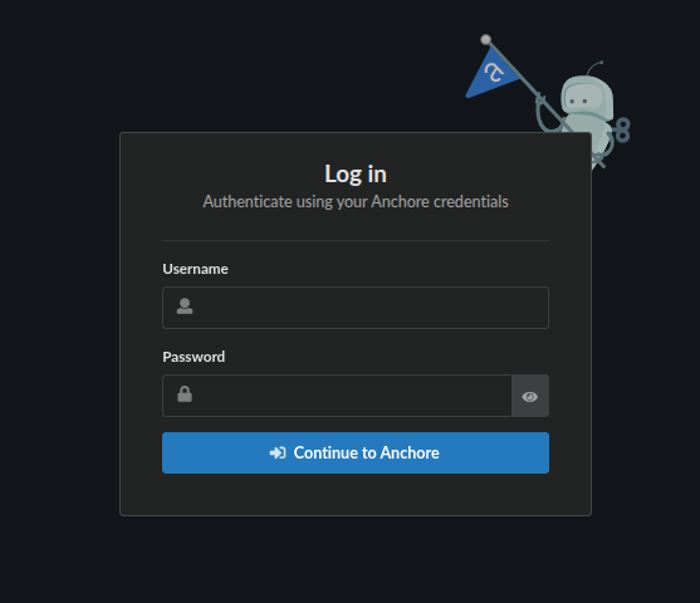
Anchore Enterprise login page.
From there you can login using the secret you set for the admin user.
Anchore Enterprise Feeds
It can take a few minutes to fetch all of the vulnerability feeds from the Anchore Data Service. Check on the status of feeds under System > Health.
AnchoreCTL
To access the Anchore API via CLI, see Deploying AnchoreCTL to get started with anchorectl