Anchore Enterprise can analyze images from any Docker V2 compatible registry. A registry in Anchore Enterprise is a stored credential configuration: it tells the deployment how to authenticate to a registry host, and on its own it does not pull or analyze any images. (Repositories are the unit of analysis; see Watch a Repository.)
Anchore Enterprise attempts to download images from any registry without further configuration. You only need to define a registry when it requires authentication: once a registry and its credentials are defined, every pull for an image from that registry uses them.
A few options and behaviors apply to every registry, regardless of how you add it:
TLS certificate verification is on by default. Anchore Enterprise verifies the registry’s TLS certificate. You can turn verification off for a registry that presents a self-signed certificate or one signed by an unknown CA.
Credential validation is on by default. Anchore Enterprise validates the credential when a registry is added. Because validation methods for public registries change over time, you can skip the check, which is useful when a valid credential fails validation or when adding a credential before it is active at the registry.
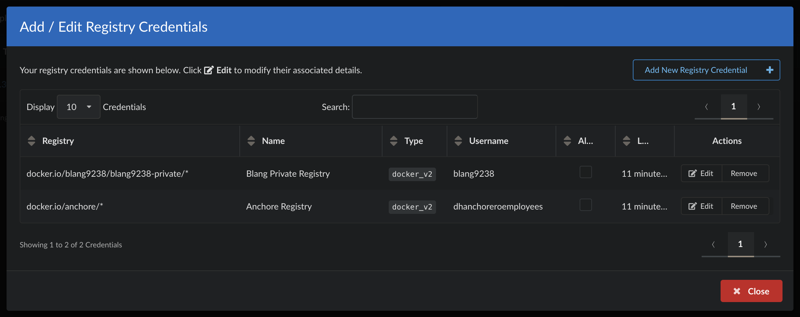
Multiple credentials per host. You can store different credentials for different repositories on the same host (for example, two private repositories on docker.io) by qualifying each entry with a repository path.
Passwords are write-only. A registry’s password cannot be retrieved through the GUI, AnchoreCTL, or the API.
Most Docker V2 registries authenticate with a username and password. Amazon ECR, Google GCR, and Microsoft Azure also support their own native credentialing; see the registry-specific configuration below.
Manage Registries in the Anchore Enterprise GUI
Registry management lives under System → Configuration → Registries. Listing and creating registries requires a user in the admin account or a member of the read-write role for the account.
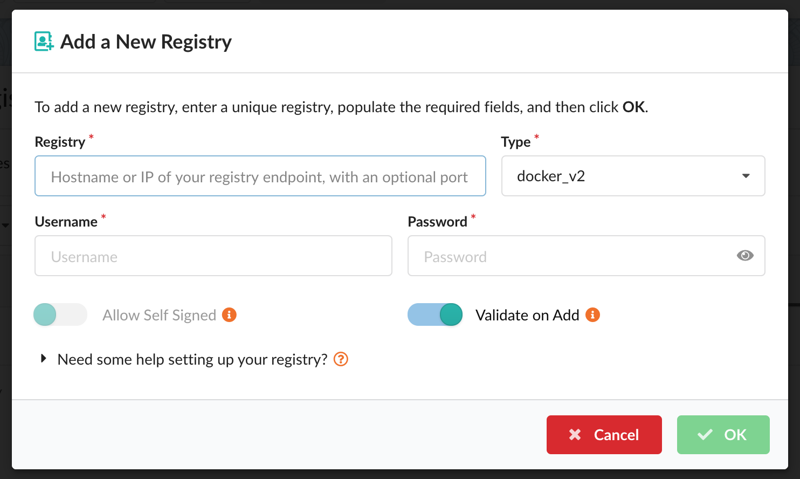
To add a registry, open the Registries tab and select Let’s add one! (or Add New Registry if registries already exist). In the modal, provide the Registry (hostname with optional port), the Type (for example docker_v2 or awsecr), and the Username and Password. Two toggles set the behavior described above: Allow Self Signed turns off TLS certificate verification, and Validate on Add skips credential validation.
After a registry is added, edit its credentials and options from the Actions column. The setup help for each registry type is also available inline via “Need some help setting up your registry?” near the bottom of the modal.
To store different credentials for repositories on the same host, add each entry with a repository path (for example, docker.io/anchore/*).
Manage Registries with AnchoreCTL
List the defined registries:
anchorectl registry list
Add a registry. The registry argument is the fully qualified hostname and optional port (for example registry.example.com:5000):
Both registry add and registry update accept --secure-connection=<true|false> (TLS certificate verification) and --validate=<true|false> (credential validation at add time); each defaults to true.
Get the details of a specific registry (the password is never returned):
anchorectl registry get <registry>
Update a registry’s username, password, or connection options:
Delete a registry. Deleting a registry record does not delete the image or tag records associated with it:
anchorectl registry delete <registry>
Manage Registries with the API
Registry configuration is managed through the Registries endpoints:
Method
Endpoint
Description
GET
/registries
List configured registries (list_registries)
POST
/registries
Add a registry (create_registry)
GET
/registries/{registry}
Get a registry configuration (get_registry)
PUT
/registries/{registry}
Update a registry (update_registry)
DELETE
/registries/{registry}
Delete a registry (delete_registry)
The full request and response schemas are in the API browser; search for the Registries tag.
Registry-Specific Configuration
The credential fields are the same whether you add a registry through the GUI, AnchoreCTL, or the API. For registries with native credentialing, see the registry-specific guides:
This page describes how to give Anchore Enterprise access to images stored in Amazon Elastic Container Registry (ECR).
Anchore Enterprise can scan ECR images two ways. In centralized analysis — the focus of this page — you register ECR credentials and the deployment pulls and analyzes images itself. In distributed analysis, a CI/CD job pulls the image, generates the SBOM locally, and uploads only the SBOM; see Distributed Analysis from ECR in CI/CD.
When you register an ECR registry for centralized analysis, the Username and Password you supply select one of three authentication modes. Which to use depends on where Anchore Enterprise runs and how its AWS access to the registry is configured. The registry --type is always awsecr.
Anchore Enterprise should adopt the AWS credentials of its execution environment — an EC2 instance profile, ECS task role, or Kubernetes (IRSA/Pod Identity) service account role.
Anchore Enterprise should assume a role different from the one it runs under to reach the registry.
Local Credentials and ECR Assume Role both draw on AWS credentials from Anchore Enterprise’s execution environment (an EC2 instance profile, ECS task role, or Kubernetes IRSA/Pod Identity service account) — the same mechanism as the S3 object store’s iamauto option. Local Credentials also requires allow_awsecr_iam_auto: True in config.yaml (Helm: under anchoreConfig), which is disabled by default; ECR Assume Role does not.
API Keys
Provide an access key ID and secret access key from an AWS account or IAM user — ideally a dedicated IAM user scoped to only the ECR permissions it needs. Pass the access key ID as the username and the secret access key as the password:
The --type awsecr flag tells Anchore Enterprise to treat these as AWS credentials; if omitted, AnchoreCTL infers the type from the registry URL. Anchore Enterprise uses the keys to generate ECR authentication tokens and refreshes them automatically as they expire (typically every 12 hours). Do not store an aws ecr get-login token as the credential itself — it expires after 12 hours and would need constant manual updates.
Local Credentials
In this mode Anchore Enterprise adopts the AWS credentials from its own execution environment — environment variables, ~/.aws/credentials, or (most commonly) an IAM role inherited from the instance, task, or pod it runs in. Set both the username and password to awsauto:
How that execution role is assigned depends on the deployment:
Docker Compose or a self-managed install on EC2 — the deployment inherits the EC2 instance profile. See Grant an EC2 Instance Profile Role below.
Helm on EKS (or other Kubernetes) — the deployment inherits a role from its service account via IRSA or EKS Pod Identity. Set serviceAccountName in your Helm values, as described in Amazon S3 IAM Role Authentication and the EKS deployment guide. If one role serves both S3 and ECR, combine their permissions into it.
Grant an EC2 Instance Profile Role
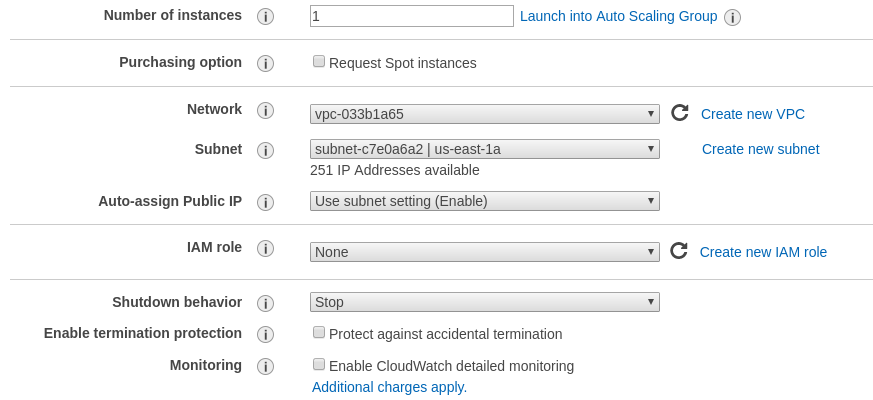
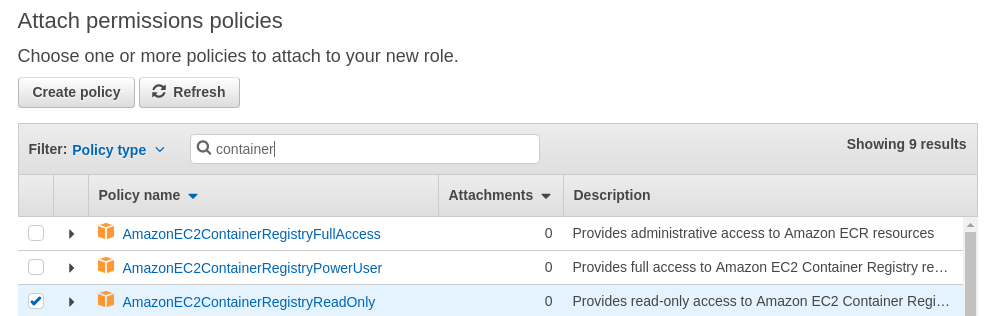
When Anchore Enterprise runs directly on EC2, give the instance a role that includes the AmazonEC2ContainerRegistryReadOnly policy (or an equivalent policy scoped to your registries). You can configure this manually from the launch-instance wizard, or with an automation tool such as Terraform or CloudFormation:
Step 1: Select Create new IAM role.
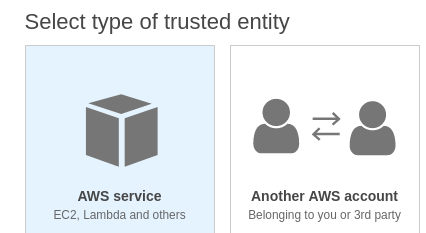
Step 2: Under type of trusted entity select EC2.
Ensure that the AmazonEC2ContainerRegistryReadOnly policy is selected.
Step 3: Attach Permissions to the Role.
Step 4: Name the role.
Give a name to the role and add this role to the instance you are launching.
On the running EC2 instance you can manually verify that the instance has inherited the correct role by running the following command:
Step 5: Enable IAM authentication in Anchore Enterprise by adding the following entry to config.yaml (it is disabled by default):
allow_awsecr_iam_auto:True
Step 6: Add the registry with awsauto for both the username and password, as shown above.
ECR Assume Role
Use this mode to have Anchore Enterprise assume a role different from the one it currently runs under. Anchore Enterprise uses the AWS credentials from its execution environment — the same ambient credentials as Local Credentials — to assume the role you specify. The execution credentials must be granted permission to assume the target role (sts:AssumeRole), and the target role must hold the ECR permissions. This mode does not require the allow_awsecr_iam_auto flag.
Set the username to _iam_role and the password to the ARN of the role to assume:
Assume-role is the standard way to scan a registry that lives in a different AWS account from the one Anchore Enterprise runs in. Point the registry URL at the ECR-owning account and set the password to the ARN of a role in that account — Anchore requests the authorization token for the registry account it parses from the URL, using the assumed role’s credentials.
The example below uses two accounts and two roles:
Account
Role
Anchore account — where Anchore Enterprise runs
111111111111
anchore-enterprise-execution (its execution role)
ECR account — where the registry and images live
123456789012
anchore-ecr-access (the role Anchore assumes)
Three IAM pieces are required, across both accounts:
Allows the target role to be assumed by Anchore’s execution role
ECR permissions
123456789012 (ECR)
anchore-ecr-access
Grants pull/inspect access to the registry — attach the AWS-managed AmazonEC2ContainerRegistryReadOnly policy, or a least-privilege equivalent. Add ecr:BatchImportUpstreamImage for uncached pull-through images (see Scanning Images from an ECR Pull-Through Cache).
Identity Policy
Attach to anchore-enterprise-execution in the Anchore account (111111111111). It lets Anchore’s execution role call sts:AssumeRole on the target role:
Set as the trust relationship on anchore-ecr-access in the ECR account (123456789012). It names Anchore’s execution role as a principal allowed to assume the role. For cross-account or third-party trust, AWS recommends requiring an external ID to guard against the confused-deputy problem; the Condition below requires the external ID my-external-id:
With the policies in place, add the registry using _iam_role and the target role’s ARN, pointing the registry URL at the ECR account (123456789012). Because the trust policy requires an external ID, append it to the ARN after a semicolon (and quote the value so the shell does not split on the ;):
The external ID in the registry password must exactly match the value required by the target role’s trust-policy Condition. If they differ, the sts:AssumeRole call is denied and Anchore Enterprise cannot obtain a registry token.
Distributed Analysis from ECR in CI/CD
In a CI/CD pipeline you often want distributed analysis rather than a registered, stored credential: the job pulls the image, AnchoreCTL generates the SBOM locally, and only the SBOM is uploaded. The image bytes never leave the runner, and you do not register the registry with Anchore Enterprise at all.
This pairs naturally with short-lived ECR credentials. A stored credential must be long-lived — the reason the API Keys mode avoids the 12-hour get-login token — but a CI job is ephemeral, so a token minted at the start of the job and used immediately is a perfect fit.
A typical job assumes an IAM role, exchanges it for a short-lived ECR token, and hands that token to AnchoreCTL:
# 1. Assume the role that has ECR pull permissions (plus ecr:BatchImportUpstreamImage# if you are analyzing uncached pull-through images). Skip this step if the runner# already carries the role via an instance profile or IRSA.CREDS=$(aws sts assume-role \
--role-arn arn:aws:iam::123456789012:role/anchore-ci-scanner \
--role-session-name anchore-scan)export AWS_ACCESS_KEY_ID=$(echo "$CREDS" | jq -r '.Credentials.AccessKeyId')export AWS_SECRET_ACCESS_KEY=$(echo "$CREDS" | jq -r '.Credentials.SecretAccessKey')export AWS_SESSION_TOKEN=$(echo "$CREDS" | jq -r '.Credentials.SessionToken')# 2. Exchange the AWS credentials for a short-lived ECR registry token and hand it to# AnchoreCTL. The username for an ECR token is always AWS.export ANCHORECTL_REGISTRY_AUTH_AUTHORITY=123456789012.dkr.ecr.us-east-1.amazonaws.com
export ANCHORECTL_REGISTRY_AUTH_USERNAME=AWS
export ANCHORECTL_REGISTRY_AUTH_PASSWORD=$(aws ecr get-login-password --region us-east-1)# 3. Pull and analyze locally, then upload only the SBOM.anchorectl image add \
123456789012.dkr.ecr.us-east-1.amazonaws.com/docker-hub/anchore/enterprise:v6.1.0 \
--from registry --wait
The --from registry flag is what makes this distributed: AnchoreCTL pulls the image itself using the ANCHORECTL_REGISTRY_AUTH_* credentials, so no docker login or local Docker daemon is required. Set the ANCHORECTL_URL and ANCHORECTL_USERNAME/ANCHORECTL_PASSWORD (or ANCHORECTL_API_KEY) variables that point AnchoreCTL at your deployment as usual; they are omitted here for brevity. See AnchoreCTL Configuration for all registry-auth settings.
For a stateless pass/fail check that returns policy and vulnerability results without persisting an SBOM in Anchore Enterprise — a common fit for pull-request gates — use anchorectl image one-time-scan <image> --from registry --fail-on-policy-error in place of image add. See One-Time Scan.
Scanning Images from an ECR Pull-Through Cache
Amazon ECR pull-through cache rules let ECR transparently cache images from an upstream registry (such as Docker Hub) under a local namespace. For example, an upstream image pulled through a cache rule with the prefix docker-hub:
Anchore Enterprise can scan pull-through cached images directly, including images that have not yet been cached — there is no need for a separate step to pre-warm the cache. This does, however, require the scanning principal to hold the permission that triggers the upstream import.
Grant the Import Permission
When Anchore inspects a tag that has never been cached, ECR must import it from the upstream registry on that first request. If the principal cannot perform the import, the inspect fails and ECR returns an error that looks like a missing image rather than a missing permission:
manifest unknown: Requested image not found
The underlying cause is that the principal could read already-cached images but lacked permission to import uncached ones. Granting ecr:BatchImportUpstreamImage allows that first inspect or pull to trigger the upstream import; the image is cached from then on.
The following policy grants import permission, scoped to the pull-through cache prefix:
Keeping ecr:BatchImportUpstreamImage scoped to the docker-hub/* prefix (rather than *) follows least-privilege and is the recommended scope.
Analyze Uncached Images by Tag
Granting the import permission is what allows the upstream import, but it does not by itself pull anything. ECR only imports an uncached image when something requests that specific tag. To have Anchore import and analyze an image that has never been cached, add the specific tag for analysis:
That request triggers the upstream import for the tag, ECR caches it, and Anchore analyzes it.
A registry or repository watch (subscription) does not force uncached images to import. A watch discovers images that already exist in the ECR repository — those that have been cached — and it will pick up new images as they become cached going forward. It does not enumerate the upstream registry, so a tag that has never been pulled through the cache will not appear until it is imported at least once by an explicit tag analysis.
Use an explicit anchorectl image add <tag> to bring a never-cached image into ECR the first time. Rely on a repository or registry watch to keep already-cached images and future cached images under continuous analysis.
Auto-Creating Repositories for New Images
The prefix scope above (docker-hub/*) covers images whose repository already exists under that prefix. The very first pull of an upstream image whose repository has never been created also requires that repository to be created automatically. If this is not permitted, ECR returns an error such as:
repository ... does not exist (name unknown)
There are two ways to allow the repository to be created:
Grant ecr:CreateRepository, as shown in the policy above. CreateRepository is a registry-level action, so it is typically scoped to arn:aws:ecr:us-east-1:123456789012:repository/* rather than a sub-prefix.
Configure a repository creation template for the pull-through prefix. This lets ECR auto-create repositories without granting the principal CreateRepository directly, and also lets you enforce scan-on-push, tags, and encryption on the cached repositories.
If Anchore can already scan cached images but fails on a never-cached tag with manifest unknown: Requested image not found, the cause is almost always a missing ecr:BatchImportUpstreamImage permission rather than the cache itself. A repository ... does not exist (name unknown) error instead points to a net-new repository that needs ecr:CreateRepository or a repository creation template.
Troubleshooting Authentication Errors
When Anchore Enterprise (or AnchoreCTL) cannot authenticate to ECR, the errors it surfaces often read like the image is missing rather than like an auth failure — ECR and skopeo report an authorization denial as authentication required or Not Authorized. An image that scans fine in one account can therefore fail in another that lacks the credential. The messages below all trace back to a missing or invalid registry credential, expired keys, or a failed role assumption.
Where you see it
Error
Root cause
anchorectl registry add … --type awsecr
cannot ping supplied registry with supplied credentials [HTTP 406]
The AWS keys or role supplied at registration failed to authenticate to ECR.
anchorectl image add (centralized)
cannot fetch image digest/manifest from registry [HTTP 400]
No valid ECR credential for this registry in the account you are using.
401 Unauthorized: Not Authorized, or DENIED: Your authorization token has expired. Reauthenticate and try again.
AnchoreCTL’s local ECR credentials (ANCHORECTL_REGISTRY_AUTH_*) are missing or the token has expired.
To diagnose and resolve:
Confirm a credential exists in the right account. Registry credentials are per-account — run anchorectl registry list in the same account you are analyzing under. An image that fails in one account but succeeds in another almost always means the failing account has no ECR credential.
Read the full cause. Fetch the event detail with anchorectl event get <EVENT_ID> -o json, or check the catalog service logs, where the underlying skopeo inspect failure (authentication required, REGISTRY_PERMISSION_DENIED) is logged.
By mode: for API Keys, verify the access key and secret and that the IAM principal holds ECR read permissions; for Local Credentials, confirm the execution role is attached and allow_awsecr_iam_auto: True is set; for ECR Assume Role, confirm the sts:AssumeRole grant, the target role’s trust policy, and any external ID.
Distributed jobs: re-run aws ecr get-login-password to mint a fresh token — ECR tokens expire after 12 hours.
Because ECR reports authorization denials as “not found” or “not authorized,” a missing credential and a genuinely missing image can look alike. Before assuming an image is absent, verify the registry credential in the current account — the authentication required / REGISTRY_PERMISSION_DENIED detail in the failure event distinguishes an auth problem from a real missing image.
2 - Azure Container Registry
To use an Azure Registry, you can configure Anchore Enterprise to use either the admin credential(s) or a service principal. Refer to Azure documentation for differences and how to setup each. When you’ve chosen a credential type, use the following to determine which registry command options correspond to each value for your credential type
Admin Account
Registry: The login server (Ex. myregistry1.azurecr.io)
Username: The username in the ‘az acr credential show –name ’ output
Password: The password or password2 value from the ‘az acr credential show’ command result
Service Principal
Registry: The login server (Ex. myregistry1.azurecr.io)
Username: The service principal app id
Password: The service principal password Note: You can follow Microsoft Documentation for creating a Service Principal.
To add an azure registry credential, invoke anchorectl as follows:
Once a registry has been added, any image that is added (e.g. anchorectl image add <Registry>/some/repo:sometag) will use the provided credential to download/inspect and analyze the image.
3 - Google Container Registry
When working with Google Container Registry it is recommended that you use JSON keys rather than the short lived access tokens.
JSON key files are long-lived and are tightly scoped to individual projects and resources. You can read more about JSON credentials in Google’s documentation at the following URL: Google Container Registry advanced authentication
Once a JSON key file has been created with permissions to read from the container registry then the registry should be added with the username _json_key and the password should be the contents of the key file.
In the following example a file named key.json in the current directory contains the JSON key with readonly access to the my-repo repository within the my-project Google Cloud project.
Harbor is an open-source, cloud-native container registry. Anchore Enterprise integrates with Harbor in two ways: as a registry it pulls images from for analysis, and as a scanner that Harbor delegates its vulnerability scans to.
Use Harbor as a Registry
To let Anchore Enterprise pull and analyze images from Harbor, add it as a Docker V2 registry with your Harbor credentials:
Harbor URL — the base URL of your Harbor registry.
Harbor username — a Harbor account with access to the repositories you want analyzed (for example, the admin account).
Once the registry is added, any image you add (for example, anchorectl image add core.harbor.domain/some/repo:sometag) uses the stored credential to download, inspect, and analyze the image. See Container Registries for the full registry-management surface across the GUI, AnchoreCTL, and the API.
Harbor Scanner Adapter
For a deeper integration, the Harbor Scanner Adapter for Anchore lets Harbor issue scans to Anchore Enterprise directly. The adapter is a bridge between the two systems: Harbor schedules scans — on push, on a recurring schedule, or on demand — and the adapter forwards them to your Anchore Enterprise deployment, with results surfaced in both Harbor and the Anchore Enterprise GUI.
Using Harbor with Anchore — push images, run and schedule scans, gate on results, use Harbor as a proxy cache, and troubleshoot.
4.1 - Harbor Scanner Adapter Setup
Integrating Harbor
The Harbor Scanner Adapter for Anchore can be used to integrate Harbor with Anchore Enterprise. This scanner provides a gateway for Harbor to communicate with your Anchore Enterprise deployment thereby making it possible for jobs to be scheduled for scans through Harbor.
The adapter’s configuration can be customized using environment variables defined in the harbor-adapter-anchore.yaml.
You can edit this file to adjust the environment variables as needed to fit your deployment. You must configure how the adapter connects to Anchore Enterprise. The following variables are compulsory to be configured:
Note: It is highly recommended that you create a new account in the Anchore Enterprise deployment and a new user with credentials dedicated to the Harbor adapter. When using Enterprise 5+, you can also utilize api keys. Learn how to generate them here
For full Harbor Adapter configuration options, see here
Once you have edited the value file, use the updated file to deploy the Harbor Scanner Adapter by executing:
kubectl apply -f harbor-adapter-anchore.yaml
Once the adapter has been configured as shown above, you will need to add Anchore as the default scanner in Harbor.
Adding Anchore as default scanner
Setting Anchore as the default scanner in Harbor ensures that all image scans, unless specified otherwise, are automatically sent to your Anchore Enterprise deployment for scanning. Follow the steps below to add Anchore as a scanner and set it as the default:
In the Harbor UI login as an admin and navigate to Administration->Interrogation Services->Scanners and click “+ New Scanner”. In older versions of Harbor, this can be found under Configuration->Scanners.
In ‘Endpoint’, use the adapter hostname/url. The default is the following:
http://harbor-scanner-anchore:8080
Leave the authorization field empty, as no API key was set in the adapter deployment environment for this example.
Please untick use internal registry address. Anchore Enterprise could have issues accessing the Harbor registry otherwise
Click “Test Connection” to verify the connection. Then, click “Add” to add the scanner.
Now to ensure all projects in Harbor makes use of the newly configured Anchore scanner, you must make the Anchore scanner your default Scanner. In the Harbor UI, navigate to the project->scanner and click “Select Scanner” click on the radio button next to the selected Anchore Scanner to make it the default scanner.
Configuring Timeouts
Since Harbor and Anchore Enterprise are separate systems, an API call is needed for communication between them. As a result, configuring timeouts may be necessary depending on factors such as your network, the proximity of the two systems, and overall latency.
The ANCHORE_CLIENT_TIMEOUT_SECONDS setting determines the timeout duration (in seconds) for API calls from the Harbor Adapter to the Anchore Enterprise service. By default, it is set to 60 seconds. If the API call to Anchore exceeds this time, the scan may fail or be delayed. A shorter timeout can result in more frequent timeouts during scans, especially if the system is under heavy load or if Anchore’s response time is slower than expected.
The proximity of Anchore Enterprise to the registry also plays a crucial role in scan performance. If Anchore Enterprise is geographically distant or on a separate network from the registry, network latency could increase, leading to slower scan times or potential timeouts. Keeping Anchore Enterprise close to the registry in terms of network topology can reduce latency, improving scan efficiency and reducing the likelihood of timeouts.
To increase the ANCHORE_CLIENT_TIMEOUT_SECONDS, set the environment variable in your harbor-adapter-anchore.yaml file and reapply it.
You can now see the pushed image in the Harbor UI by Navigating to the project under the project menu
Initiate a Vulnerability Scan
To scan your image for vulnerabilities select the image from the repository list. Click SCAN VULNERABILITY under the Actions menu:
During integration you will have configured Anchore Enterprise as your default scanner. This means vulnerability scan requests will be sent to your Anchore Enterprise deployment. Once the scan is complete, the results will appear in both Harbor and the Anchore Enterprise GUI. You can view details about the vulnerabilities, including severity and remediation options.
Scheduling a Vulnerability Scan
Harbor allows you to schedule automated vulnerability scans on your container images. These scans can be performed using the configured scanner (Anchore Enterprise) and will help identify vulnerabilities within the images.
Navigate to Interrogation Services. Under the Vulnerability tab you will see options on scheduling scans (Hourly, daily, weekly or custom). You can also initiate scan of all your images immediately by clicking the SCAN NOW button.
Information regarding scan in progress will be provided on this page.
It is important to note that weekly scans can take time, especially if you have many images. Anchore Enterprise will fetch the latest vulnerability results only if it hasn’t scanned the image before since it caches images it has previously seen. This helps to reduce the overall time required for weekly scans. Additionally, number of analyzers, network latency and timeouts can impact the time taken for a weekly scan to complete.
Enable Image Scanning on Push
By enabling the Scan on Push option under the project’s configuration, Harbor will automatically scan any new images pushed to the project, helping you identify and manage potential security risks efficiently. To enable this. Navigate to the desired project -> configuration and look for the option vulnerability scanning as shown in the picture
Prevent vulnerable images from running
To prevent vulnerable images from being pulled and run, you can set up a policy which uses the last known vulnerability results.
Please note: Anchore Enterprise is still able to pull images to conduct scans.
To do this, navigate to the desired Project -> Configuration and enable the Vulnerability Scanning option
Locate the Deployment Security option, enable it, and choose the severity level to enforce.
Adding Proxy Registries
Harbor has the ability to act as a proxy registry linking to preconfigured upstream registries like DockerHub. This allows users to pull images from Harbor directly which in turn using pre configured credentials pulls and caches the images from an upstream source.
Use Case:
A common use case is that customers want to restrict registry access in a production and/or secure environment to only their Harbor registry and as such Anchore’s own Enterprise images are published and accessible via DockerHub and Iron Bank which might not be accessible. To resolve this, you can setup a proxy cache registry in Harbor and then pull the image from your Harbor deployment.
Don’t forget you can also configure your Anchore Enterprise values.yaml file so that your deployment will pull the images from your private Harbor registry
Finally, an added benefit is that you have a local copy of the Anchore Enterprise Images rather than relying on a public services such as DockerHub or Iron Bank.
Debugging scan issues
When image scanning fails in Harbor using Anchore, it’s important to review logs from three key components: Harbor, the Anchore Adapter, and Anchore Enterprise. Collecting these logs and generating a support bundle can help diagnose the issue. You can then share this information with the Anchore Customer Success team for further assistance.