This is the multi-page printable view of this section. Click here to print.
Quickstarts
Get to business value quickly with our step-by-step guides.
1 - Create & Store SBOMs
Use Anchore Enterprise to create SBOMs for your assets and store them
This guide provides a quick start for creating, viewing, and storing Software Bill of Materials (SBOMs) in Anchore Enterprise.
Understand SBOM Basics and Use Cases
Supported Industry-Standard Formats
Anchore Enterprise supports the following industry-standard SBOM formats:
| Format | Description |
|---|---|
| SPDX | Software Package Data Exchange: An open standard for communicating software bill of material information. |
| CycloneDX | A lightweight SBOM standard designed for use in application security and supply chain contexts. |
Anchore Enterprise also supports the below rich/analysis document format for creating standard SBOMs.
| Format | Description |
|---|---|
| Syft (Native) | SBOM generated in the Anchore Syft (Open Source) format. |
Meet NTIA Requirements
Anchore-generated SBOMs adhere to the minimum required elements defined by the U.S. National Telecommunications and Information Administration (NTIA):
- Data Fields: Supplier name, component name, version, unique identifier (e.g.,
purl), and dependency relationship. - Automation: Support for automated generation and updates.
- Practices & Processes: Covers frequency of generation, depth of component coverage, and accessibility.
Create SBOMs
Anchore Enterprise can create SBOMs from container images or directly from a filesystem artifact.
Create and Store SBOM from a Container Image
Anchore Enterprise uses its component analysis capabilities to inspect a container image and create a comprehensive SBOM.
Create and Store via UI
Note You need credentials to be able to add a registry. Learn more about adding a registry, here.
Add Image
In the Images tab, click Analyze Tag. You can either enter the Docker pull string for the container image you want to analyze or provide the registry, repository, and tag details in their respective fields. To learn more about adding a registry, see this guide.
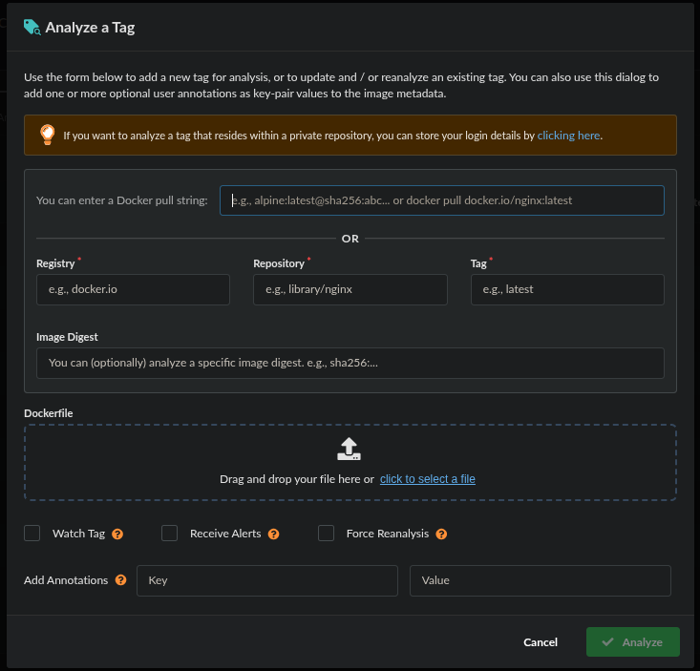
Add Image!
Analyze Image
After the image is added, Anchore Enterprise automatically analyzes it and generates an SBOM as part of the analysis process.
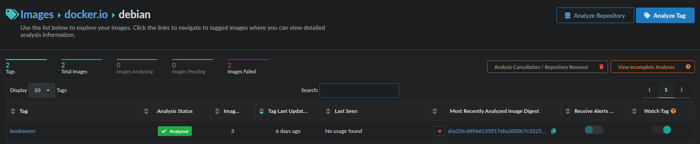
Analysis complete!
View SBOM
To view the SBOM, go to the Images tab and open the image’s detail view. Select the image tag, then navigate to the Content tab on the tag report page. Here, you can browse the SBOM components organized by content type. If you need to download the SBOM, an export/download icon is available in the upper-right corner of the page.
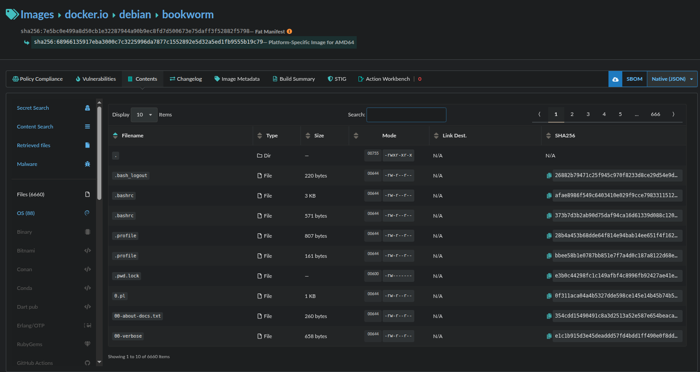
Ready for download!
Downloading the SBOM
On the Images tab, select the repository or registry that contains the image for which you want to download the SBOM. This opens a page listing all available image tags.
Click the tag of interest, then look to the upper-right corner of the screen for the Download icon. From the dropdown menu, choose your preferred SBOM format and click the Download icon to begin the download.
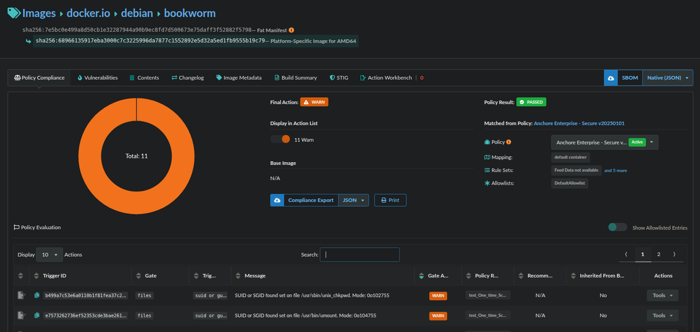
Download SBOM!
Create and Store via AnchoreCTL
Use the anchorectl command-line utility to generate an SBOM for a container image.
anchorectl image add <image_tag_or_digest>
Once the image analysis is completed, you can view the generated SBOM via anchorectl using:
anchorectl image sbom <image_tag_or_digest> -o json | jq .
Create and Store SBOM from a Filesystem (e.g. source code repository)
Create an SBOM from a local directory or set of files which is useful for codebases or non-containerized artifacts involves two steps.
Create the SBOM
You can create the SBOM by pointing anchorectl to the filesystem folder and running:
anchorectl syft <pathtosourcecode > > <name.json >
This command will create an SBOM ready for upload to Anchore Enterprise.
Note: You can use the -o flag to select the SBOM format you want to generate. Available formats include: cyclonedx-json, cyclonedx-xml, github-json, purls, spdx-json, spdx-tag-value, syft-json, syft-table, and syft-text.
Store the SBOM:
Once the SBOM is created, upload it to Anchore Enterprise for analysis using:
cat <sbomPATH.json > | anchorectl image add <image:tag > --from -
Download SBOM via Anchorectl
To download an SBOM that was added as an image, run
anchorectl image sbom <imageSHA > -o <format >
Where format is the SBOM output format you want to download.
Create and Store SBOMs as Imported SBOMs Using AnchoreCTL
You can also create an SBOM from a filesystem and manage it in Anchore Enterprise.
To do this, point anchorectl to the folder containing your source code:
anchorectl sbom add --from <pathtosourcecode > --name <mytestImage> --version $(date -u +%Y%m%d%H%M%S)
This command creates an SBOM and stores it under the Imported SBOMs section of the UI. You can view and download this SBOM by navigating to that section of the UI.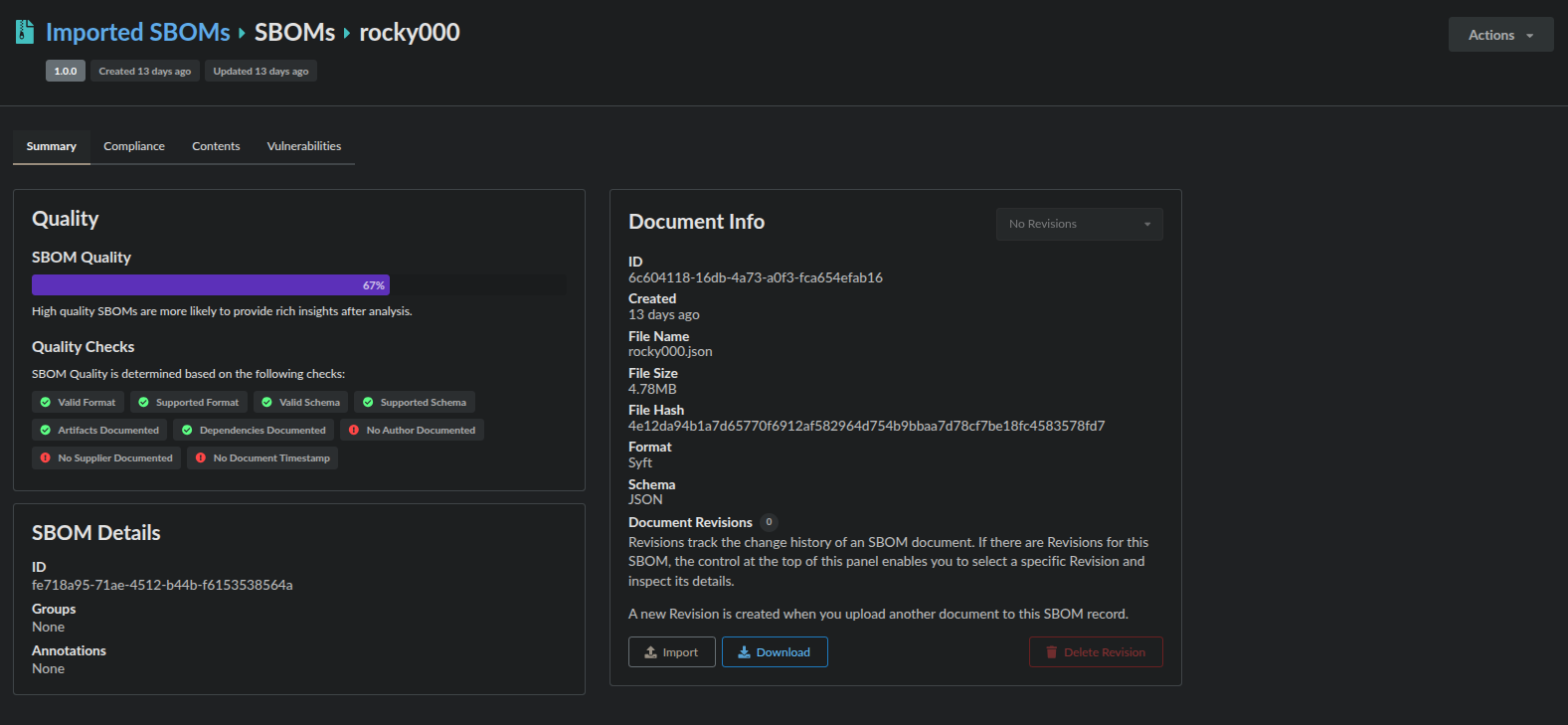
2 - Best Practices for using Anchore Enterprise in CI
Integrating Anchore Enterprise into CI systems
This quickstart will walk you through the typical steps required to integrate Anchore Enterprise policy checks and vulnerability scans into your CI jobs.
Before You Start
In order to start instrumenting your CI pipelines with AnchoreCTL, you need to ensure the following:
- You have access to a fully operational Anchore Enterprise deployment, with a provisioned account/tenant for your use.
- The Anchore Enterprise API should be accessible from your CI runner(s).
- Your Anchore Enterprise deployment and your CI runner(s) can reach any relevant container registries from which to source images.
Getting AnchoreCTL
Anchore Enterprise can be integrated into various CI systems in a vendor-agnostic manner using the AnchoreCTL tool. AnchoreCTL is a golang binary which can be used to interact with an Anchore Enterprise deployment. To ensure compatibility and simplify runner configuration, AnchoreCTL should always be version-aligned with your Anchore Enterprise deployment.
A recommended practice is to fetch AnchoreCTL directly from your Anchore Enterprise installation during the CI job. This guarantees the client version matches the server. Insert a command such as the following into your job before you want to conduct a scan and evaluation:
curl -X GET "https://my-anchore.example.com/v2/system/anchorectl?operating_system=linux&architecture=amd64" -H "accept: */*" | tar -zx anchorectl
For more details, see Deploying AnchoreCTL.
Access via API Keys
AnchoreCTL can talk to an Anchore Enterprise deployment using username and password for authentication, or via API keys. The latter is recommended and otherwise commonly used if you are signing into Anchore Enterprise via SSO.
Configure an API key so your job can talk to the Anchore Enterprise API, see Using API keys for instructions.
Add Environment Variables
You’ll typically want to store AnchoreCTL configuration such as connection details in environment variables for your CI job. At a minimum, you will need to set or configure the following in your CI job specification:
- ANCHORECTL_URL
- ANCHORECTL_USERNAME
- ANCHORECTL_PASSWORD
Alternatively, you could also construct an AnchoreCTL configuration file and use that. See Configuring AnchoreCTL for further details on possible parameters.
You can also run
anchorectl –help | grep ANCHORECTL_ to see a list of common environment variablesChoose Your Method of Analysis
Before you start creating a workflow in CI, you will need to determine which method of analysis you wish to use. Anchore Enterprise supports two primary modes of operation for image analysis in CI pipelines: Distributed Analysis or Centralized Analysis.
Both modes work with any CI/CD system as long as the AnchoreCTL binary can be installed and run, and you can access the Enterprise APIs directly.
Distributed Analysis (Recommended)
In Distributed Analysis, SBOM generation happens locally on the runner and is then sent to Anchore Enterprise for evaluation.
It is the recommended approach because it offers maximum flexibility in resourcing. You can potentially reduce the time to generate an SBOM by customising your anchoreCTL configuration and providing more CPU and fast I/O to your pipeline runners.
Distributed analysis does not currently support malware scanning. If malware scanning is required, use Centralized Analysis.
To use distributed analysis, construct your CI job to use AnchoreCTL with the --from parameter, for example:
anchorectl image add <DOCKER_USERNAME>/getting-started-todo-app --from [docker, registry] --wait
This will cause AnchoreCTL in your job to download the image from the given registry and generate the SBOM locally on the runner.
Centralized Analysis
In Centralized Analysis, the AnchoreCTL command is used to ask your Anchore Enterprise deployment to download and analyzes the image content. This is necessary if you require the malware scanning service to unpack and scan container layers.
If you are using Centralized Analysis for Malware support, you may need to enable this in your deployment configuration, see here
To use centralized analysis, omit the --from parameter, for example:
anchorectl image add ghcr.io/place/thing:v0.1.0 --wait
Centralized analysis will have a different performance profile for SBOM generation, since you may not have direct control over resourcing of your Anchore Enterprise shared service.
Construct Your Workflow
You’re now ready to start putting AnchoreCTL commands into your CI jobs. For a container-focused use-case, you will generally look to construct a job which does the following:
- Builds a container image and pushes to a staging registry
- Downloads AnchoreCTL from Anchore Enterprise
- Generates an SBOM of the container image
- Conducts a vulnerability analysis, returning results
- Conducts a policy check, returning the evaluation result
The sequence of commands will look something like this (simplified):
# Build a docker image for your project
docker build -t <DOCKER_USERNAME>/getting-started-todo-app .

# Push the image to a staging registry (you can also skip this step by using --from docker in the next command)
docker push <DOCKER_USERNAME>/getting-started-todo-app

# Download AnchoreCTL
curl -X GET "https://my-anchore.example.com/v2/system/anchorectl?operating_system=linux&architecture=amd64" -H "accept: */*" | tar -zx anchorectl

# Generate the SBOM for the image (in this example, distributed) and wait for analysis to complete
anchorectl image add <DOCKER_USERNAME>/getting-started-todo-app --from [docker, registry] --wait

# Get vulnerability results for the image
anchorectl image vulns <DOCKER_USERNAME>/getting-started-todo-app
Based on the results returned by Anchore Enterprise, you can then decide what additional steps to take in your CI job.
Optimize Performance
With a basic workflow constructed, you might want to try and optimise for SBOM-generation, vuln scan and policy check times.
If you are using Distributed Analysis, you will want to ensure that your CI runners have fast CPU and I/O, to optimise the cataloging and SBOM generation process used by AnchoreCTL.
If your container images contain a large number of files and packages, you may be able to significantly reduce SBOM generation time by enabling parallelism. AnchoreCTL (v5.18+) can run catalogers in parallel rather than sequentially.
You can configure the number of concurrent worker processes using the ANCHORECTL_SYFT_PARALLELISM environment variable (or set in anchorectl.yaml). For optimal performance, try aligning the number of workers with your runner’s available vCPUs.
# Example for an 8 vCPU runner
ANCHORECTL_SYFT_PARALLELISM=8
See Configuring AnchoreCTL for further information.
Use Policy Checks
Rather than just reviewing a raw list of vulnerabilities, which can be daunting and lack context, it is a best practice to use the Anchore Enforce policy engine to conduct compliance checks.
Policy-driven gating provides developers with precise, actionable feedback based on your own organizational policy or industry standards (e.g., NIST 800-53, CIS).
Use the following command to evaluate an image against your default policy and fail the CI job if it does not meet compliance requirements. You might add this to the end of your sequence of commands:
anchorectl image check <DOCKER_USERNAME>/getting-started-todo-app --detail -f
The --detail flag is essential for developers, as it provides the specific gate, trigger, and remediation recommendations needed to resolve policy violations.
The -f flag tells the command to give a return code of 1 in the result of the policy check being marked as fail. This can allow you to fail or break a workflow on this step.
Switch to Stateless Scans (One-Time Scan)
By default, adding an image to Anchore Enterprise for analysis means that the SBOM will be stored persistently in the deployment, until archived or deleted. This could mean your deployment stores more SBOMs than necessary; you may not care whether an SBOM for a CI build is persisted or not.
Anchore Enterprise has a featured called One Time Scan which can be used to deliver fast feedback in your pipeline jobs, namely vulnerability and policy analysis results, but doing so without persisting the SBOM in your Anchore Enterprise deployment. Use the anchorectl image one-time-scan command to conduct analysis in this mode. As with the anchorectl image check command, you can also pass a flag to fail the pipeline job if the policy analysis fails. For example:
anchorectl image one-time-scan <DOCKER_USERNAME>/getting-started-todo-app --from [docker, registry] --fail-on-policy-error
By default, this command will return a policy check. Using the -o json parameter, JSON results for policy check, vulnerability scan and the SBOM will be returned. These results can then be machine parsed by the CI job to determine actions.
See One Time Scan for further information.
Conclusion
You’ve now fully instrumented your pipeline to add hi-fidelity SBOM-based vulnerability and compliance checks to your CI jobs!
3 -
Anchore Style Guide
This guide specifies the preferred Markdown syntax and formatting rules for consistency throughout the Anchore documentation corpus.
Docsy shortcode information can be found here: https://www.docsy.dev/docs/adding-content/shortcodes
1. Headings and Structure
Use ATX-style headings (using #) for all titles and section headers. Ensure there is a single space between the # and the heading text.
Use section breaks to separate H2 headings (using -–).
Use active voice (imperative) in headers:
- e. g. Import SBOMs instead of Importing SBOMs
LLM Notes and Tips: Prospects use LLMs to shortlist products and understand our capabilities before engaging with Anchore. H1, H2, and H3 headings help LLMs better incorporate our content into answers.
- Expose key features in H2 and H3 headers.
- Use language in headings and introductions that makes sense to readers who are not yet familiar with how Anchore works.
| Rule | Style | Example |
|---|---|---|
| H1 (Page Title) | Use a single # (reserved for the page title, usually generated by the documentation system). | # Page Title |
| H1 Introduction | Always ensure a page introduction is found below the H1 Page Title Tip: Include context for people who may not understand how Anchore works yet. | # Page Title This page introduces the AnchoreCTL command-line (CLI) utility. |
| H2 (Major Section) | Use ##. Should be used for the main sections within the page. | ## Installation and Setup |
| H3 (Subsection) | Use ###. Should be used for sub-topics within a section. | ### Using AnchoreCTL |
| H4 (Detail/Procedural) | Use ####. Should be used for steps or minor divisions. | #### Step 1: Configure URL |
| Capitalization | Use Title Case (capitalize major words) for all headings. | ## Generating SBOMs using AnchoreCTL |
| Spacing | Include a blank line before and after every heading to ensure proper rendering and source readability. |
2. Text Formatting and Emphasis
Ensure consistency in ways to emphasise text and call-out mechanisms.
| Element | Style | Example | Recommended Use |
|---|---|---|---|
| Bold | Use double asterisks (**). | Should be avoided at all times. | Strong emphasis on important key words. |
| Italics | Use single asterisks (*). | *optional* or *recommended* | Light emphasis, parenthetical notes, variables, or words/phrases that need differentiation. |
3. Image Formatting
Ensure consistency in how images are presented.
| Element | Style | Example | Recommended Use |
|---|---|---|---|
| Image | imgproc | {{< imgproc results.png Resize “700x” >}} Ready for download! {{< /imgproc >}} | Use the imgproc shortcode to do in-line processing and resizing, generally size images between 400x and 700x Avoid using “ex” or “example” and just use plain text. |
4. Code, Commands, and File Paths
Code formatting is crucial for technical documentation and example snippets.
| Element | Style | Example |
|---|---|---|
| Individual Command Names or File Names | Command names, file names (config.yaml), file types (JSON, YAML), function/API names, variable names. | `anchorectl` |
| Command-Line & Code Blocks (Fenced) | Use triple backticks (````` `` `) with a language specifier. Always include a language specifier where possible (e.g., `bash`, `yaml`, `json`, `text`). | ```bash docker login -u <your_dockerhub_pat_user> -p <your_dockerhub_pat> ``` |
5. Lists
Use consistent markers for lists and ensure proper indentation for nested items.
| Element | Style | Example |
|---|---|---|
| Unordered Lists | Use hyphens (-) for all top-level unordered lists. Do not mix hyphens, asterisks (*), and plus signs (+). | - First bullet point - Second bullet point - Third bullet point |
| Ordered Lists | Start every ordered list with 1. The Markdown renderer handles the rest |
6. Tables
To add a table in Markdown, use the vertical line | to separate each column, and use three or more dashes -– to create each column’s header. A vertical line should also be added at either end of the row.
| Element | Style | Example |
|---|---|---|
| Tables | Use hyphens (-) for all top-level unordered lists. Do not mix hyphens, asterisks (*), and plus signs (+). | ` |
| Text Alignment | :– means the column is left aligned. --: means the column is right aligned. :-: means the column is center aligned. |
7. Notes, Warnings and Admonitions
Ensure consistent formatting for callouts and warnings to users.
| Element | Style | Example |
|---|---|---|
| Alert | color: Use this parameter to specify one of Bootstrap’s predefined alert variants, each of which has their own color. These include primary, info, and warning Avoid the use of title | {% alert color="warning" %} Docker Compose is only recommended for testing (e.g. demo or proof-of-concept) or small deployments. For all other usage patterns, customers should use a Helm-based deployment on K8s which enables easier scaling, modular deployment and fine-grained configuration.{% /alert %} |
8. Product and Branding
Ensure consistent product and feature naming.
| Element | Style | Example |
|---|---|---|
| Anchore Enterprise | Refer to the core product as “Anchore Enterprise” and not just “Anchore” or “Enterprise” | Use Anchore Enterprise to enforce a POA&M |
4 - Achieving Federal ATO
How Anchore Enterprise can help obtain an ATO
Summary
Anchore Enterprise plays a crucial part in meeting Federal Authorization to Operate (ATO) requirements and Risk Management Framework (RMF). From implementation, assessment, to monitoring, Anchore Enterprise bakes in security compliance, vulnerability & malware scanning by constantly checking registries and running images to protect and enhance security posture. As industry continues to migrate to containerization and microservices, Anchore Enterprise supports multiple regulatory requirements using software bill of materials (SBOM) and policy as code to meet the demands through automated policy enforcement and continuous monitoring. SBOMs are vital to comply with Executive Order (EO) 14028 and understanding software inventory (NIST 800-53, 800-171, 800-218, and 800-190). As software delivery changes so should the ATO process by using code to ensure secure, quality, and reproducible results. Anchore Enterprise allows organizations to shift left, start secure, bake in compliance, and standardize security across the container, filesystem, virtual machine (VM) and source code landscape.
Security Controls
The security controls are described below with hyperlinks to the applicable documentation.
- Software Bill of Materials (SBOM)
- SBOM is essentially the ingredient list for a software product allowing the consumer to understand and manage the associated risks. Not only do our scans produces SBOMs but they can be imported as well. SBOMs are used to maintain compliance with CM-8 Information System Component Inventory.
- Vulnerability Scanning
- Generating a vulnerability report of both container images, virtual machine files, and source code that map to CVEs (Common Vulnerabilities & Exposures), KEV (Known Exploited Vulnerabilities) and EPSS (Exploit Prediction Scoring System) data. The reports reflect all applicable CVEs, if there are known exploits and the probability of a CVE being exploited.
- Secure Policy Enforcement
- Create policy (policies) of image(s) and source code to ensure that only authorized software and containers meet ATO requirements.
- DISA STIGs
- Use DISA STIGs for container images to establish and document configuration settings for images. Container images can be scanned against DISA STIGS in heimdall json format which can be easily converted using MITRE SAF™ into XCCDF and CKL files to import within STIG Viewer.
- Plan of Action & Milestones (POA&M)
- Using policies, gates, mappings and allowlists the POA&M is now enforced with dates to ensure compliance.
- CI/CD Gate Checks
- Use CI/CD pipelines to not only automate deployment but to ensure your security posture requirements are met each time, every time. Gates can be configured to only allow certain packages installed or be denied if there is a known exploit in a vulnerability.
- Role Based Access Controls (RBAC)
- Robust role based access controls using least-privilege and need-to-know.
- Kubernetes Runtime Inventory
- Always know what images are running in your kubernetes clusters and ensure they meet organizational requirements for vulnerability and policy compliance.
- Kubernetes Admission Controller
- Ensure that all container images meet policy before deployment into production.
The links below show how Enterprise helps maintain a secure posture with policy mappings to regulatory requirements.
Policy Mappings:
4.1 - POA&M
Use Anchore Enterprise to enforce a POA&M
This guide provides examples of how to setup a policy gate to enforce development teams to comply with organizational Plan of Actions & Milestones (POA&M).
The POA&M Challenge
POA&Ms can easily become an administrative nightmare to track, maintain and update. With Anchore Enterprise, POA&Ms can now be done via code configuring CI/CD policy gates that enforce compliance.
POA&M Solution
Generate an enforceable POA&M using policy as code
The example is shown using a policy from scratch but these direction could be used to add to an existing policy.
Create a new policy
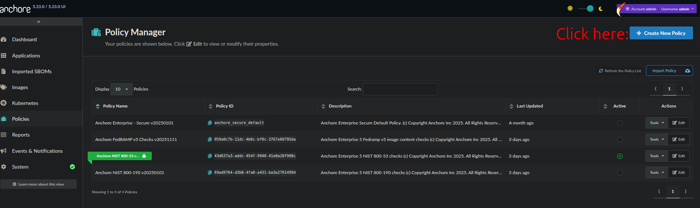
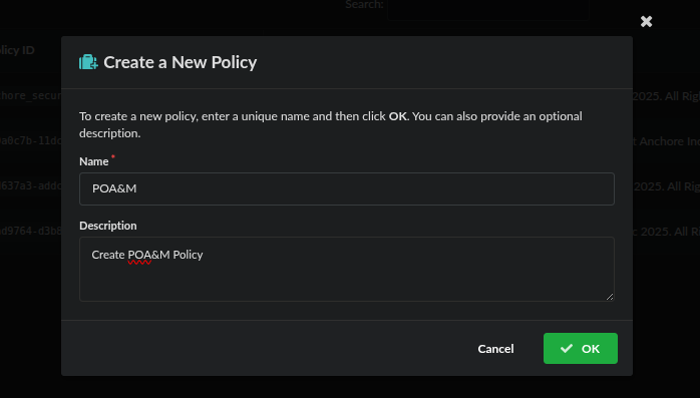
Name and describe your policy, then click save
Now we will edit the default rule, by clicking edit:
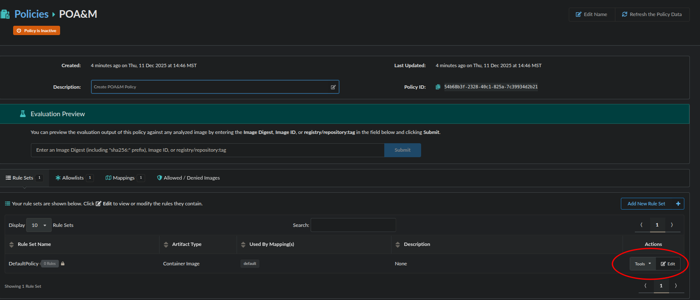
From here we will configure a rule:
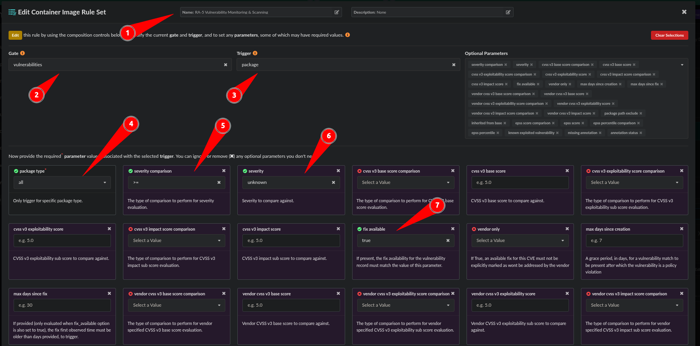
- Name the rule: RA-5 Vulnerability Monitoring & Scanning
- Gate: Vulnerabilities
- Trigger: Package
- package type: all
- severity comparison: >=
- severity: unknown
- fix available: true
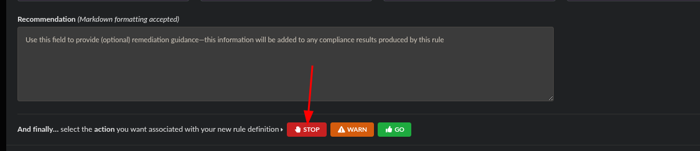
Scroll down to the bottom and click the action of STOP and click Save and Close.
Next, we will make an Allowlists for the item we want to POA&M by editing a default Allowlist or adding a New Allowlist:
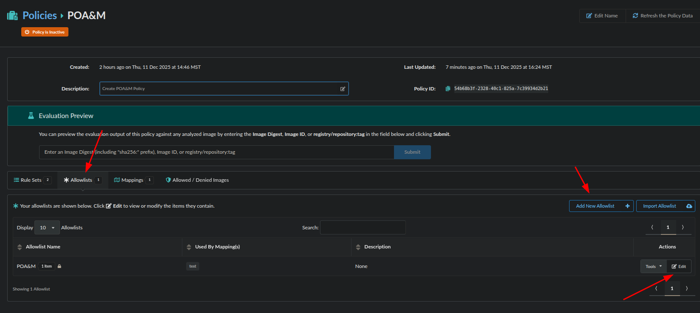
Now we will edit the Allowlist:
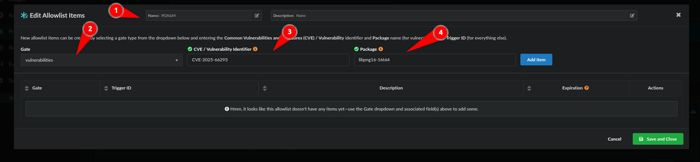
- Name the Allowlist: POA&M
- Gate: Vulnerabilities
- CVE/Vulnerability Identifier: CVE-2025-66293
- Package: libpng16-16t64
Note: Another way to get the CVE and Package information is to obtain the Trigger ID on the Policy Compliance Tab which is CVE ID+package as seen in image below:
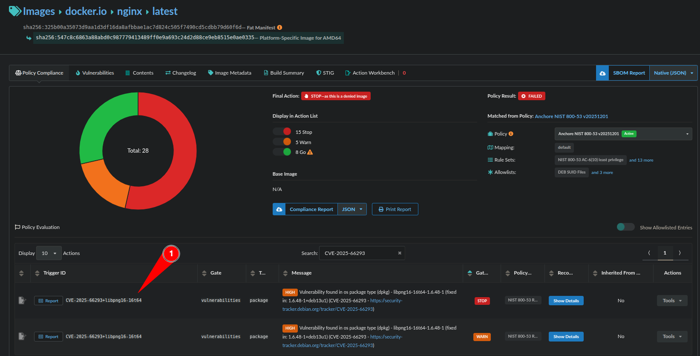
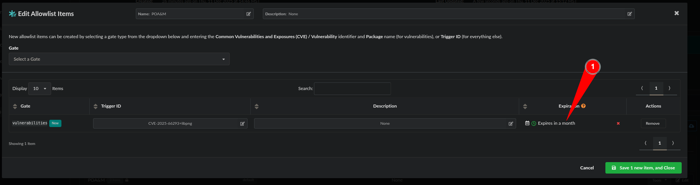
We have a rule and an Allowlist but we want to make this a POA&M item that expires so lets make an expiration by clicking on the calendar:
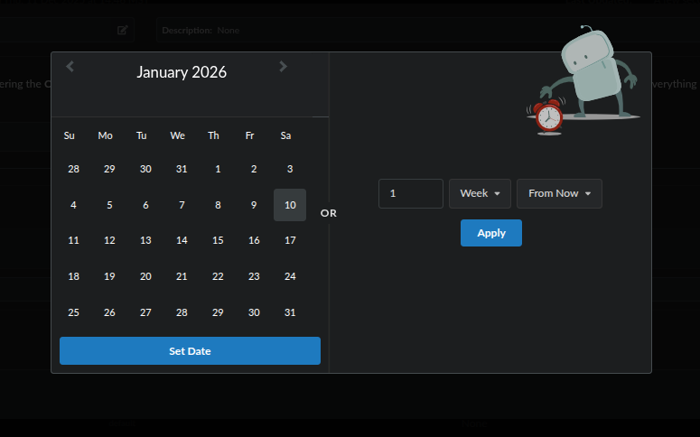
A calendar will pop-up and you can select a date or or a time frame of days, weeks or months:
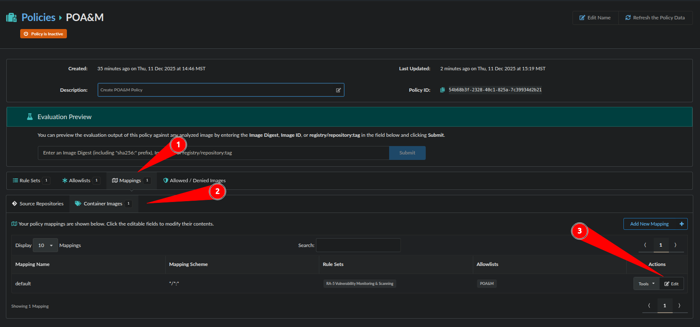
Next we will make a mapping to limit where this specific POA&M or Allowlist is applied by clicking Mappings, Container Images and Edit:
Next we will associate a Registry, Repository and Tag with the POA&M Allowlist we just made.
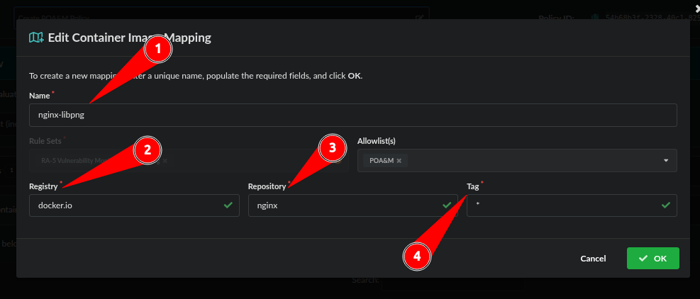
- Name the Mapping: nginx-libpng
- Registry: nginx-libpng
- Repository: nginx
- Tag: *
Note: Wildcards “*” can be used for Registry, Repository, and Tag
Our POA&M via an Allowlist with an expiration has been created. Let’s validate:
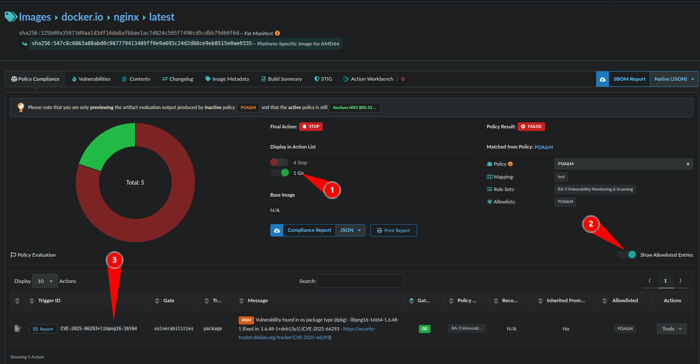
- Toggle on Go
- Show Allowlisted Entries
- The TriggerID matches what was put in the Allowlist
You have now created a POA&M enforced by code
4.2 - STIG
Use Anchore Enterprise to STIG a container image
This guide provides examples of how to scan a container with DISA STIGs and import the data into Heimdall for a visualization or STIGViewer to create a checklist to provide as an ATO artifact.
This guide requires the dependencies located here to be installed along with the dependency below.
SAF CLI - Install Docs
Once these dependencies are installed, the STIG profiles are written as indicated in the here link and a STIG evaluation has been completed, you are ready to begin.
We will assume that the output of the scan is located in our working directory for the examples below and the STIG --stig-output-dir was saved as results.json like the example below:
anchorectl image add registry.access.redhat.com/ubi9/ubi:latest --stig --stig-profile ./rhel9/rhel9.tar.gz --stig-output-dir results.json
Working with Heimdall
The native format for STIG output in Anchore Enterprise is OASIS Heimdall Data Format (OHDF) and can be easily uploaded to heimdall-lite.mitre.org
From here, you can upload the
results.jsonfile and obtain charts and a map of the NIST 800-53 controls like the images below: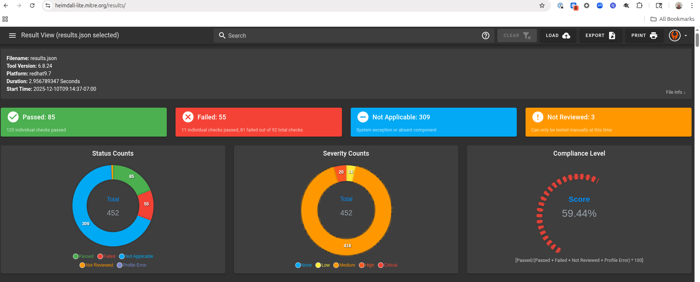
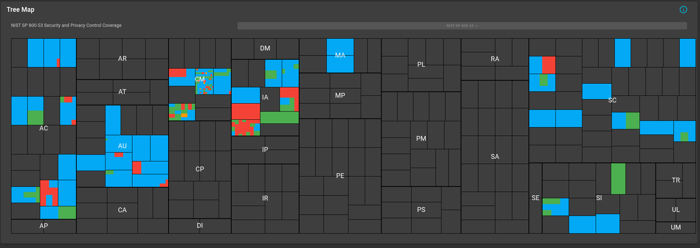
You can easily filter what passed, failed, not reviewed and not applicable. The data can be exported as a DISA Checklist or as XCCDF Results as indicated in the picture below:
The data can be imported back into STIGViewer to audit a checklist as indicated in Step 4 under Working with STIGViewer
Working with STIGViewer
- With safcli installed run the following command to convert the
results.jsonto XCCDF:
saf convert hdf2xccdf -i results.json -o xccdf-results.xml
- Now we want to convert the same
results.jsonto a ckl file:
saf convert hdf2ckl -i results.json -o ubi9-check.ckl
Let’s open STIGViewer and import the
results-xccdf.xmlfile we created in step 1.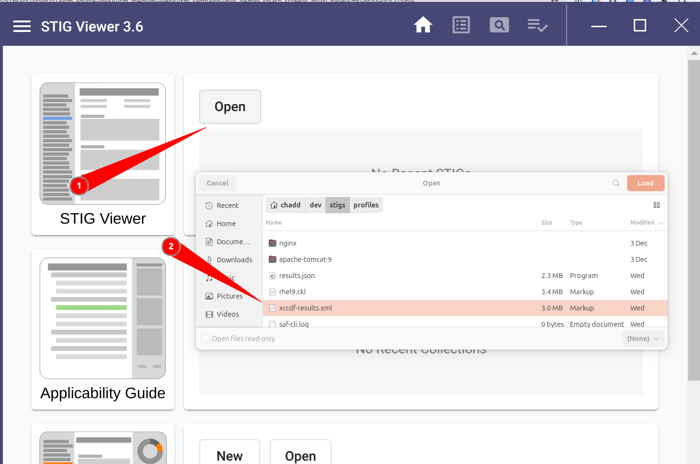
Now we can click the Home Icon and load our checklist:
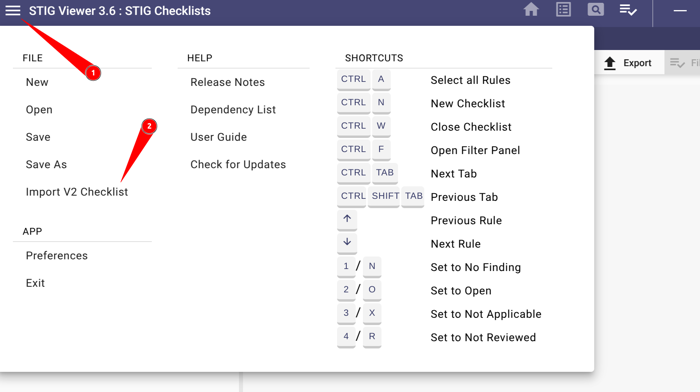
- Click the hamburger menu
- Click Import V2 Checklist and upload
ubi9-check.ckl
The container STIG checklist can now be saved once the findings as either Open, Not a Finding, Not Applicable and submitted with the applicable Body of Evidence (BOE) documentation.
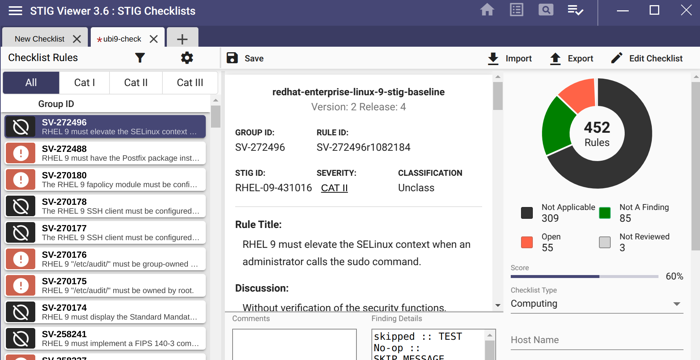
You have now STIG’d a container image and created a checklist
5 - Customizing the Anchore Enterprise UI
Customizing the Anchore Enterprise UI
When managing a complex security platform like Anchore Enterprise, communication and accessibility are key. Whether you’re alerting your security and development teams to upcoming maintenance or providing quick access to API documentation, the ability to customize your Anchore Enterprise Deployment makes for a better user experience, that is tailored to your organization and use case.
These customizations are outlined below and can be easily made through the Web UI System Configuration or programmatically via Helm values or Manual Config. Let’s run through what and how you can configure these.
Custom Message
A Custom Message can be displayed on the Anchore Enterprise Client Web UI login view. You can specify a title and a message, both of which support Markdown formatting with any HTML tags removed.
Below is an example of a custom message title with a handy message below.

Recommendation: This can be a useful place to display messages, such as Legal Disclaimers. You can utilize Unicode characters, such as emojis, to help draw attention if required.
Configuration: Edit the config-ui.yaml file under the key ‘custom_message’ and if you are using Helm tweak your values for anchoreConfig.ui.custom_message. Below is an example yaml configuration:
custom_message:
  title: "Custom message"
  message: "This is a handy custom message you can set"
Custom Banners
Custom Banners can be displayed on the Anchore Enterprise Client Web UI across the top and/or bottom of the view. Each banner can have its own text, display mode (always, or login-only, where the banner is only displayed on the login view), as well as an optional background color and text color.
Below is an example of a top banner with always display mode, green background with white text ‘🚨🚨 ENVIRONMENT: DEMO 🚨🚨’

Recommendation: This can be a useful place to signpost users towards gaining access or displaying suitable messages, such as an upcoming maintenance window. You can utilize Unicode characters, such as emojis, to help draw attention if required.
Configuration: You can simply configure your Custom Banner via the Web UI. Alternatively, edit the config-ui.yaml file under the key ‘banners’ and if you are using Helm tweak your values for anchoreConfig.ui.banners. Below is an example yaml configuration:
banners:
  top:
    text: "🚨🚨 ENVIRONMENT: DEMO 🚨🚨"
    text_color: "white"
    background_color: "#32a883"
    display: "always"
  bottom:
    text: "Here is an example login only banner"
    text_color: "white"
    background_color: "#1e6ee6"
    display: "login-only"
Custom Links
Custom links can be displayed on the Anchore Enterprise Client Web UI on the login page and also within the system dropdown menu (top-right in the main view). You can specify a title and up to 10 links with their own titles and URIs. This feature is only enabled if a main title and at least one link and associated title are provided. HTML tags will be removed.
An example below shows how the custom links section on mouse click/hover can be expanded on both the login page:

and the system dropdown menu:

Recommendation: This might be a useful place to link to your deployments copies of AnchoreCTL for the distributions used in your organisation (Windows, Linux, MacOS). This allows users to quickly find and download AnchoreCTL, and importantly, it will download the latest compatible version of AnchoreCTL. Developers also find having links to the Anchore Enterprise Swagger API docs useful.
Configuration: You can simply configure your Custom Links via the Web UI. Alternatively, edit the config-ui.yaml file under the key ‘custom_links’ and if you are using Helm, tweak your values under anchoreConfig.ui.custom_links. Below is an example Helm yaml configuration:
custom_links:
  title: "Internal Resources"
  links:
  - title: "Download AnchoreCTL Linux AMD64"
    uri: "/v2/system/anchorectl?operating_system=linux&architecture=amd64"
  - title: "API - SwaggerUI"
    uri: "/swagger/"
  - title: "API - GraphiQL"
    uri: "/v2/reports/graphql"
  - title: "Integration - Gitlab"
    uri: "https://gitlab.anchoredemo.com/"
Configuration changes via the Web UI
Users with an Administrator role can configure Custom Message, Custom Banners and Custom Links directly through the Anchore Enterprise Client Web UI by navigating to System > Configuration.
You can make these changes, without the need to change Helm or application values requiring a redeployment of Anchore Enterprise. However, configuring these custom elements within the Web UI, only works if you have NOT already defined the relevant custom values via config-ui.yaml, Helm values or environment variables.
The Web UI offers a helpful WYSIWYG editor allowing you to make changes instantly. Once you click ‘apply’ and then click ‘save’ on the configuration, refresh the page to see your custom changes. The example below shows adding a Top Custom Banner that has its display mode set to always appear.

6 - Evaluate SBOMs Using Policies
Use Anchore Enterprise to scan an SBOM against policies
This guide provides an example of how to scan an SBOM of a filesystem generated with AnchoreCTL.
Note: This does require a minimum of Anchore Enterprise 5.24 installed.
Create a new SBOM policy mapping:
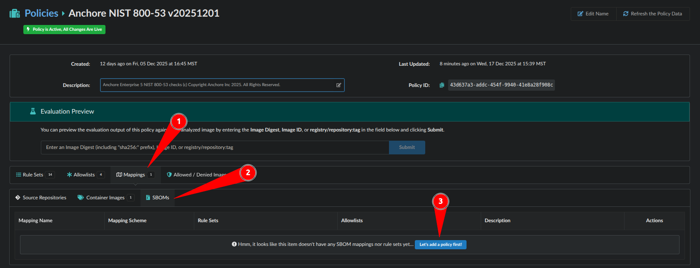
- Within Policies navigate to Mappings
- Select SBOMs tab
- Click Let’s add a policy first!
Now let’s name a rule set that maps to SBOMs which we will name: sbom-demo
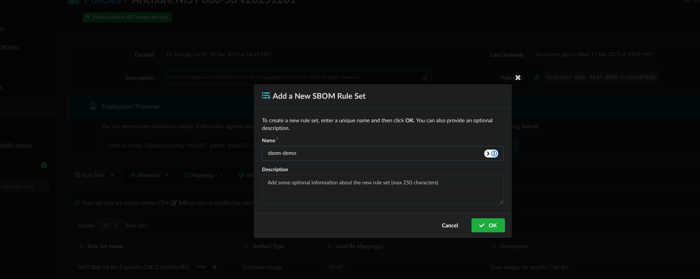
This will prompt us to make a rule set configuration:
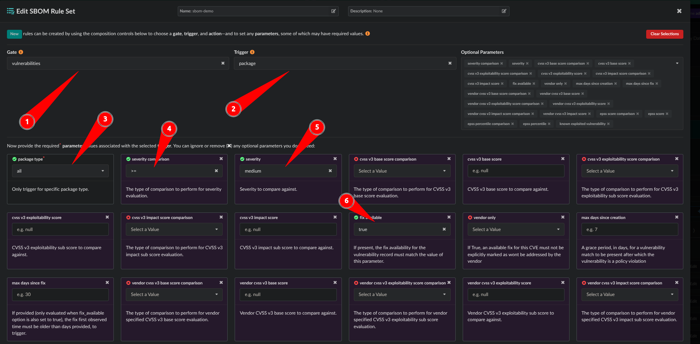
- Gate: vulnerabilities
- Trigger: package
- package type: all
- severity comparison: >=
- severity: medium
- fix available: true
Scroll down to the bottom and click the red STOP button.

It will now look like this and can you can save the policy:
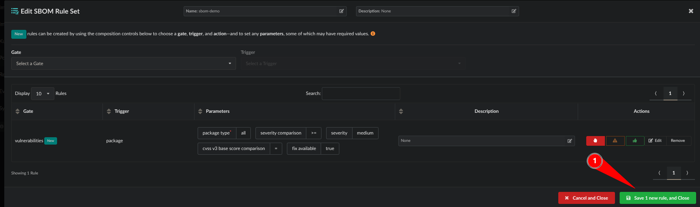
- Click Save 1 new rule, and Close
We have a rule set but now we need to make a rule map to SBOMs:
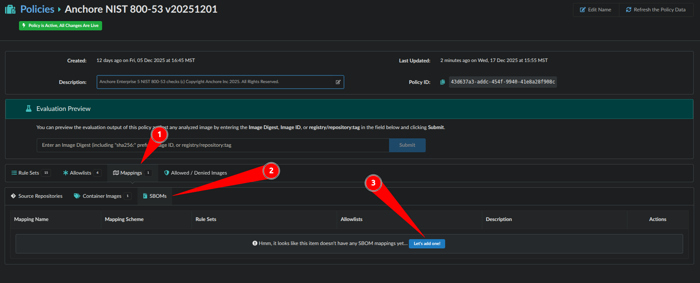
- Click Mappings
- Click SBOMs
- Click Let’s add one!
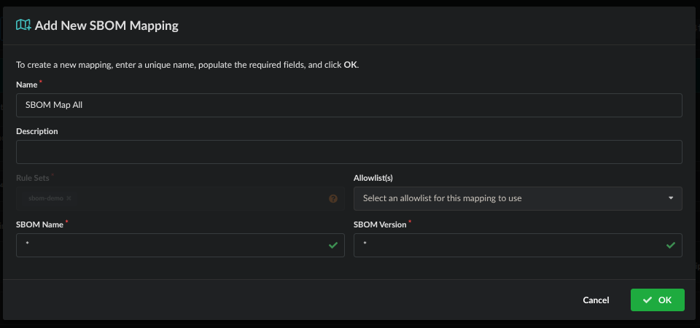
Now we will map the ruleset to SBOMs by giving it a name, the Rule Sets of ‘sbom-demo’ is applied and we will map this to all SBOM Names and Versions. Click OK when done.
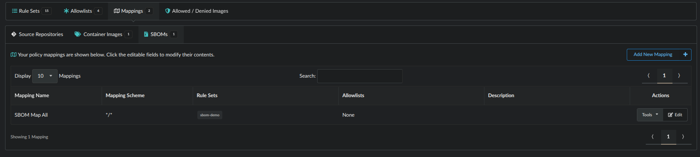
The result will look like this:
SBOMs can be generated using the commands below. It works for applications, containers, files, filesystems, firmware, libraries, modules and mounted virtual disks. Here are is an example below:
For the menu:
anchorectl sbom add --helpTo generate a scan of a filesystem:
anchorectl sbom add --from /usr/bin --name usr_bin_binaries --version 1.0 --type filesystemThe SBOM is available via the UI here:
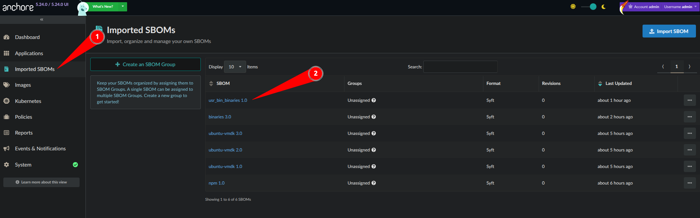
SBOM as seen in the UI.
1. Navigate to Imported SBOMs
2. Click on the user_bin_binaries 1.0 object
- From here we can see that the SBOM has been analyzed against policy:
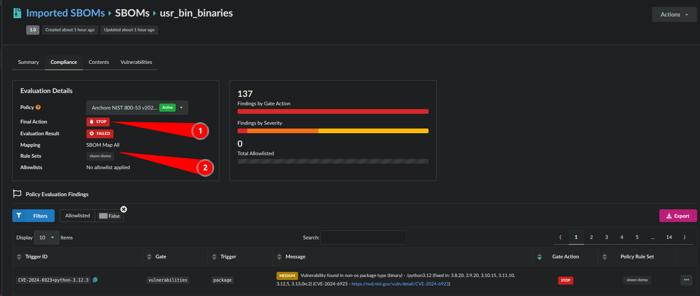
SBOM analyzed against policy.
1. The Final Action was a STOP due to the policy rule map
2. The mapping is: SBOM Map All and Rule Sets: sbom-demo
Congrats!!! You have now mapped a policy to an SBOM
7 - Finding Zero-day Vulnerabilities
Find vulnerabilities across your inventory of SBOMs.
This page outlines the workflow for locating zero-day vulnerabilities using Anchore Enterprise’s capabilities, most notably UI, reports and API queries, by both package and vulnerability ID.
When a zero-day vulnerability is disclosed, your first response will be to try and understand your exposure: where in your software supply chain are the affected packages and versions used? In such situations, the Common Vulnerabilities and Exposures (CVE) record may not be fully published yet. This means that you might be searching for specific package versions and by vulnerability identifier, such as a GitHub Security Advisory (GHSA) number.
Checking your Feeds
Anchore Enterprise relies on a large number of vulnerability data sources to bring you the most accurate vulnerability matching as possible. It could be that upstream sources already have knowledge of the vulnerability. Your first step should be to quickly check whether Anchore Enterprise has the latest vulnerability dataset.
In environments talking directly to the Anchore Data Service, you can force a feed sync by running the following command as the Anchore Enterprise administrator:
anchorectl feed sync
You can verify the latest feed updates using the following command:
anchorectl feed list
If you are using Anchore Enterprise in an air-gapped environment, you may need to refresh the vulnerability database (grypeDB) by sneaker-copying a bundle into the high-side environment or through the use of a Cross Domain Solution (CDS). See Air-gapped for further guidance.
Feed sync status can also be found in the Anchore Enterprise UI under System and Feeds Sync.
Note that the Last Full Sync timestamp will reflect when the last necessary update was performed, by default Anchore Enterprise will check to determine whether an update is required every hour.
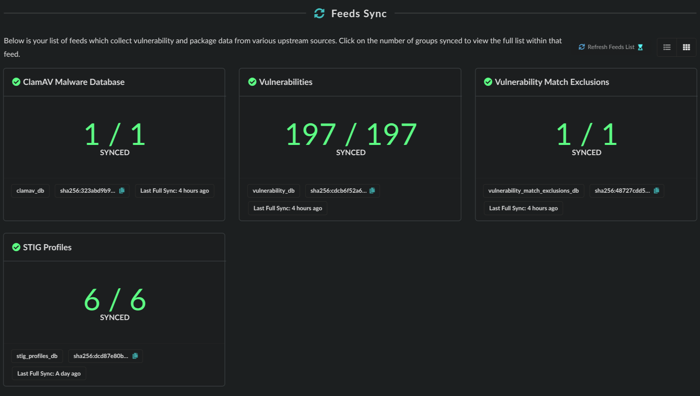
Feed sync status.
Search by Vulnerability ID
You can also use the Query API to list information about a given vulnerability ID, which can be a useful way to determine if your system is aware of the vulnerability. See
/query/vulnerabilities in https://docs.anchore.com/current/docs/api/reference/If you know the vulnerability ID, which could be either a CVE, GHSA, or other identifier, you can utilize the native reporting capability in Anchore Enterprise.
- Click the Reports menu item
- Choose a new report of Artifacts by Vulnerability.
- Choose the Vulnerability Id filter and enter the appropriate identifier.
For example, if searching for the NGINX IngressNightmare (https://kubernetes.io/blog/2025/03/24/ingress-nginx-cve-2025-1974/), you could use the CVE ID or GHSA for coverage:
- GHSA:
GHSA-mgvx-rpfc-9mpv - CVE:
CVE-2025-1974
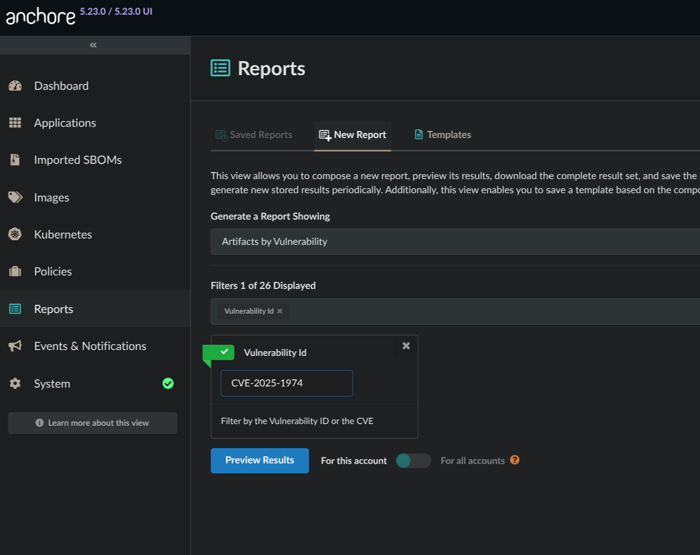
Search by CVE example.
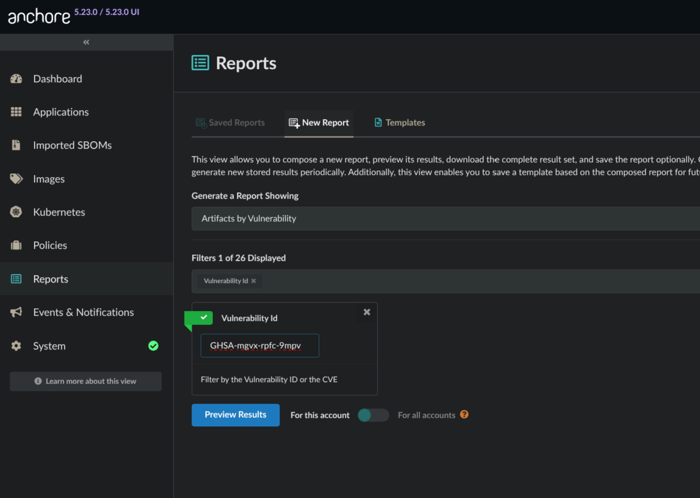
Search by GHSA example.
As you preview results, you can toggle the report scope. If you are the administrator you can run the report against all assets across all accounts.
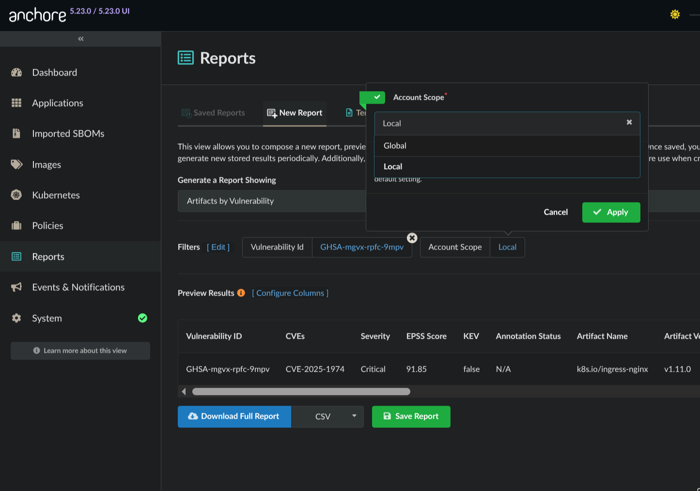
Changing account scope: local or global
Once you have validated the desired outcome in the report preview, you can opt to Save Report, provide some details, and tick the option to Generate immediately on save.
You can also use this panel to schedule report generation for future dates and times, see Reporting & Remediation
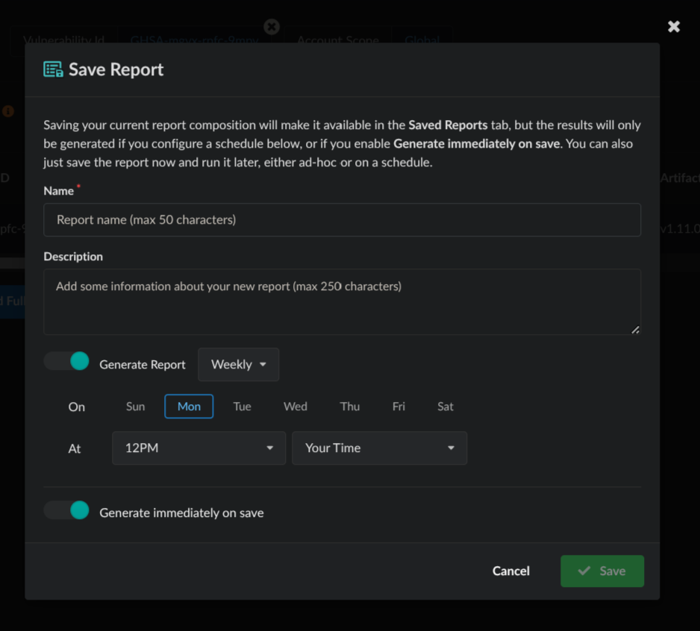
Saving the report.
The report will then be generated in order to provide you results across the SBOMs for all of your assets. Once complete, the results are ready for download.
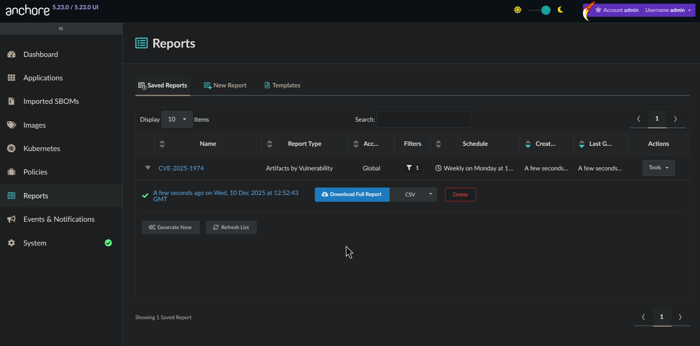
Ready for download!
You now have an understanding of where in your software supply chain this vulnerability can be found. Go remediate!
Search for Affected Packages
Sometimes you won’t have a vulnerability record available because it has not been created or appropriately updated. Another way to assess impact during a zero-day is to search for the specific package or library version known to be vulnerable. Fortunately, this can be done via the Anchore Enterprise API.
Use the Query API to look for specific package versions. In the case of CVE-2025-1974 (GHSA-mgvx-rpfc-9mpv), the impacted packages were k8s.io/ingress-nginx with versions v1.11.0 - 1.11.4.
The following query would be used to look for a particular version:
curl -X 'GET' \
  'https://anchoredemo.com/v2/query/images/by-package?name=k8s.io%2Fingress-nginx&package_type=go&version=v1.11.0' \
  -H 'accept: application/json'
This would yield a response similar to that found below, revealing an impacted asset:
{
  "images": [
    {
      "image": {
        "image_digest": "sha256:4db2297322e827ae13892be1480800471ec83726edea921bd45af0f8ed35e094",
        "image_id": "bcb840ba02d3eb300b1c13876604e4286794e5873eacbb86ba81139e2ad66a86",
        "analyzed_at": "2025-11-18T12:04:27Z",
        "tag_history": [
          {
            "registry": "registry.k8s.io",
            "repo": "ingress-nginx/controller",
            "tag": "v1.11.0",
            "full_tag": "registry.k8s.io/ingress-nginx/controller:v1.11.0",
            "tag_detected_at": "2025-11-18T11:50:03Z"
          }
        ]
      },
      "packages": [
        {
          "name": "k8s.io/ingress-nginx",
          "version": "v1.11.0",
          "type": "go"
        }
      ]
    }
  ],
  "page": "1",
  "returned_count": 1,
  "total_count": 1
}
With this information, you can now remediate the impacted asset!
8 - Identify & Evaluate Images In Kubernetes Clusters
Identifying and analyzing images running in a Kubernetes cluster
Summary
This quickstart page outlines how Anchore Enterprise integrates directly with Kubernetes environments to support continuous security and operational assurance. By connecting the Kubernetes Inventory Agent and running it in your cluster, Anchore Enterprise collects a real-time software inventory of running workloads, aligning containerized operations with vulnerability detection, configuration assessment, and policy controls.
As organizations scale Kubernetes deployments, Anchore Enterprise enables continuous monitoring of runtime images, automated policy evaluation, and actionable reporting to strengthen workload hardening and operational compliance. Through runtime inventory and policy enforcement, teams can standardize security across clusters, surface risk early, and ensure that live container images meet organizational and regulatory requirements.
Prerequisites
- Anchore Enterprise deployed and accessible.
kubectlconfigured for your target Kubernetes cluster.- Cluster access with sufficient privileges to deploy agents.
- Helm (optional, for easier deployment of the agent).
You will find the agent and relevant configuration files in our official Kubernetes Inventory Agent Github Repo here.
Connect the Kubernetes Inventory Agent
The Anchore Kubernetes Inventory Agent gathers information about running images and resources via an agent running inside your cluster.
To deploy the agent and begin monitoring your cluster;
- Add Anchore’s Helm repository:
helm repo add anchore https://charts.anchore.io
helm repo update
- Create a native user in Anchore Enterprise that uses the
inventory-agentrole permissions.
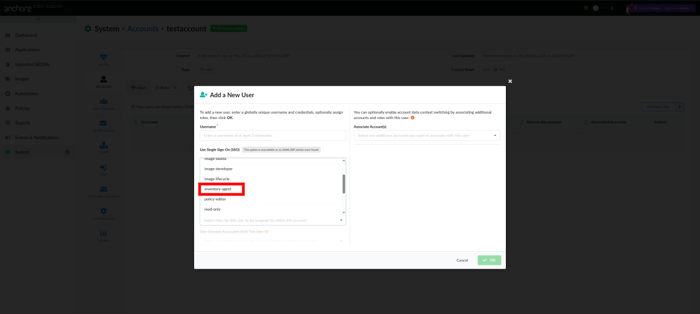
- Build your
values.yamlfile by setting your username, password, Anchore Enterprise URL and cluster name:
k8sInventory:
  # Path should not be changed, cluster value is used to tell Anchore Enterprise which cluster this inventory is coming from
  kubeconfig:
    cluster: <unique-name-for-your-cluster>

  anchore:
    url: <URL for your deployment>
    # Note: recommend using the inventory-agent role
    user: <user>
    password: <password>
- Install the Kubernetes Inventory Agent using Helm and the values file we just built:
helm install <release> -f <values.yaml> anchore/k8s-inventory
After deployment, verify the pod is up and running:
kubectl get pods -n anchore
The agent will automatically:
- Discover all running pods and containers.
- Collect image metadata and digest information.
- Submit inventory to Anchore Enterprise.
Verification & Best Practices
Once your cluster is connected, verify agent connectivity by checking the logs to confirm it’s reporting inventory and status as expected:
kubectl logs -n anchore <inventory-agent-pod>
Viewing the Vulnerability Results of Running Images
Log in to the Anchore Enterprise UI.
Navigate to the
Kubernetestab to access your running cluster data. Be aware that you may need to wait for a brief period for discovered data to appear.
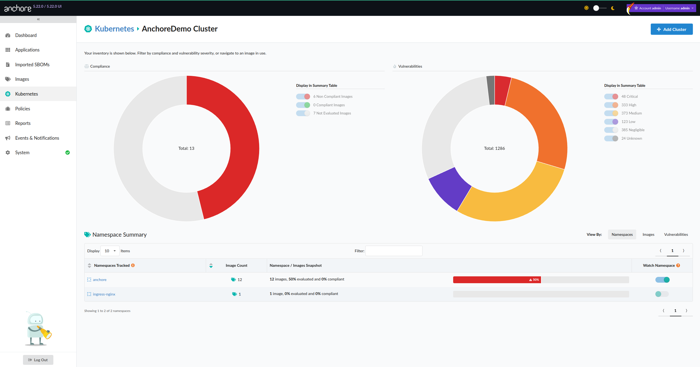
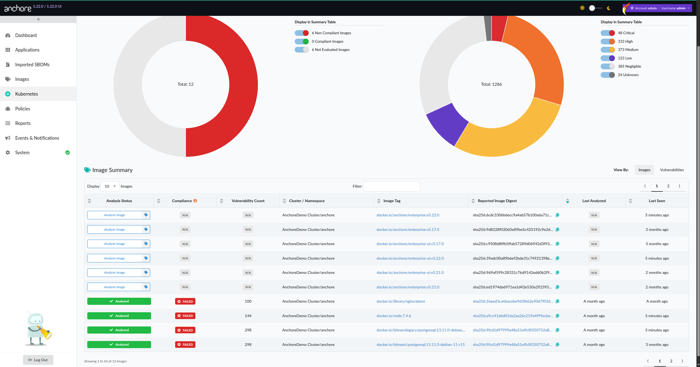
- Select your desired cluster. From here, You will get a real-time snapshot of what images are running and also be able to view:
The complete list of the running container images currently in use.
Vulnerabilities associated with each image, mapped to known CVEs.
CVSS scoring, severity distribution, and other helpful risk indicators so you can quickly spot anything that needs attention.
Viewing and Enforcing Policy Evaluations
Anchore Enterprise also lets you apply and enforce security policies directly against your running images—so you’re not just observing problems, you’re controlling them.
In the UI, go to Policies → Evaluation.
Choose the policy bundle you want to assess or enforce (for example, minimum CVSS severity thresholds, banned packages, or disallowed images).
Review the results, including:
- Pass/Fail status for each image or cluster.
- Detailed reasoning for policy violations, helping to guide remediation.
- Optionally - if you want to take things a step further, configure notifications or enforcement actions (e.g., blocking deployment of non-compliant workloads) to keep risky images out of production.
Notes:
Confirm version compatibility between Anchore Enterprise and the Kubernetes Inventory Agent—mismatched versions can cause subtle reporting gaps or failed collections.
Keep the agent and policy bundles current, so you’re always scanning against the latest CVE data and enforcement rules rather than working off stale definitions.
Consider using role-based access control(RBAC) in Anchore Enterprise to protect sensitive results, ensuring that only authorized users can view vulnerability and policy data—especially in environments where findings may have compliance or confidentiality implications.
9 - Identify and Remediate Vulnerabilities
Start identifying and remediating vulnerabilities found in your assets.
This page outlines the workflow for identifying and remediating security vulnerabilities using a number of different Anchore Enterprise platform features which combined provide a layered approach for augmenting your organization’s security posture.
Analyze and View Security Vulnerabilities on an Asset
In order to remediate a given vulnerability, we must first identify whether one exists in the underlying asset through analysis.
The asset in this case could represent a container image which can be analyzed either through the UI or anchorectl — both of which are described in detail below. Once analysis is complete, we can then view any identified vulnerabilities to start the process of remediation.
Through the UI
Through anchorectl
Flag Vulnerabilities for Remediation Using VEX Annotations
Anchore Enterprise leverages use of VEX (Vulnerability Exploitability eXchange) annotations that allows your organization to add context to identified vulnerabilities which helps prioritize remediation efforts by assessing real-world risk.
- Click the Images menu item.
- Select an image which has been analyzed with identified vulnerabilities.
- Click the Vulnerabilities tab.
- Under Annotation Status (VEX) select your intended status for the target vulnerabilities (i.e., Not Affected, Affected, Fixed, or Under Investigation).
- Click the caption box directly to the right to add annotation details in the Vulnerability Exploit Statement. Annotation details would include information such as how an identified vulnerability would be remediated (via an Action Statement).
For example, if you wanted to add an annotation for all CRITICAL vulnerabilities which meets the below criteria:
- Package Name:
java/jdk - Version:
1.8.0_452-b09 - Annotation Status:
Affected
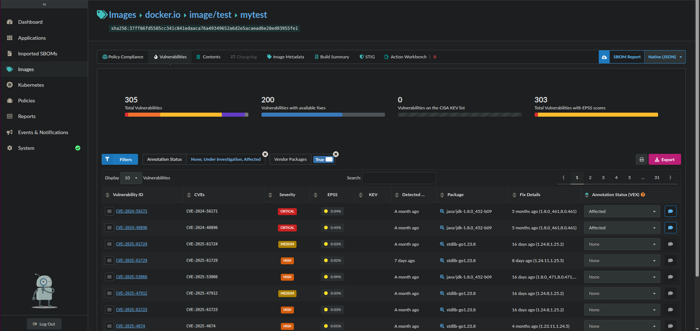
Critical vulnerabilities with Affected annotation
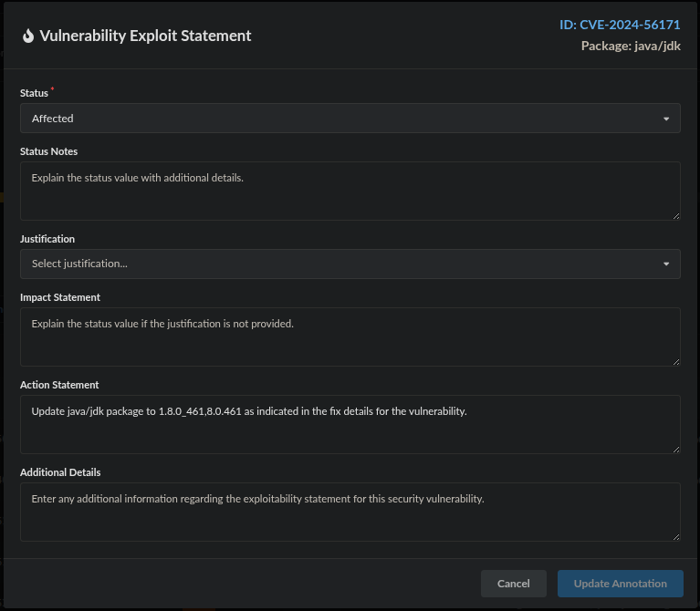
Annotation details with Action Statement
These vulnerabilities have now been annotated accordingly per their level of severity and can be prioritized for remediation per the Action Statement.
The Images API can also be used to add, list, or delete annotations or update annotation details for a given image similar to the functionality provided through the UI. Refer to
/images/{image_digest}/vuln-annotations and /images/{image_digest}/vuln-annotations/{vuln_annotation_uuid} in: API ReferenceFurther detail regarding the annotation classifications and VEX taxonomy in Anchore Enterprise can be found here: Vulnerability Annotations and VEX
Create a Report on Images With Annotated Vulnerabilities
Anchore Enterprise features a robust reporting service that allows your organization to create, manage, and save reports using pre-defined or custom templates for key stakeholder awareness and remediation.
Click the Reports menu item.
Choose a New Report of Images Affected by Vulnerability.
Choose the Vulnerability Severities and Vulnerability Annotation Status filters and select the appropriate filter patterns.
For example, if you wanted to create a report with annotated vulnerabilities which meets the below criteria:
- Vulnerability Severities:
Critical - Vulnerability Annotation Status:
affected
Once you’ve set the desired filter patterns, you can then click on Preview Results which will return a listing of all images with Critical vulnerabilities that have been annotated as affected.
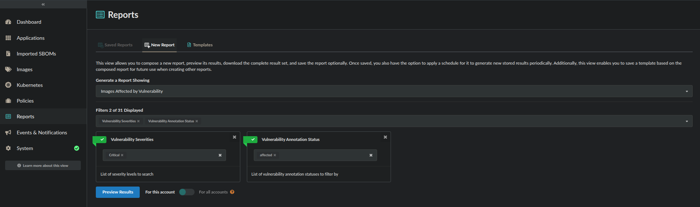
Images report on Critical and affected annotated vulnerabilities
The Account Scope is a default filter/option which controls whether the report should return global results encompassing all accounts, or if the results should be limited to only the local account. If you’re running the report as the admin user or as a user within the admin account, you’ll have the option to select either Local or Global as an Account Scope selection.
Once you’ve validated the Preview Results, you can either click on Download Full Report which will allow you to download the report in CSV (default) or JSON format or you can opt to click on Save Report.
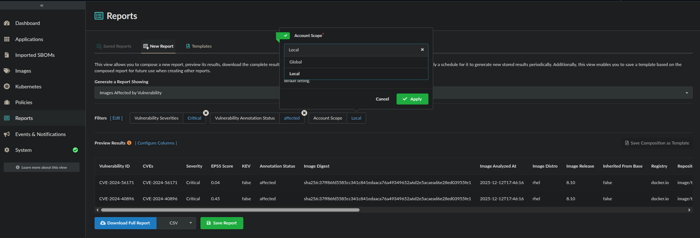
Preview Results
If saving the report, you should specify a report Name and optional Description. Additionally, you should also set the frequency (i.e., Daily, Weekly, or Monthly), day of the week, and time that report generation should occur. You also have the option to toggle Generate immediately on save which will generate a report for immediate download upon clicking the Save button.
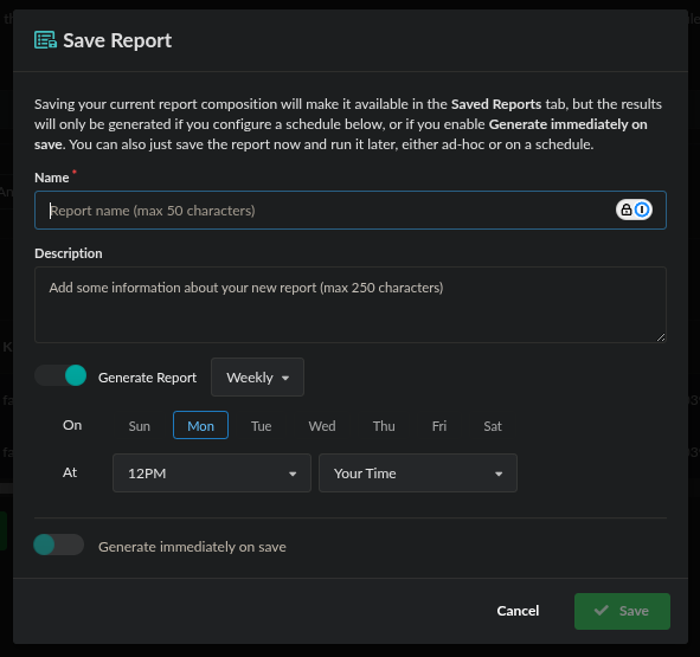
Save Report dialog
If you toggled Generate immediately on save, the saved report will be available for download in CSV (default) or JSON format and can be accessed by clicking on the Saved Reports tab.
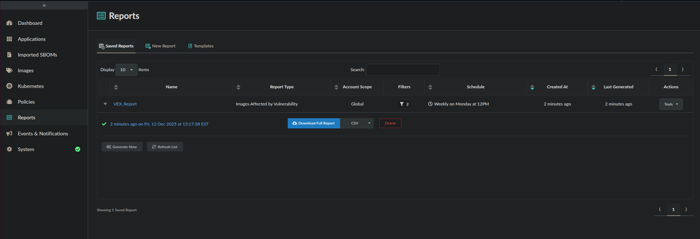
Saved Reports view
Further detail regarding report generation via the UI can be found here: Reporting & Remediation
anchorectl can also be utilized to generate a list of images with annotated vulnerabilities that require remediation, providing you have the image identifier from anchorectl image list, it allows you to filter affected images by both Vulnerability Severity and Vulnerability Annotation Status (limited to Vulnerability Annotation Status only).
Syntax:
anchorectl image vulnerabilities <image ID, digest, or name:tag> --annotations <not affected, affected, fixed, under investigation>
With example, for all vulnerabilities annotated as Affected:
anchorectl image vulnerabilities docker.io/image/test:mytest --annotations affected
 ✔ Fetched vulnerabilities                   [2 vulnerabilities]                                                                                         docker.io/image/test:mytest
┌────────────────┬──────────┬──────────┬───────────────┬───────────────────┬──────────────┬────────┼────────────┬───────┬────────────────┬─────────────────────────────────────────────────┬───────────────────┐
│ ID             │ SEVERITY │ NAME     │ VERSION       │ FIX               │ WILL NOT FIX │ TYPE   │ FEED GROUP │ KEV   │ CVES           │ URL                                             │ ANNOTATION STATUS │
├────────────────┼──────────┼──────────┼───────────────┼───────────────────┼──────────────┼────────┼────────────┼───────┼────────────────┼─────────────────────────────────────────────────┼───────────────────┤
│ CVE-2024-56171 │ Critical │ java/jdk │ 1.8.0_452-b09 │ 1.8.0_461,8.0.461 │ false        │ binary │ nvd        │ false │ CVE-2024-56171 │ [https://nvd.nist.gov/vuln/detail/CVE-2024-56171](https://nvd.nist.gov/vuln/detail/CVE-2024-56171) │ affected          │
│ CVE-2024-40896 │ Critical │ java/jdk │ 1.8.0_452-b09 │ 1.8.0_461,8.0.461 │ false        │ binary │ nvd        │ false │ CVE-2024-40896 │ [https://nvd.nist.gov/vuln/detail/CVE-2024-40896](https://nvd.nist.gov/vuln/detail/CVE-2024-40896) │ affected          │
└────────────────┴──────────┴──────────┴───────────────┴───────────────────┴──────────────┴────────┼────────────┴───────┴────────────────┴─────────────────────────────────────────────────┴───────────────────┘
Note: The -o, --output <string> flag can also be supplied to output the results in any one of the below allowed formats. The default is text.
Allowed Formats: text, json, json-raw, csv, cyclonedx-json, or cyclonedx-xml
anchorectl image vulnerabilities docker.io/image/test:mytest --annotations affected -o csv
The Images API can also be used to list annotations for a given image similar to the functionality provided through the UI. Refer to /images/{image_digest}/vuln-annotations in the API Reference.
Export and Download a VEX Document
Anchore Enterprise can be used to generate a VEX (Vulnerability Exploitability eXchange) document for review with key stakeholders for security state awareness.
Click the Images menu item.
Select an image which has been analyzed where annotations have previously been added.
Click the Export button above the Annotation Status (VEX) column.
Exporting VEX annotations
From the Export dialog box, select the VEX radio button and desired export format (i.e. CycloneDX JSON, CycloneDX XML, or OpenVEX) from the drop-down box.
Click the Download button to download the VEX document.
Further detail regarding the CycloneDX specification can be found here: CycloneDX Spec
Further detail regarding the OpenVEX specification can be found here: OpenVEX Spec
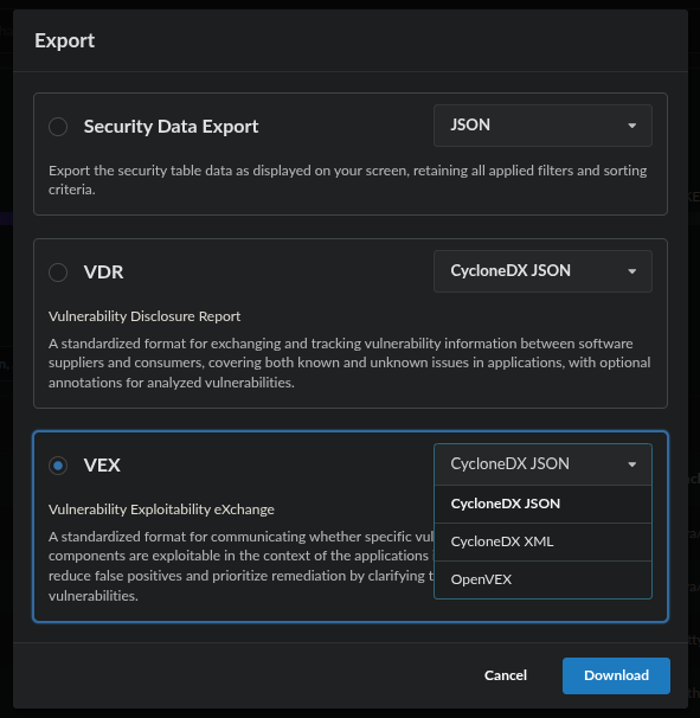
Export dialog showing VEX options
The Images API can also be used to generate/download a VEX document for a given image similar to the functionality provided through the UI. Refer to
/images/{image_digest}/vex/openvex, /images/{image_digest}/vex/cyclonedx-xml, and /images/{image_digest}/vex/cyclonedx-json in: API ReferenceFurther detail regarding generating a VEX document for an image in Anchore Enterprise can be found here: Vulnerability Annotations and VEX
Track Changes to Vulnerabilities
Anchore Enterprise features the ability to send notifications if the vulnerabilities within an image change.
For instance, changes made by the upstream providers of vulnerability data may cause CVEs to be added, removed, or modified. From a vulnerability management standpoint, it’s important to track such changes as a CVE severity level could be upgraded prompting the need to add a VEX annotation for vulnerability remediation.
Tracking changes to vulnerabilities is a core function of the Vulnerability Update subscription as described below.
Vulnerability Update Subscription
anchorectl is the primary mechanism for activating/deactivating the subscription (deactivated by default).
Once the subscription is activated, notifications can then be configured to notify upon changes or updates to vulnerabilities.
Notifications can be selectively routed using a Selector. For changes or updates to vulnerabilities, configure the Selector as outlined in the Notifications Quick Selection guide.
Use Policies for Vulnerability Management
Anchore Enterprise features a sophisticated policy engine that allows your organization to perform evaluations against source repositories or container images using a set of rules.
Further detail regarding compliance management and policy taxonomy in Anchore Enterprise can be found here: Compliance Management
Click the Policies menu item.
Click on Create New Policy or click on Edit to modify the existing Active policy.
Click on Add New Rule Set and select either Source Repositories or Container Images from the drop-down box.
Provide a Name and Description for the ruleset and proceed to select and configure the ruleset Gate and Trigger.
Select an action (i.e., STOP, WARN, or GO) which should be associated with the ruleset.
For example, if you wanted to create a ruleset associated with the existing Anchore Enterprise - Secure policy to detect all CRITICAL vulnerabilities:
- Ruleset Type:
Container Images - Gate:
vulnerabilities - Trigger:
package
Parameters:
- package type (Required):
all - severity:
critical - severity comparison:
= - annotation status:
affected
Action (on policy evaluation): STOP
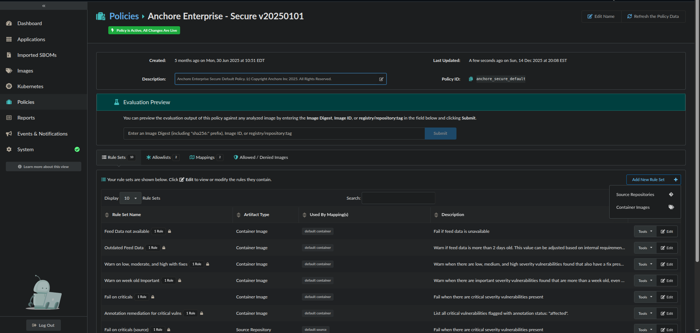
Add New Rule Set interface

Rule Set parameters and action configuration
Further detail regarding adding policies can be found here: Adding and Editing Policies
Further detail regarding the vulnerabilities gate and package trigger can be found here: Gate: vulnerabilities
Click on the Mappings tab followed by the Container Images tab.
Click on Edit for the default container Mapping Name.
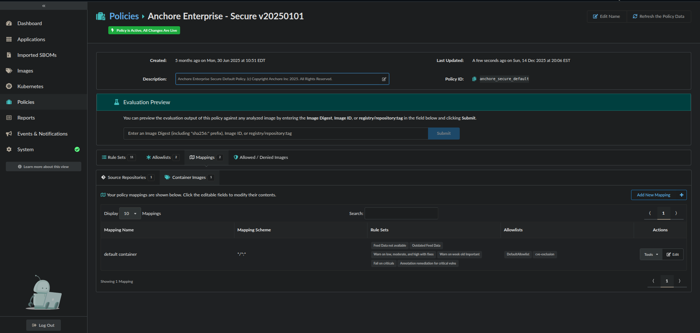
Policy Mappings view
- From the Edit Container Image Mapping dialog box, add the newly created ruleset to the Rule Sets list by selecting it from the drop-down menu. Once added, click OK.
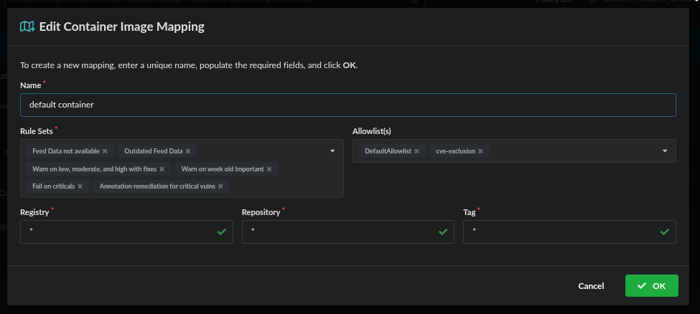
Container Image Mapping dialog
Click the Images menu item and select an image which has been analyzed where annotations have previously been added.
Click the Policy Compliance tab. Check to make sure the correct policy and newly added ruleset are listed next to Policy and under Rule Sets.
Type in the name of the newly added ruleset in the Search box to filter on just the vulnerabilities that match the ruleset.
Under the Gate Action column, verify the configured ruleset action is reflected.
13.Under the Policy Rule column, verify the name of the ruleset is reflected.
- Verify that the Policy Result in the upper right-hand side reflects the evaluation (i.e., PASSED or FAILED).
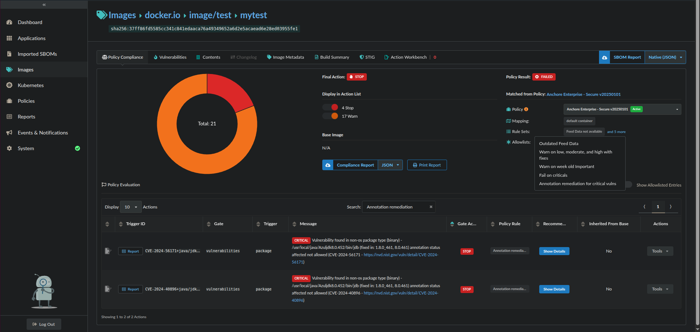
Policy Compliance evaluation results