This guide provides an example of how to scan an SBOM of a filesystem generated with AnchoreCTL.
Note: This does require a minimum of Anchore Enterprise 5.24 installed.
Create a new SBOM policy mapping:
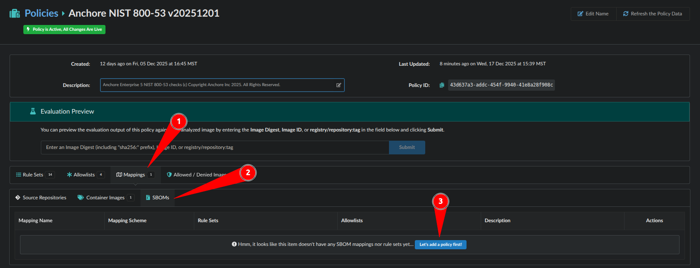
- Within Policies navigate to Mappings
- Select SBOMs tab
- Click Let’s add a policy first!
Now let’s name a rule set that maps to SBOMs which we will name: sbom-demo
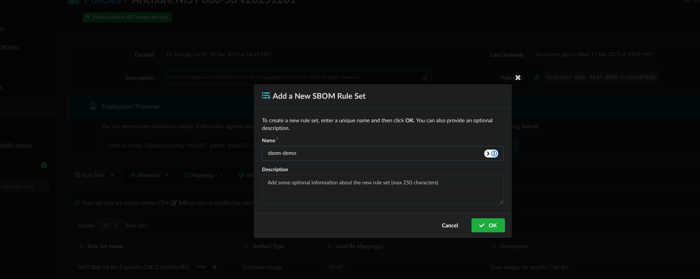
This will prompt us to make a rule set configuration:
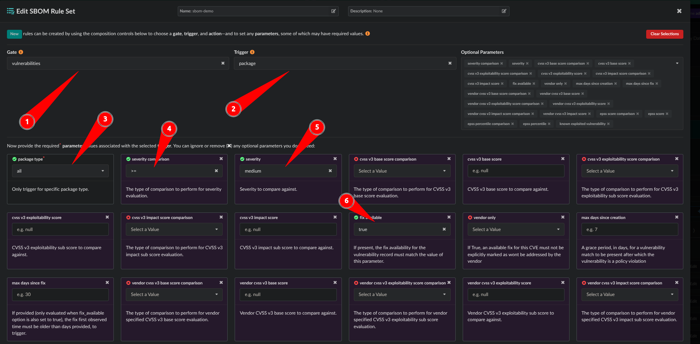
- Gate: vulnerabilities
- Trigger: package
- package type: all
- severity comparison: >=
- severity: medium
- fix available: true
Scroll down to the bottom and click the red STOP button.

It will now look like this and can you can save the policy:
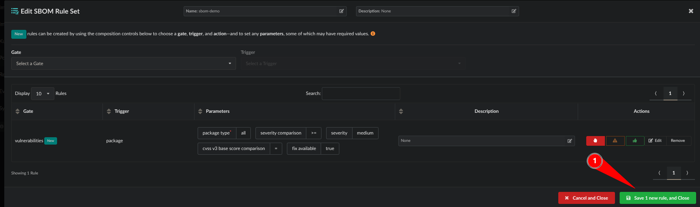
- Click Save 1 new rule, and Close
We have a rule set but now we need to make a rule map to SBOMs:
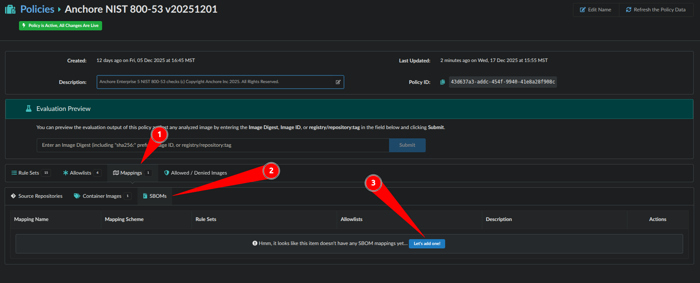
- Click Mappings
- Click SBOMs
- Click Let’s add one!
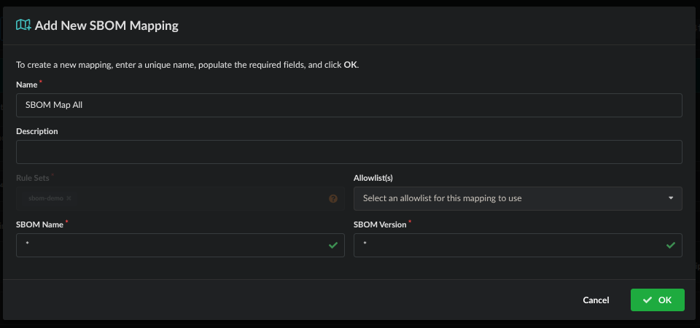
Now we will map the ruleset to SBOMs by giving it a name, the Rule Sets of ‘sbom-demo’ is applied and we will map this to all SBOM Names and Versions. Click OK when done.
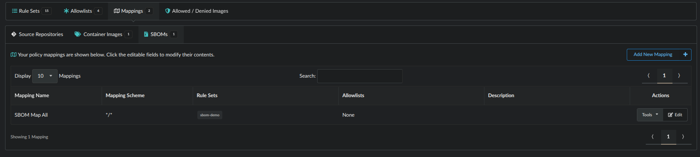
The result will look like this:
SBOMs can be generated using the commands below. It works for applications, containers, files, filesystems, firmware, libraries, modules and mounted virtual disks. Here are is an example below:
For the menu:
anchorectl sbom add --helpTo generate a scan of a filesystem:
anchorectl sbom add --from /usr/bin --name usr_bin_binaries --version 1.0 --type filesystemThe SBOM is available via the UI here:
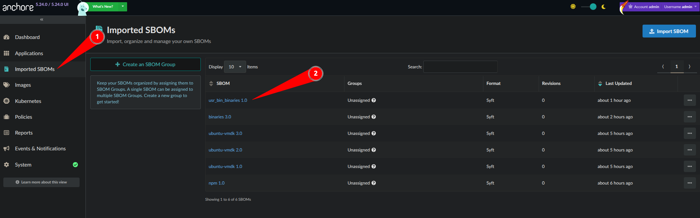
SBOM as seen in the UI.
1. Navigate to Imported SBOMs
2. Click on the user_bin_binaries 1.0 object
- From here we can see that the SBOM has been analyzed against policy:
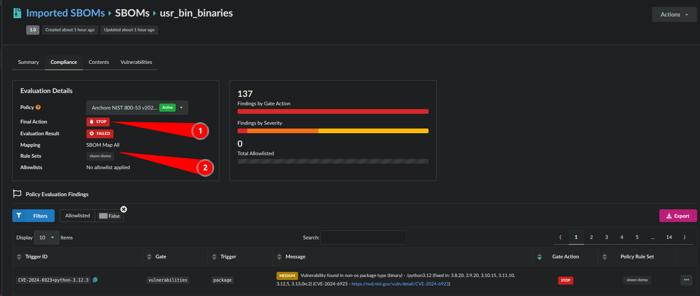
SBOM analyzed against policy.
1. The Final Action was a STOP due to the policy rule map
2. The mapping is: SBOM Map All and Rule Sets: sbom-demo
Congrats!!! You have now mapped a policy to an SBOM