A container image asset is created by analyzing an OCI or Docker image and attaching the resulting SBOM to an app version. Anchore Enterprise supports two analysis paths — pick the one that matches where the image bytes can be read from.
anchorectl image add command. See Image Analysis for that path. Use this page when you want a container image to participate in app-version aggregation, pivot queries, and exports.Distributed vs Centralized Analysis
| Path | Who pulls the image | Who generates the SBOM | When to use |
|---|---|---|---|
| Distributed | AnchoreCTL, on the host where you run the command | AnchoreCTL, locally; only the SBOM is uploaded | Offloading SBOM-generation load from the central deployment, air-gapped or sensitive-image pipelines, registries Anchore Enterprise cannot reach |
| Centralized | Anchore Enterprise, from the registry | Anchore Enterprise, server-side | Registries Anchore Enterprise can reach, when you want consistent server-side analysis without local resource use |
For the underlying lifecycle these two paths share, see How It Works.
Distributed analysis can also be split into two steps. AnchoreCTL generates an analysis bundle on the host where it runs, which needs access to the image but no connection to Anchore Enterprise (see Generating SBOMs). The bundle is then attached to the app version later, either as a discrete pipeline step or once network connectivity to the Anchore Enterprise deployment is available (see Attaching Analysis Bundle Assets).
Add a Container Image Asset in the Anchore Enterprise GUI
From an app version’s detail page, open the Add Asset action and choose Container Image. Provide the image reference, an asset name, and (optionally) a Dockerfile to attach and annotations. The GUI submits the analysis job and shows its progress on the version’s recent activity panel.
Select the Image option: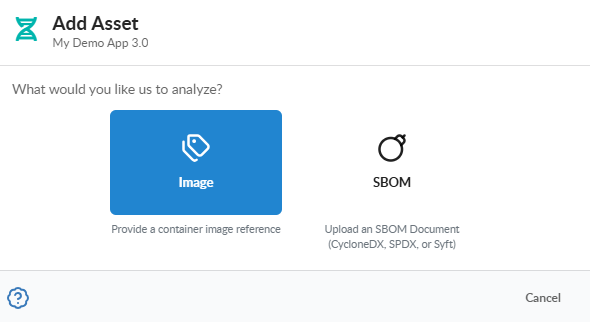
Enter the Image Reference and optional Dockerfile: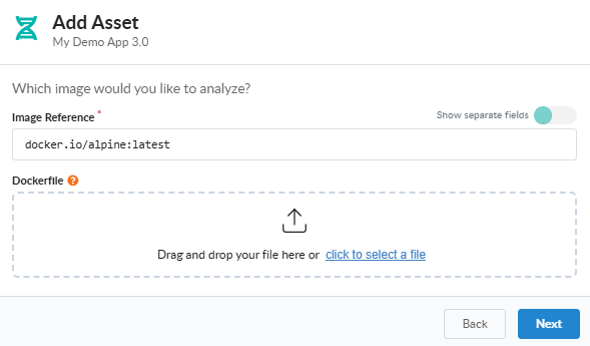
Enter the Image Asset Name: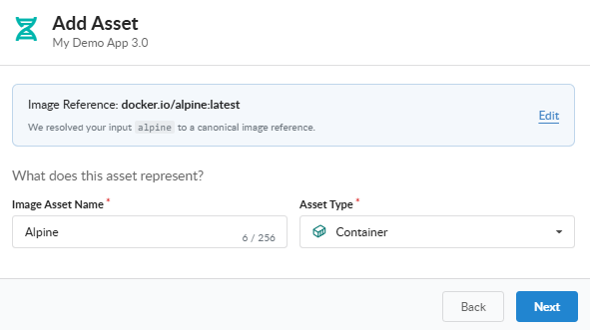
Optionally, enter up to 10 image asset annotations: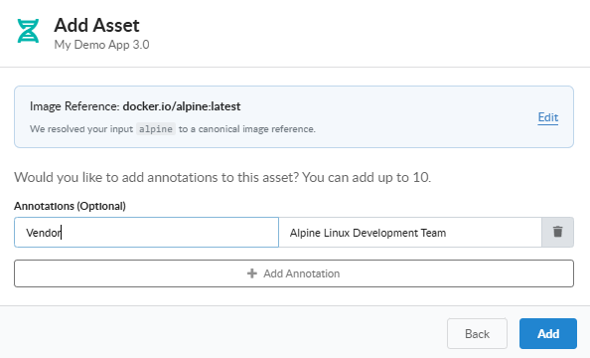
You can view the recently added assets in the My Recent Activity panel on the App Version Summary tab: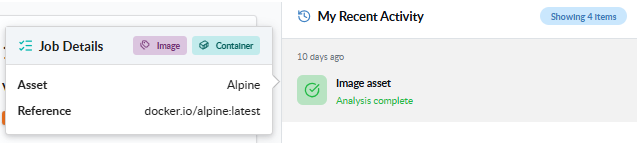
Add a Container Image Asset with AnchoreCTL
AnchoreCTL exposes the two analysis paths as separate subcommands. Both require the parent app, the parent version, and a name for the new asset.
Distributed Analysis
Use app version asset add container-image to have AnchoreCTL analyze the image locally and upload the SBOM. The default source is a registry pull:
anchorectl app version asset add container-image docker.io/my-org/api:1.4.0 \
  --app my-service \
  --version 1.4.0 \
  --asset api-image
Switch the source with --from. The supported values are:
| Source | --from value | Notes |
|---|---|---|
| Registry (default) | omit, or registry | AnchoreCTL pulls the image from the registry |
| Local Docker daemon | docker | Reads an image already loaded into Docker |
| Local Podman storage | podman | Reads an image already loaded into Podman |
| OCI/Docker archive | docker-archive:/path/to.tar | Loads the image from a local tar file |
To analyze an image already loaded into your local Docker daemon — for example a freshly built image that hasn’t been pushed yet — point AnchoreCTL at the docker source:
anchorectl app version asset add container-image my-org/api:1.4.0 \
  --app my-service \
  --version 1.4.0 \
  --asset api-image \
  --from docker
Registry-hosted multi-architecture images carry a manifest per platform. Pin the platform AnchoreCTL should analyze with --platform:
anchorectl app version asset add container-image docker.io/my-org/api:1.4.0 \
  --app my-service \
  --version 1.4.0 \
  --asset api-image \
  --platform linux/arm64
Centralized Analysis
Use app version asset add container-image-remote to have Anchore Enterprise pull and analyze the image server-side:
anchorectl app version asset add container-image-remote docker.io/my-org/api:1.4.0 \
  --app my-service \
  --version 1.4.0 \
  --asset api-image
The image reference must be resolvable from Anchore Enterprise — including registry credentials configured in your account. The centralized command does not accept --from or --platform, since Anchore Enterprise selects how to fetch the image.
Shared Flags
Both subcommands accept the same supporting flags:
--annotations "key=value,key=value"— attach build metadata at create time (see Managing Assets in an App Version for the merge and clear semantics)--dockerfile /path/to/Dockerfile— attach the Dockerfile so policy checks can evaluateDockerfiletriggers--wait— block until the job reaches a terminal state instead of returning immediately--type— override the asset type (defaults tocontainer); see the AssetType enum
These flags stack with both the distributed and centralized invocations. A complete CI/CD-friendly invocation that attaches a Dockerfile, captures build metadata, and blocks until the job completes:
anchorectl app version asset add container-image docker.io/my-org/api:1.4.0 \
  --app my-service \
  --version 1.4.0 \
  --asset api-image \
  --dockerfile ./Dockerfile \
  --annotations "owner=platform-team,commit=a3f7c01" \
  --wait
Add a Container Image Asset with the API
Distributed and centralized analysis are two distinct job types in the API:
POST /apps/{app_id}/jobs/add-container-image-asset— used by the centralized path; Anchore Enterprise pulls and analyzes the image server-side.POST /apps/{app_id}/jobs/add-imported-image-asset— used by the distributed path; AnchoreCTL analyzes the image locally and uploads the resulting SBOM together with the image manifest, image config, and any optional analysis artifacts (secret searches, content searches, file contents) as a multipart payload.
For both, the full multipart request schema and response schemas are in the API browser; search for the App Jobs tag.
A few conventions worth knowing as you call these endpoints:
- Job state transitions and the
--waitsemantics are documented in How It Works. - The job response carries a
job_id; pollGET /apps/{app_id}/jobs/{job_id}to track status. - Cross-account requests are scoped via the
x-anchore-accountheader or, from AnchoreCTL, theANCHORECTL_ACCOUNTenvironment variable. See Account Scoping for the full mechanism.