Apps are managed through the Anchore Enterprise GUI, AnchoreCTL, or the Anchore API. The three surfaces share the same data model — see Anatomy of an App for the field reference.
The lifecycle is straightforward: create an app, list and inspect the apps in your account, update the version status as apps are released or releases reach end of life (EOL), and update an app’s metadata as ownership or policy assignment changes.
Manage Apps in the Anchore Enterprise GUI
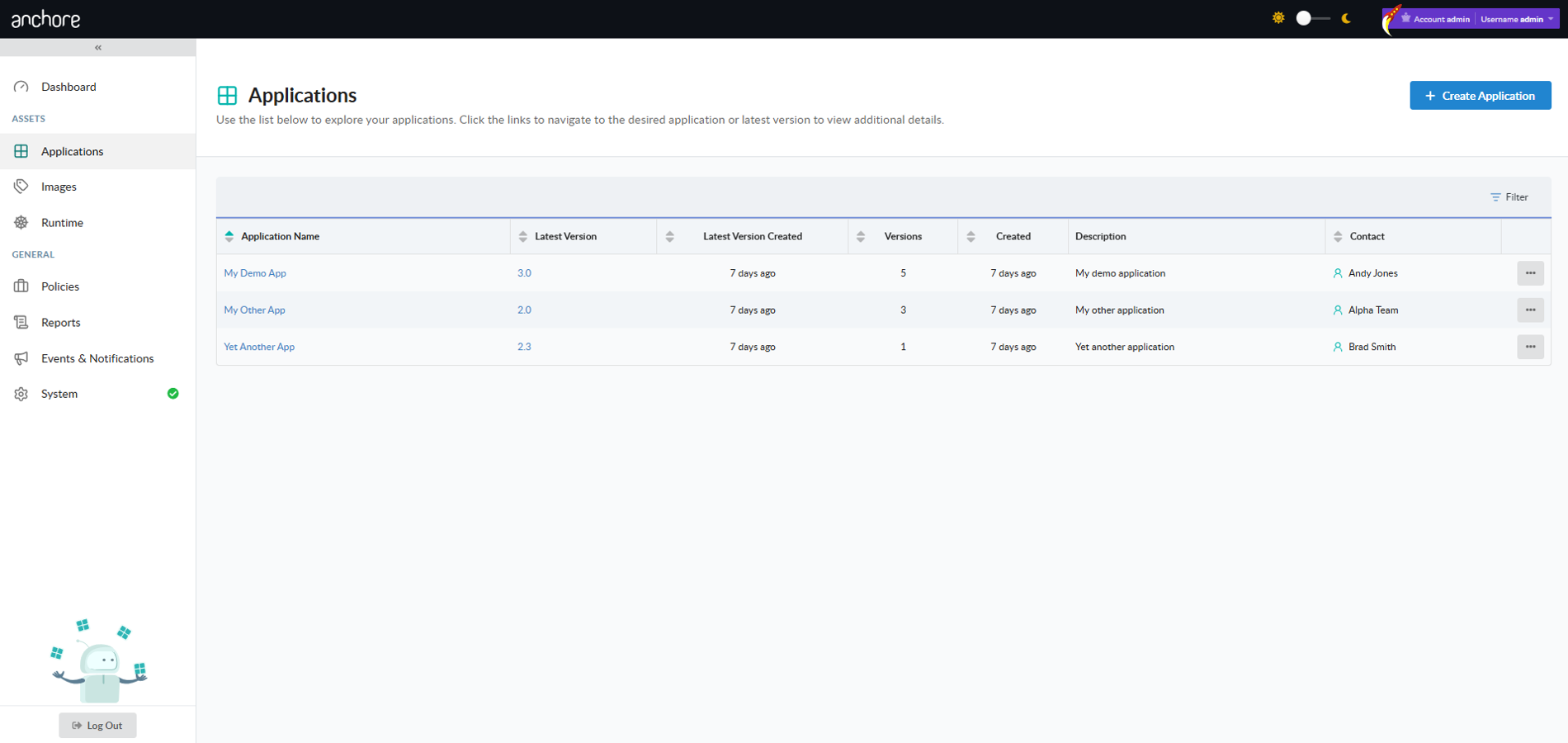
The Apps view is the home for app management in the UI. From there you can browse every app in your current account, drill into a specific app to see its versions, and trigger the create / edit / delete flows from a single screen.
Create an App in the GUI
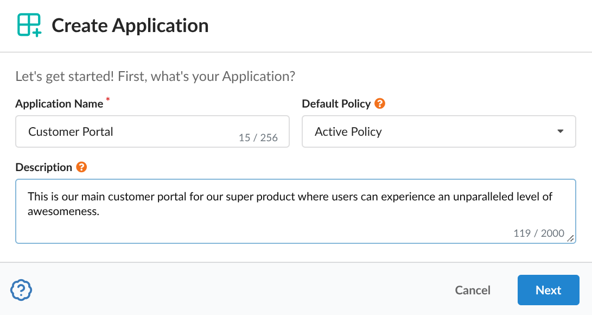
Click Create Application in the Apps view. The Create Application dialog opens on the application details: enter an Application Name and, optionally, a Description. Default Policy starts as Active Policy, which evaluates the app against whichever policy is active in the account, including after the active policy changes. Choose a specific policy to evaluate the app against that policy instead.
Click Next to fill in who to contact about the application. Contact/Team Name is required; Organization Name, Email and Phone Number are optional. Click Create to create the app, or Back to return to the application details.
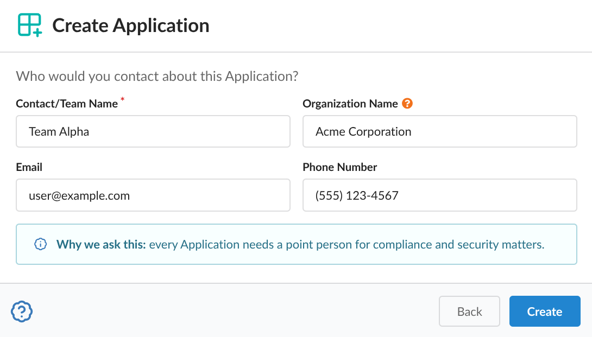
The contact’s Organization Name names the organization responsible for the app. Anchore Enterprise uses it as the author of the app’s version VEX and VDR documents and as the source of its VEX annotations. If you leave it blank, the account’s Organization Name is used instead, and the Apps view shows that name.
Edit an App in the GUI
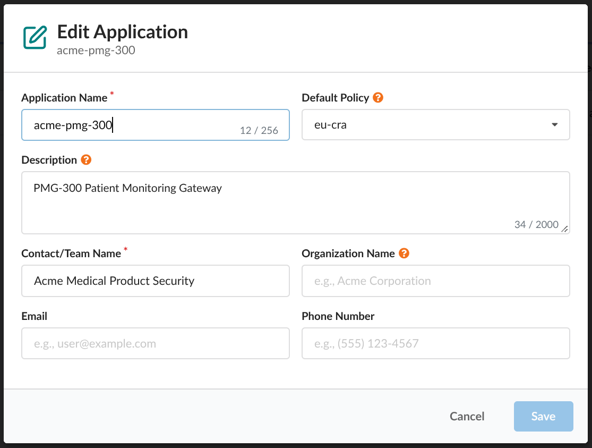
From the Apps view or from an app’s detail page, open the Edit action to update the app’s name, description, contact, or policy assignment. The same field rules apply as on create.
Delete an App in the GUI
Open the Delete action from the Apps view or detail page. If the app still has versions attached, the GUI prompts you to confirm a forced delete that cascades to every version and asset under the app.
force removes every version of the app and every asset attached to those versions. This operation is irreversible.Manage Apps with AnchoreCTL
AnchoreCTL exposes the full CRUD surface for apps under anchorectl app. Every command accepts either an app name or its UUID, and the output format is controlled with -o text|json|json-raw|id.
Create an App
Create a new app with the add subcommand. The app name is the positional argument, and the contact name is the only required flag:
anchorectl app add my-service \
  --contact-name "Platform Team" \
  --contact-email [email protected] \
  --description "Customer-facing API service"
Optional flags include --contact-email, --contact-phone, --contact-organization, --description, and --policy-id. Without --contact-organization, the app uses the account’s Organization Name.
List Apps
List every app in the current account with no arguments:
anchorectl app list
To narrow the result to a single app by exact name, add --name:
anchorectl app list --name my-service
Get an App
Retrieve a single app’s record by either its name or UUID:
anchorectl app get my-service
Use -o json for the structured record, which includes system_metadata and the resolved policy_id. Its contact also carries the effective organization name: the app’s own organization if set, otherwise the account’s Organization Name. The text output’s Organization field, and the ORGANIZATION column of anchorectl app list, show only the app’s own value and are empty when the app uses the account’s.
Update an App
Update one or more fields on an existing app. Only the flags you provide are sent — omitted flags leave the corresponding fields unchanged:
anchorectl app update my-service \
  --description "Customer-facing API service (regulated)" \
  --policy-id strict-policy
To clear the policy assignment and fall back to the account default, pass an empty string: --policy-id "". Likewise, --contact-organization "" clears the app’s own organization so that it uses the account’s Organization Name again.
Delete an App
Delete an app by name or UUID. The default behavior refuses to delete an app that still has versions attached:
anchorectl app delete my-service
To cascade the delete through every version and every asset under the app, add --force:
anchorectl app delete my-service --force
Manage Apps with the API
App management is exposed under the /apps collection — create, list, get, update, and delete operations are all available, with cascading delete via ?force=true. The full endpoint inventory, request and response schemas, and error codes are in the API browser; search for the Apps tag.
A few conventions worth knowing as you call these endpoints:
- List endpoints return paginated responses — see Pagination.
- Cross-account requests are scoped via the
x-anchore-accountheader or, from AnchoreCTL, theANCHORECTL_ACCOUNTenvironment variable. See Account Scoping for the full mechanism.
DELETE /apps/{app_id}?force=true is destructive and irreversible — it removes every version of the app and every asset attached to those versions.