An app version is a point-in-time release of an app: the unit that aggregates packages, vulnerabilities, and policy results across the assets that make up a release. Versions are managed through the Anchore Enterprise GUI, AnchoreCTL, or the Anchore API.
In addition to a name and description, an app version carries two fields that model the release lifecycle:
status— one ofin_progress,released, oreol. New versions default toin_progress. Move a version toreleasedwhen it ships, and toeolonce support ends.release_date— the date the version was released or hosted. Free-form forin_progressversions; typically set when the status moves toreleased.
eol does not stop analysis: the version continues to receive
vulnerability matches and policy re-evaluations, so its results stay current. However,
Anchore Enterprise no longer sends policy status change notifications for an eol
version. See Notifications for how
notifications are configured.Manage App Versions in the Anchore Enterprise GUI
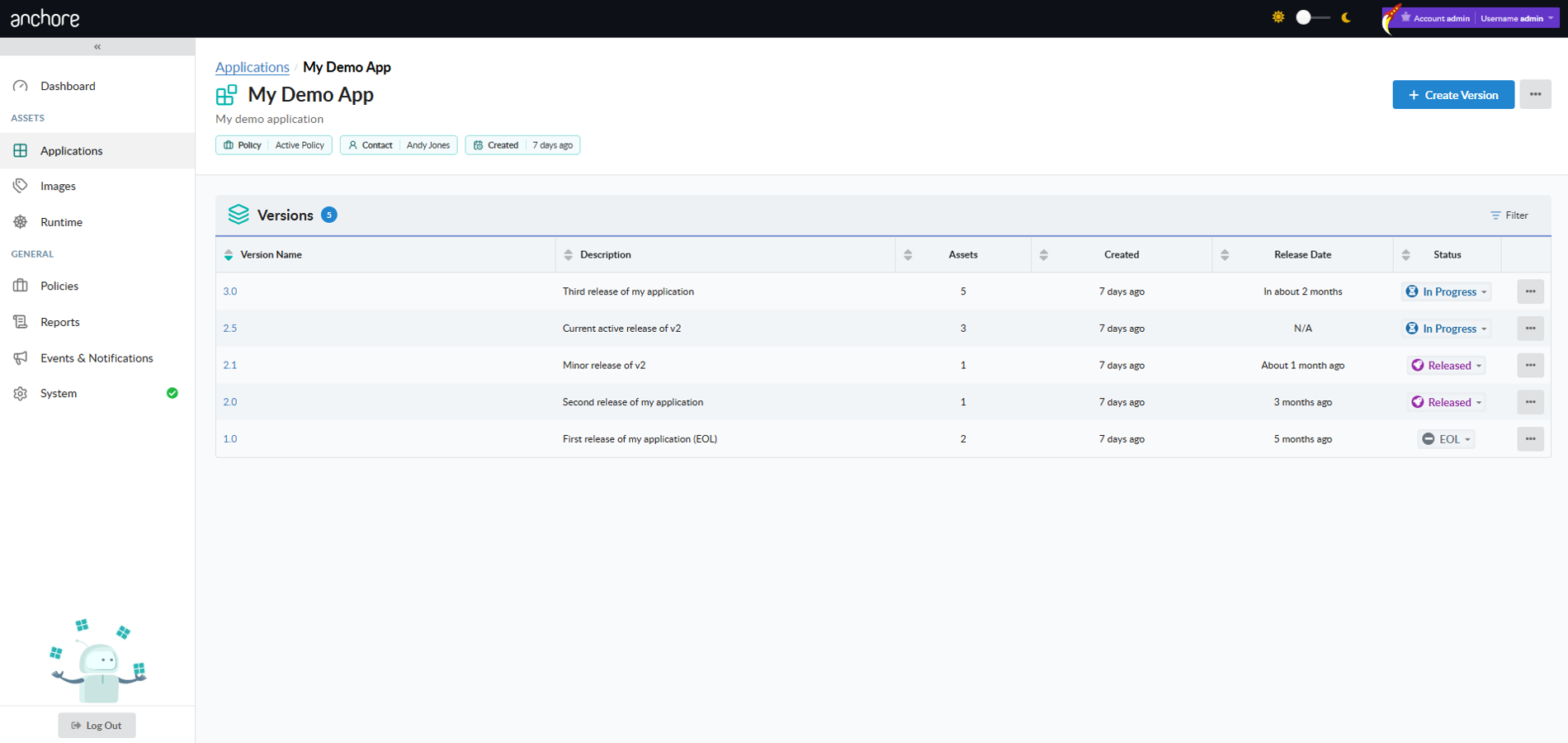
Versions are listed on an app’s detail page in the Apps view. From there you can create a new version, open an existing version’s detail page, or edit and delete versions.
Create a Version in the GUI
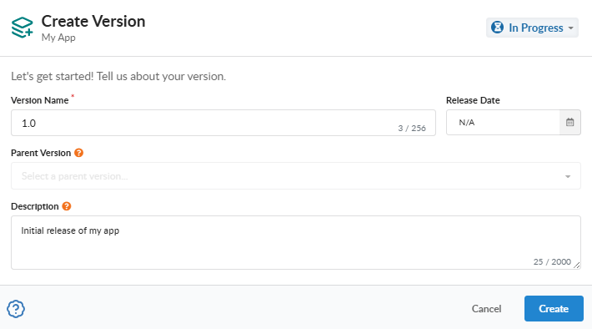
From the app detail page, click Create Version to open the creation modal. Provide a name, an optional description, an optional status, an optional previous version to chain from, and an optional release date.
Edit a Version in the GUI
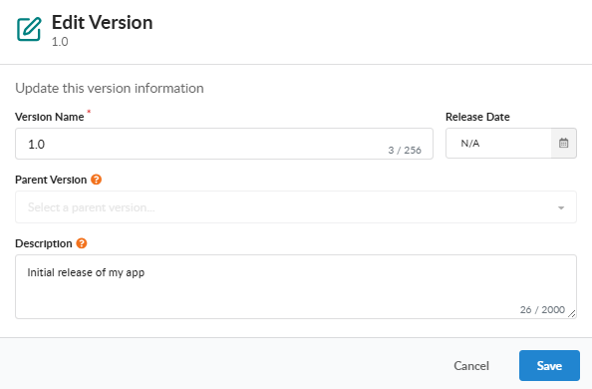
From the app detail page or the version’s own detail page, open the Edit action to update any field.
Delete a Version in the GUI
Open the Delete action from the version row or detail page. If the version still has assets attached, the GUI prompts you to confirm a forced delete that cascades to every asset.
force removes every asset attached to that version. This operation is irreversible.Version Detail Page
Open a version from the app detail page to land on its detail view. This is the centerpiece of SBOM management in the GUI; it aggregates every asset attached to the version and presents a tabbed view of the version’s overall compliance issues, packages, and vulnerabilities.
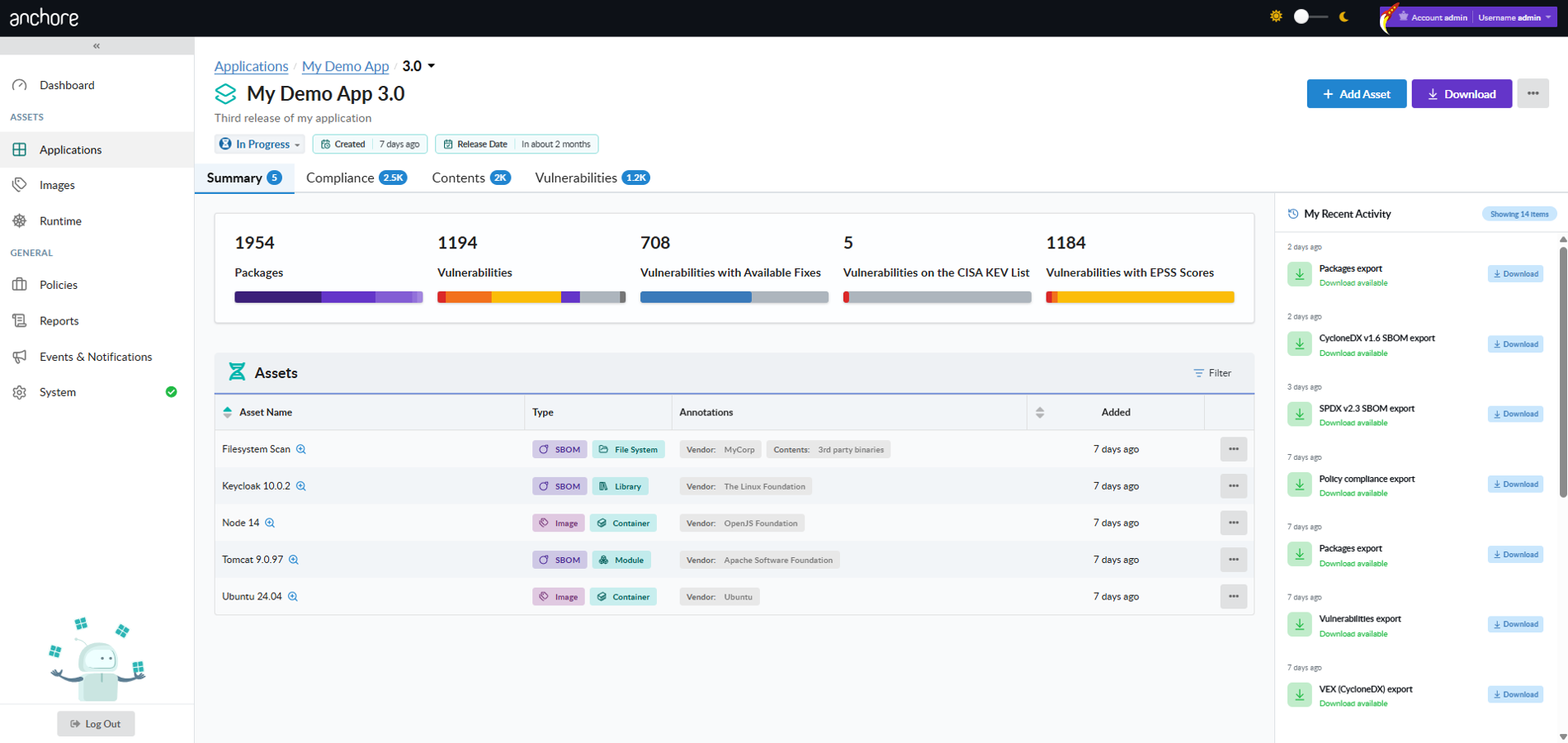
The header carries the version’s name, status, release date, and primary actions: Add Asset, Download Unified Documents, and an additional actions menu. The body is organised into tabs that present the same underlying data through different perspectives. Each tab shows a data grid with a unique listing of relevant data. Above the grid are filters which can be used to reduce the data rows based on your desired criteria. Filters can be stacked to create multiple expressions. On the Contents, Vulnerabilities, and Compliance tabs, an Export button next to the Filters downloads the unfiltered grid data into a data file. Each export creates an asynchronous job, and the resulting generated data file can be downloaded via the Recent Activity panel in the Summary tab. Exported CSVs contain one row per entry per asset, with Asset ID, Asset Name, Asset Class, and Asset Type columns identifying which asset each row came from.
Summary Tab
The summary tab gives an at-a-glance view of the version’s compositions and compliance state: list of assets with their metadata, total packages with a breakdown by ecosystem, vulnerability counts with several breakdowns, and a recent activity panel on the right side which shows application version jobs and downloads. It is the ideal landing page for an executive or release-manager glance at the version.
Recent Activity Panel
Every asset-add, export, and policy-evaluation operation runs as an asynchronous job. The version detail page surfaces these through a Recent Activity panel that polls live for status updates and shows each in-flight, completed, or failed job.
Click a row to open the job detail popup, which shows the job type, status, headline message, and, for failed jobs, the error code and reason captured during validation. The same job records are available through anchorectl app job list / get and through the API at /apps/{app_id}/jobs. For the validation error codes you may see on failed SBOM uploads, see Content Validation.
Contents Tab
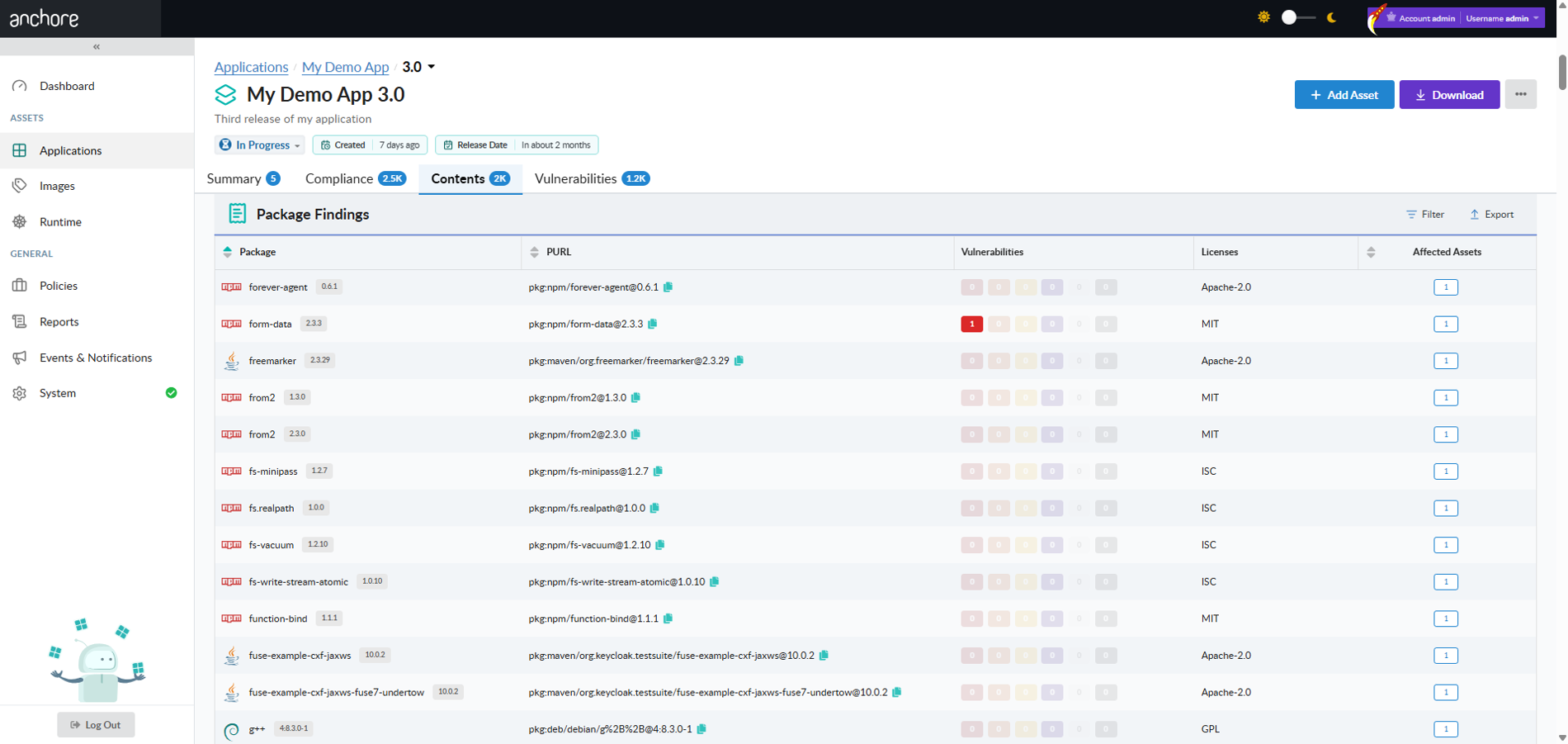
The contents tab lists every unique package found across every asset in the version. Each row presents the package ecosystem, name and version, PURL, a vulnerability summary by severity and count, a list of licenses, and an affected asset count. From a package you can view which assets contain it. This is the GUI equivalent of the assets-by-package API endpoint described in Viewing an App Version’s SBOM. The tab can be filtered by whether a package has vulnerabilities and by vulnerability severity; filter and sort selections are reflected in the URL, so a filtered view can be bookmarked or shared.
Vulnerabilities Tab
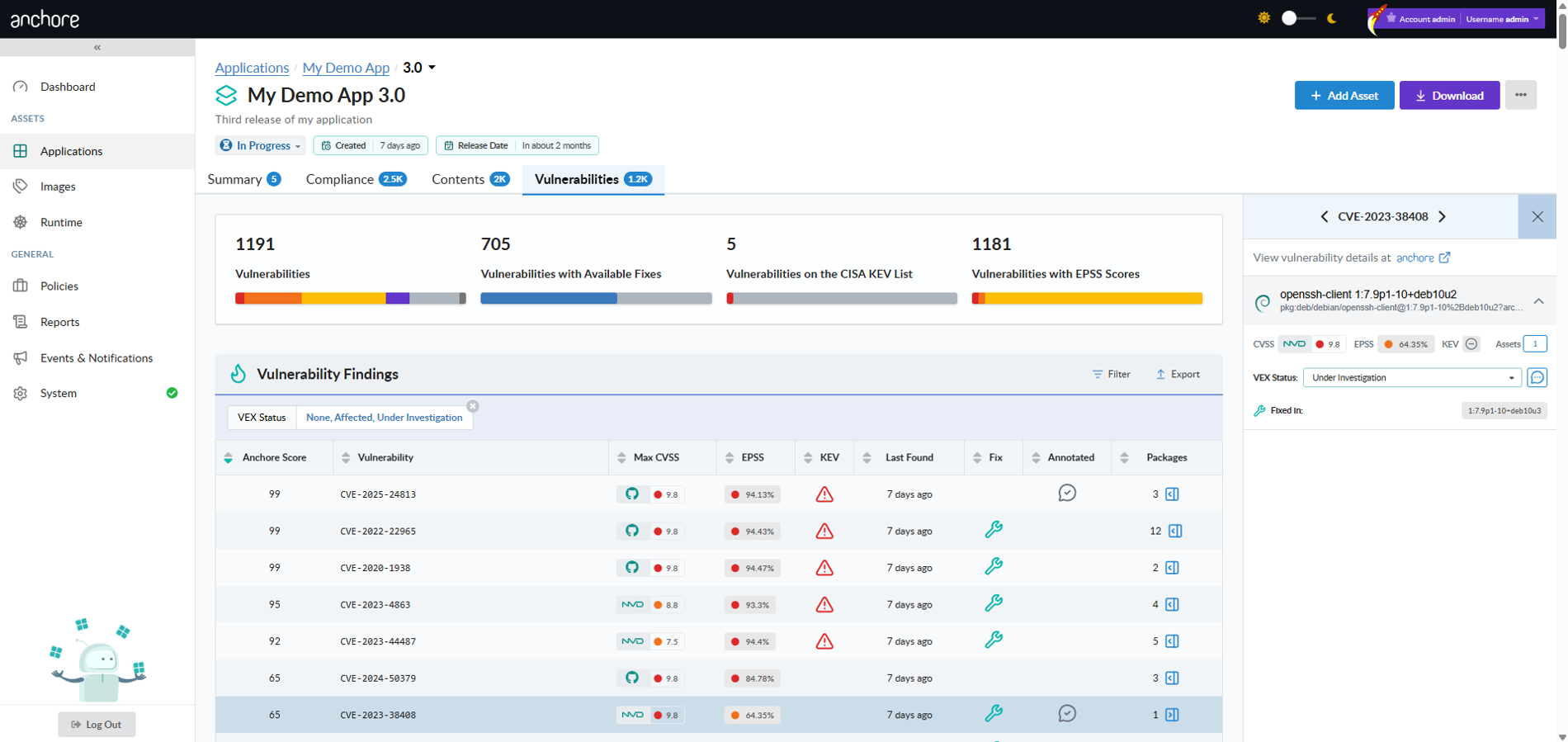
The vulnerabilities tab lists every unique vulnerability surfaced across the version’s assets. Each row presents a unique vulnerability record consisting of the computed Anchore Score (a composite risk index consisting of the CVSS score and severity, the EPSS, and the CISA KEV status, used to prioritize remediation work), vulnerability ID, maximum CVSS severity and score (from a given security repository), the EPSS data, the CISA KEV status, the last time the vulnerability was reported, whether any of the associated packages have fixes available, and whether any of the associated packages have VEX annotations applied to them. Selecting a vulnerability opens a panel that shows which packages are affected and in which assets the impacted package lives. The packages panel can also be used to apply a VEX annotation to provide the security assessment for a given vulnerability-package combination for the current application version.
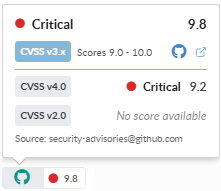
Clicking on any of the Vulnerability widgets will show the vulnerability repository from which the data is being provided, along with CVSS v2.0, v3.1, and v4.0 scores. There is also a link to the Anchore Vulnerability Database website where you can conduct additional research about any vulnerabilities of interest looking across data aggregated across several providers.
Compliance Tab
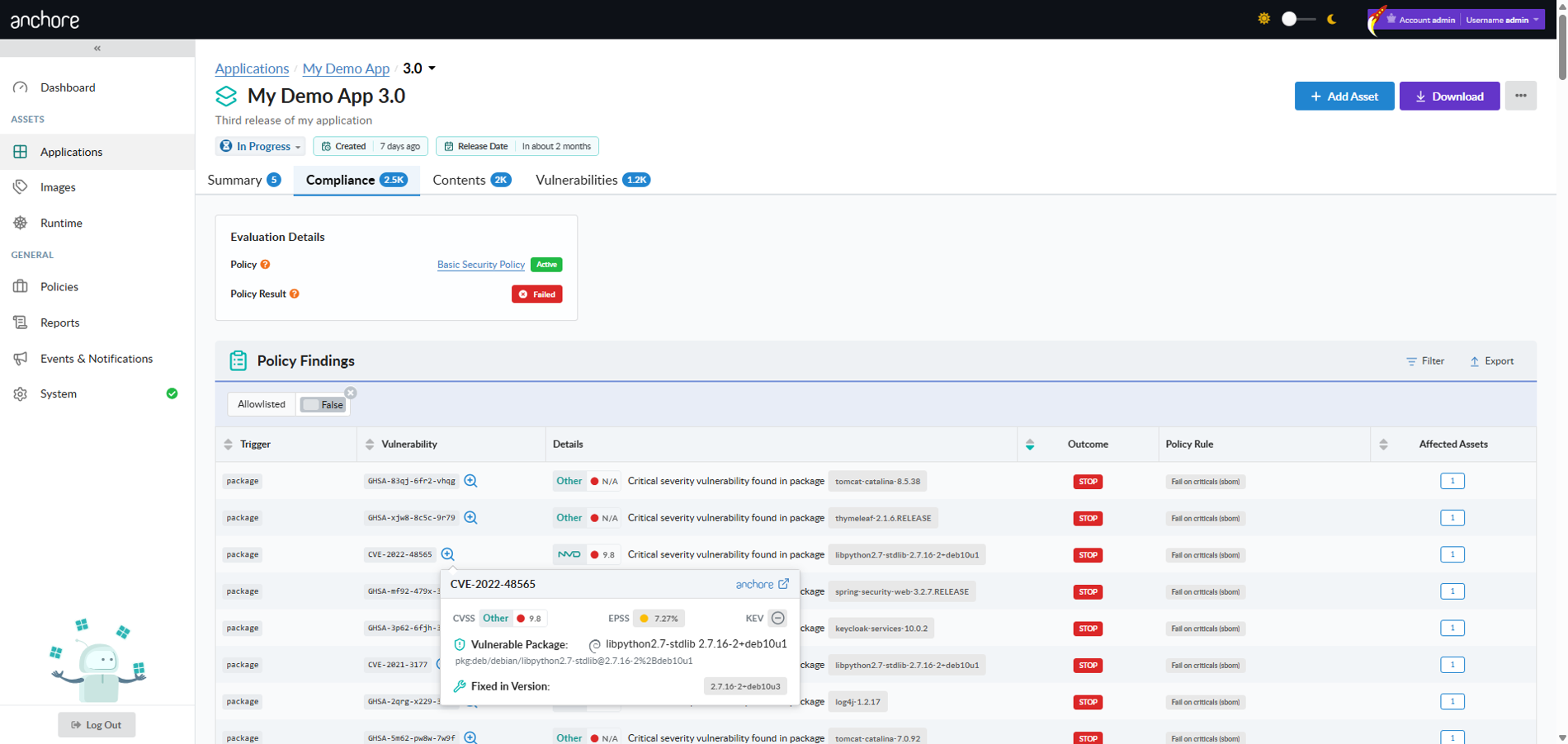
The compliance tab shows the result of the most recent policy evaluation for the version. Findings are grouped by gate and trigger, and a STOP / WARN / GO badge on each finding mirrors what AnchoreCTL would surface from anchorectl app version policy findings list.
Manage App Versions with AnchoreCTL
App versions live under anchorectl app version. Every command requires the parent app via the --app flag and accepts either an app or version name, or its UUID.
Create a Version
Create a new version of an existing app. The version name is the positional argument, and the parent app is identified with --app:
anchorectl app version add 1.4.0 \
  --app my-service \
  --description "First customer release"
Optional flags include --description, --status, and --release-date. New versions default to in_progress status.
List Versions for an App
List every version of an app, with the app name or UUID as the positional argument:
anchorectl app version list my-service
To narrow the result to a single version by exact name, add --name:
anchorectl app version list my-service --name 1.4.0
Get a Version
Retrieve a single version’s record. The version argument accepts either its name or UUID:
anchorectl app version get 1.4.0 --app my-service
Use -o json for the structured record, which includes system_metadata.
Update a Version
Update one or more fields on an existing version. Only the flags you provide are sent; omitted flags leave the corresponding fields unchanged. This is also how you transition the version’s status through its lifecycle:
anchorectl app version update 1.4.0 \
  --app my-service \
  --status released \
  --release-date 2026-05-15
Delete a Version
Delete a version by name or UUID. The default behavior refuses to delete a version that still has assets attached:
anchorectl app version delete 1.4.0 --app my-service
To cascade the delete through every asset under the version, add --force:
anchorectl app version delete 1.4.0 --app my-service --force
Manage App Versions with the API
App version management is exposed under /apps/{app_id}/versions: create, list, get, update, and delete operations are all available, with cascading delete via ?force=true. The full endpoint inventory, request and response schemas, and error codes are in the API browser; search for the App Versions tag.
A few conventions worth knowing as you call these endpoints:
- Pagination on list endpoints is cursor-based; see How It Works.
- Status transitions are sent through the same
PATCHendpoint as the name and description fields. - The
release_datefield is an RFC 3339 date-time. AnchoreCTL accepts the shorterYYYY-MM-DDform and converts it.
DELETE /apps/{app_id}/versions/{version_id}?force=true is destructive and irreversible: it removes every asset attached to the version.