Search answers questions that span more than one asset in your catalog: “Which application versions are affected by a specific CVE?”, “Which application versions contain a specific package?”, “Which images have a Critical finding with a known KEV?”, “Which images contain a vulnerable version of a specific package?”
Anchore Enterprise runs search at two scopes: applications and container images. Pick the one that matches how your team organizes software. Image search is available in the GUI and the API. Application search runs in the GUI’s Quick Search, by vulnerability ID or by package, and AnchoreCTL and the API can export every app version that a vulnerability affects to CSV.
| Scope | What you search | Where to start |
|---|---|---|
| Applications | Vulnerabilities and packages across your app versions | Quick Search, AnchoreCTL, API |
| Container images | Vulnerabilities and packages across the image catalog | Reports view, Query API |
Search results are for your own teams, whether you read them on screen or export them, as with saved image reports and the affected app versions CSV. To produce a document about one app version or image for a customer, an auditor, or a regulator, such as a VEX, a VDR, or a vulnerability data export, see Evidence.
Search Applications
The application scope answers “is this vulnerability affecting any of my applications, and which versions?” It also answers “which of my applications contain this package?”, which helps when a vulnerability is announced before it reaches a vulnerability feed. It draws on the same aggregated, deduplicated vulnerability data described in Scan an App Version, so a match points you straight at the affected app version.
/exp. To list the app versions that a vulnerability affects from a script or pipeline, use the stable export through AnchoreCTL or the API.Search Applications in the Anchore Enterprise GUI
Click Search… in the top navigation bar, or press Ctrl+K (Cmd+K on Mac) from anywhere in the GUI, to open Quick Search. Quick Search has two search types, Vulnerability and Package. Choose one from the menu in the search box, or press Tab to switch between them. Quick Search remembers the type you used last.
Search by Vulnerability ID
Choose Vulnerability and enter a full CVE or GHSA identifier.
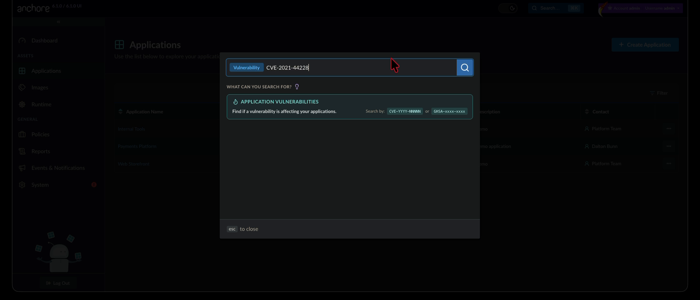
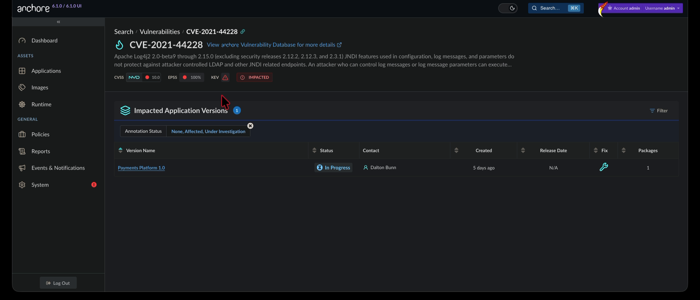
Anchore Enterprise returns the application versions in your account whose aggregated findings include that vulnerability. Open a result to jump to the affected version’s Vulnerabilities tab, triage by Anchore Score, and pivot to the impacted assets.
Search by Package
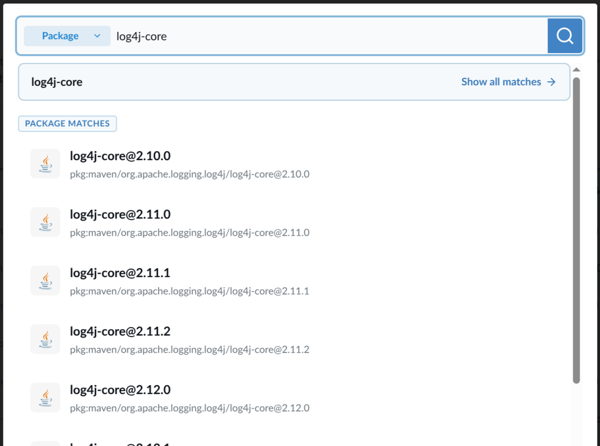
Choose Package and enter a package name, name@version, or PURL, for example log4j-core, [email protected], or pkg:maven/org.apache.logging.log4j/[email protected]. The search is not case-sensitive and matches any part of a package’s identifier: its PURL, or name@version for a package without a PURL. A name on its own therefore finds every version of that package. Qualifiers in a pasted PURL, from the first ? or # onwards, are ignored.
Quick Search lists the matching packages with their PURLs. Select a package to open its results page, or choose Show all matches to open a results page for every matching package. If your query names exactly one package in full, Quick Search opens its results page straight away.
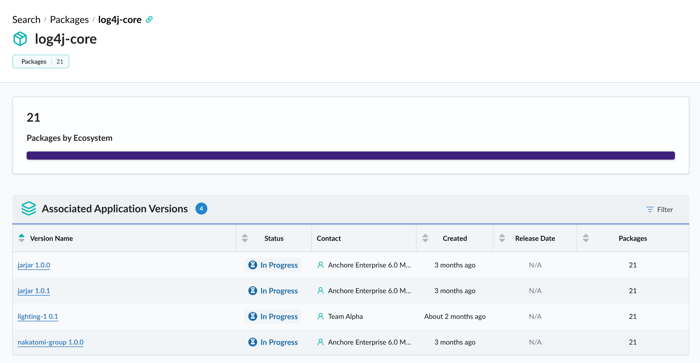
The results page lists the Associated Application Versions: every app version with an asset that contains the package. Each row shows the application and version name, with the version’s description if it has one, its status, contact, creation and release dates, and the number of assets that contain the package. When the search matched more than one package, the last column counts the matched packages in each version instead, and a Packages by Ecosystem chart above the list breaks the matches down by ecosystem. Filter the list by application name, version name, contact name or email, status, release date, or count. Open a version to go to its Contents tab, filtered to the matching packages.
+, and a more specific query narrows the results.Search Applications with AnchoreCTL
AnchoreCTL has no Quick Search command and no equivalent of package search. To find every app version that a vulnerability affects, export them to CSV with anchorectl app export apps-by-vulnerability, then filter, sort, or share the list with app owners. Unlike anchorectl app version export vulnerabilities, which lists every vulnerability in one app version, this command starts from one vulnerability and looks across all of your applications at once.
anchorectl app export apps-by-vulnerability VULNERABILITY_ID [flags]
When you run the command, AnchoreCTL:
- Submits an export job to Anchore Enterprise for the vulnerability, with any filters and sort order you supplied.
- Waits for the job to finish, polling for up to 30 minutes.
- Downloads the finished CSV and writes it to the path supplied with
--file(-f), or to stdout if--fileis omitted.
The export takes one complete vulnerability ID. A GHSA advisory that maps to a single CVE is exported under that CVE; an advisory that maps to more than one CVE is rejected, so export each CVE instead.
Each row of the CSV is one affected package in one asset of one app version, so the report shows not only which releases are affected, but where in each release the vulnerable package sits, whether a fix version exists, and how the finding has been annotated. See Affected App Versions CSV for the full layout. App versions that the vulnerability does not affect do not appear in the report, and CSV is the only output format.
For example, to list every released app version affected by CVE-2025-1974, with a link from each row back to the GUI:
anchorectl app export apps-by-vulnerability CVE-2025-1974 \
  --status released \
  --ui-base-url https://anchore.example.com \
  --file cve-2025-1974-app-versions.csv
To find the affected versions that still need a decision, those without a fix and not yet annotated, sorted by application name:
anchorectl app export apps-by-vulnerability CVE-2025-1974 \
  --has-fix=false \
  --annotation-status none \
  --sort application.name --order ascending \
  --file cve-2025-1974-untriaged.csv
Without filters, the export covers every affected app version in the account. These flags narrow it. Flags that take a list accept comma-separated values and match any of them, and different flags combine, so a row must satisfy all of them.
| Flag | Includes only app versions |
|---|---|
--app-name, --app-version | With one of these application or version names |
--app-name-contains, --app-version-contains | Whose application or version name contains the text |
--contact-name, --contact-email, --contact-org | Whose application contact has one of these names, email addresses or organization names |
--status | With one of these statuses: in_progress, released, eol |
--released-after, --released-before | Released after or before a date (YYYY-MM-DD or RFC 3339), not including that date |
--has-fix | Where a fix is available for the vulnerability; --has-fix=false selects those without one |
--min-affected-packages | With at least this many affected packages |
--annotation-status | Whose VEX annotation for the vulnerability has one of these statuses: not_affected, affected, fixed, under_investigation, or none for versions with no annotation |
--sort orders the rows by application.name, contact.effective_organization_name, app_version.name, app_version.status, app_version.created_at, app_version.release_date, has_fix, or affected_packages, and --order sets ascending or descending (the default). Without --sort, the newest app versions come first. --ui-base-url adds a column that links each row to the app version’s Vulnerabilities tab in the Anchore Enterprise GUI.
To check whether a vulnerability affects one app version you already know, list that version’s vulnerabilities with anchorectl app version vuln list; see Scan an App Version.
Search Applications with the API
Two sets of endpoints search applications: the experimental endpoints behind Quick Search, and the stable export of the app versions affected by a vulnerability.
Quick Search Endpoints
The APIs behind Quick Search are experimental: they are served under the /exp prefix and may change between releases.
| Path | Returns |
|---|---|
/exp/quick-search/vulnerabilities-search?vulnerability_id=<id> | The app versions affected by a vulnerability |
/exp/quick-search/packages-lookup?package=<query> | The packages that match a package query |
/exp/quick-search/apps-by-package?package=<query> | The app versions that contain the matching packages, with a count of matches by ecosystem |
Each path takes POST for the first page of results and GET for each page after it:
POSTthe request. Forvulnerabilities-searchandapps-by-package, send a JSON body; it can be empty ({}), or carryfiltersandsort.packages-lookuptakes no body.limitsets the page size, up to the default of 1000.- While the response’s
next_cursoris not null,GETthe same path with the same query andcursor=<next_cursor>. AGETwithoutcursoris rejected. The filters and sort from thePOSTapply to every page.
URL-encode the package query: a bare +, common in Debian versions, is read as a space. For example, to list the released app versions that contain log4j-core 2.14.1:
curl -X POST \
  'https://my-anchore.example.com/exp/quick-search/apps-by-package?package=log4j-core%402.14.1' \
  -H 'content-type: application/json' \
  -d '{"filters": [{"field": "app_version.status", "operator": "eq", "value": "released"}]}'
Each result names the application and its contact, the app version, and the number of matched packages and assets in that version.
Export Affected App Versions
The export behind anchorectl app export apps-by-vulnerability runs as a job on account-level endpoints, not the per-app endpoints under /apps/{app_id}:
| Method | Path | Purpose |
|---|---|---|
POST | /jobs/export-apps-by-vulnerability | Submit the export job |
GET | /jobs/export-apps-by-vulnerability | List previously submitted export jobs |
GET | /jobs/export-apps-by-vulnerability/{job_id} | Retrieve a single job by ID |
GET | /downloads/{download_id} | Download the CSV produced by a completed job |
The request body names the vulnerability, and optionally carries filters, sort, and ui_base_url:
curl -X POST \
  'https://my-anchore.example.com/v2/jobs/export-apps-by-vulnerability' \
  -H 'content-type: application/json' \
  -d '{
    "vulnerability_id": "CVE-2025-1974",
    "filters": [{"field": "app_version.status", "operator": "eq", "value": "released"}],
    "ui_base_url": "https://anchore.example.com"
  }'
Poll GET /jobs/export-apps-by-vulnerability/{job_id} until status is complete (the other values are pending, processing, failed, and cancelled), then GET /downloads/{download_id} with the download_id from the job’s completion_detail. The file is named apps-by-vulnerability-export-<download_id>.csv. The filter fields and their operators are listed under QuickSearchVulnFilterCondition in the API browser.
To get the vulnerabilities of one app version you already know, use GET /apps/{app_id}/versions/{version_id}/vulnerabilities; see Scan an App Version.
Affected App Versions CSV
The CSV has one row for each affected package in each asset of each app version, so a package in two assets of one version appears twice. Vulnerability and app version values repeat on every row they apply to.
| Group | Columns, in order |
|---|---|
| Vulnerability | Vulnerability ID, Vulnerability Source, Vulnerability URL, Vulnerability Anchore Vulnerability Database URL, Vulnerability CVSS v2 Severity, Vulnerability CVSS v2 Score, Vulnerability CVSS v3 Severity, Vulnerability CVSS v3 Score, Vulnerability CVSS v4 Severity, Vulnerability CVSS v4 Score, Vulnerability EPSS Score, Vulnerability EPSS Ranking, Vulnerability KEV, Vulnerability Last Found, Vulnerability Fix Available, Vulnerability Has VEX Annotations |
| Application | Application Name, Application Version, Application Status, Application Contact Name, Application Contact Phone, Application Contact Email, Application Create Date, Application Release Date |
| Package and asset | Package Fixes Available, Impacted Package Name, Impacted Package Version, Impacted Package Type, Impacted Package PURL, Asset ID, Asset Name, Asset Class, Asset Type, Impacted Package Fix Version, Impacted Package Fix Date, Impacted Package VEX Status |
| Link | Application Version Vulnerabilities URL, only when a UI base URL is supplied |
Impacted Package VEX Status is none for a package with no VEX annotation. The export can filter and sort by the contact’s organization name, but the CSV has no organization column.
Search Container Images
The image scope searches across the analyzed image catalog. Both surfaces below draw from the same underlying vulnerability and package data, so the choice is about who is running the query and what they want back.
| Surface | Best for | Output |
|---|---|---|
| Reports view (GUI) | Interactive triage, saved reports, scheduled runs, CSV downloads | Tabular report, downloadable as CSV |
| Query API | Programmatic integrations, dashboards, custom tooling | Paginated JSON |
Search Container Images in the Anchore Enterprise GUI
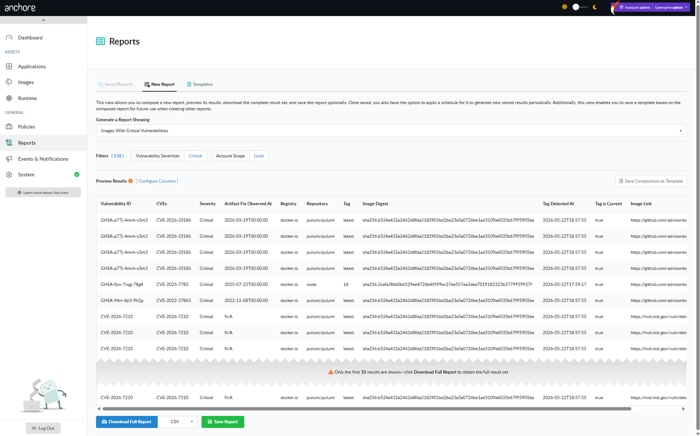
The Reports tab in the Anchore Enterprise GUI is the interactive search surface for images. Reports are built from templates that define which filters appear on the report form and which columns appear in the result, and from executions that capture the result of running a configured report at a point in time.
New Report
The New Report tab is where reports are composed and executed. Pick a template, set the filter values, and run the report once for an immediate result, or save it for re-use.
Saved Reports
Saved reports retain their template, filter selections, and execution history. From the Saved Reports tab you can:
- Generate Now — run a saved report on demand.
- Schedule — run the report on a recurring cadence and notify subscribers when results are ready.
- Execution history — browse past runs, download their CSVs, or drill into the on-screen results.
A saved report keeps the columns its template had when the report was saved, and editing a saved report does not change them. To pick up columns added to a template later, create the report again from the template.
Templates
Templates define the shape of a report: which filters are presented to the user, with what defaults, and which columns appear in the result.
Anchore Enterprise ships a set of system templates as starting points, for example “Images Affected by Vulnerability”, “Images Failing Policy Evaluation”, and “Tags by Vulnerability”. System templates cannot be modified, but you can copy any of them into a user template and tailor the filter and column set to your team’s needs.
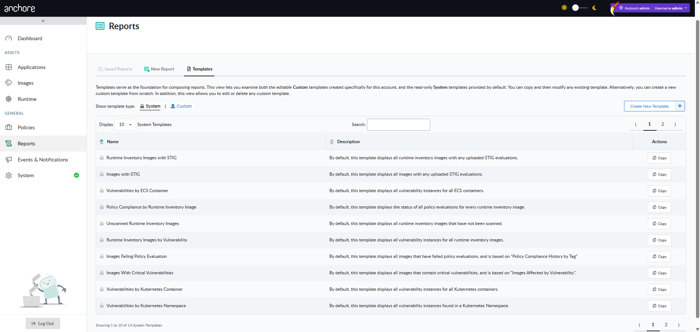
Templates and reports are both account-scoped. Templates created by other users in the same account are visible and can be used as a starting point for further customization.
Track How Long a Tag Has Been Vulnerable
The Tags by Vulnerability system template includes an Image Tag Vulnerable From column: the earliest date a vulnerability was detected on a tag, across every image the tag has pointed to. A vulnerability that persists through several image pushes keeps its original date instead of restarting with each new image. Only findings that are still open count, and the date reaches back only as far as reporting data is retained.
To select vulnerabilities by how long they have been present on a tag, add the Vulnerable For At Least Days or Vulnerable For At Most Days filter from the report’s Filters menu. For example, Vulnerable For At Least Days set to 30 lists the vulnerabilities that have been present on a tag for 30 days or more, which suits remediation SLA tracking. In the GraphQL API, the filters are vulnerableForAtLeastDays and vulnerableForAtMostDays, and the column is the imageTagVulnerableFrom field.
Search Container Images with AnchoreCTL
AnchoreCTL has no command that searches across the image catalog; use the Reports view or the Query API. To check whether a vulnerability affects one image you already know, list that image’s vulnerabilities with anchorectl image vulnerabilities; see Scan a Container Image.
Search Container Images with the API
The Query API is the programmatic surface for zero-day investigation and tooling integrations. Two endpoints cover the common patterns: look up a vulnerability by ID, or find images containing a specific package version.
Find Images by Package
When the vulnerability record is incomplete, common in the first hours after disclosure, search by the affected package version directly. The classic example: locate every image with a vulnerable version of k8s.io/ingress-nginx.
curl -X GET \
  'https://my-anchore.example.com/v2/query/images/by-package?name=k8s.io%2Fingress-nginx&package_type=go&version=v1.11.0' \
  -H 'accept: application/json'
The response is a paginated PaginatedImageList, where each entry names the image digest, the tag history that points at it, and the package records that match the filter:
{
  "images": [
    {
      "image": {
        "image_digest": "sha256:4db2297322e827ae13892be1480800471ec83726edea921bd45af0f8ed35e094",
        "tag_history": [
          {
            "full_tag": "registry.k8s.io/ingress-nginx/controller:v1.11.0"
          }
        ]
      },
      "packages": [
        { "name": "k8s.io/ingress-nginx", "version": "v1.11.0", "type": "go" }
      ]
    }
  ],
  "total_count": 1
}
For the full zero-day investigation pattern, including how to escalate from a package match to remediation, see the Find Zero-day Vulnerabilities quickstart.
Look Up a Vulnerability by ID
When the vulnerability ID is known, GET /v2/query/vulnerabilities returns the underlying record and the packages it affects:
curl -X GET \
  'https://my-anchore.example.com/v2/query/vulnerabilities?id=CVE-2024-3094' \
  -H 'accept: application/json'
Useful as a quick “does Anchore Enterprise know about this yet?” check before kicking off a broader hunt.
The full request and response schemas for both endpoints are in the API browser under the Query tag.
Where to Go Next
- Evidence — produce VEX, VDR, and vulnerability data exports for one app version or image, to hand to customers, auditors, and regulators.
- Annotations — record VEX dispositions on findings; annotations feed the VEX evidence exports, and both the quick vulnerability search and the affected app versions export can filter by annotation status.
- Reporting Service configuration — tune the data-refresh cadence that drives the Reports view.