Manage Policies
A policy is a JSON document — the policy bundle — that carries everything the policy engine needs to evaluate an artifact: rule sets, mappings, allowlists, and image overrides. Policies are managed through the Anchore Enterprise GUI, AnchoreCTL, or the Anchore API. All three surfaces operate on the same bundle structure.
Anchore Enterprise supports multiple policies per account. Each has a unique name and UUID, and exactly one policy is active at any time — the active policy is used for automated evaluations, notifications, and the Kubernetes admission controller. Inactive policies can still be explicitly requested by policy ID, making it practical to keep historical policies for audit and side-by-side comparison.
policy_id on the app itself, scoping a different policy to all of that app’s versions without affecting other apps in the account. See Anatomy of an App for the per-app field reference.Anatomy of a Policy Bundle
A bundle is built around five sections plus its identifying metadata. The detail of each section is documented under its own page; this table is the top-level orientation.
| Field | Required | Purpose |
|---|---|---|
id | Yes | UUID identifying the bundle |
name | Yes | Human-readable name, unique within the account |
version | Yes | Bundle schema version |
description | No | Free-form description |
rule_sets | Yes | Named sets of rules that define the checks to run — see Policy Gates |
mappings | Yes | Container-image mapping rules — see Policy Mappings |
sbom_mappings | No | SBOM mapping rules — see Policy Mappings |
allowlists | No | Named sets of trigger exclusions — see Allowlists |
allowlisted_images | No | Images that always pass — see Allowed and Denied Images |
denylisted_images | No | Images that always fail — see Allowed and Denied Images |
last_updated | Read-only | Timestamp of the most recent change to the bundle |
A bundle authored manually or downloaded from the API can be uploaded as-is through the Anchore Enterprise GUI, AnchoreCTL, or the Anchore API. The full schema and a complete example are in the API browser; search for the Policies tag.
Manage Policies in the Anchore Enterprise GUI
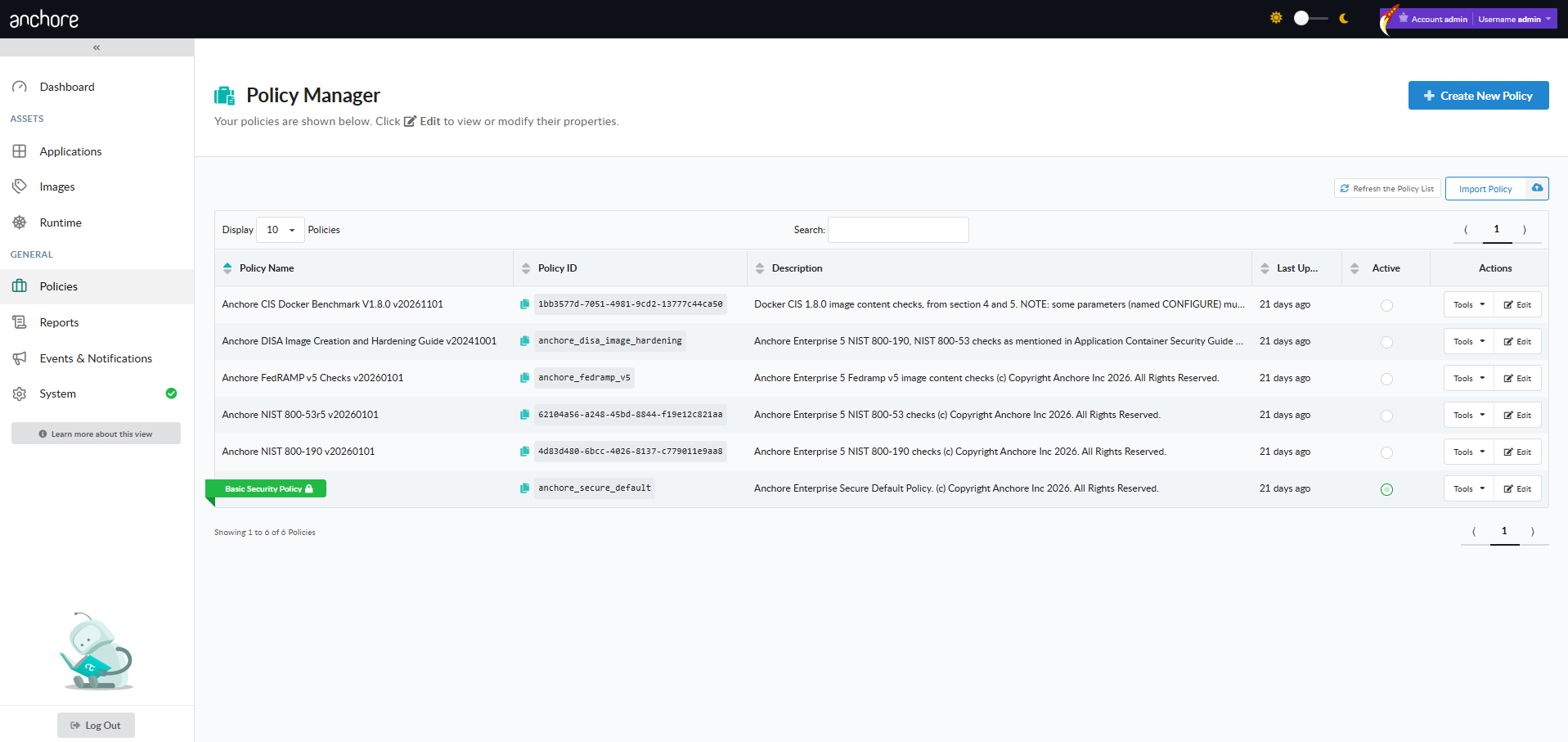
The Policies tab is the home for policy management. From there you can browse every policy in the current account, drill into a policy to inspect or edit its rule sets, and trigger the create / copy / activate / download / delete flows.
Create a Policy in the GUI
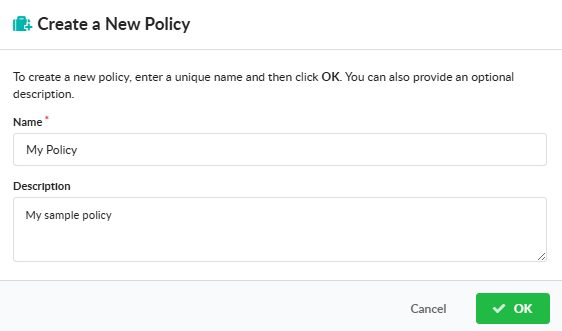
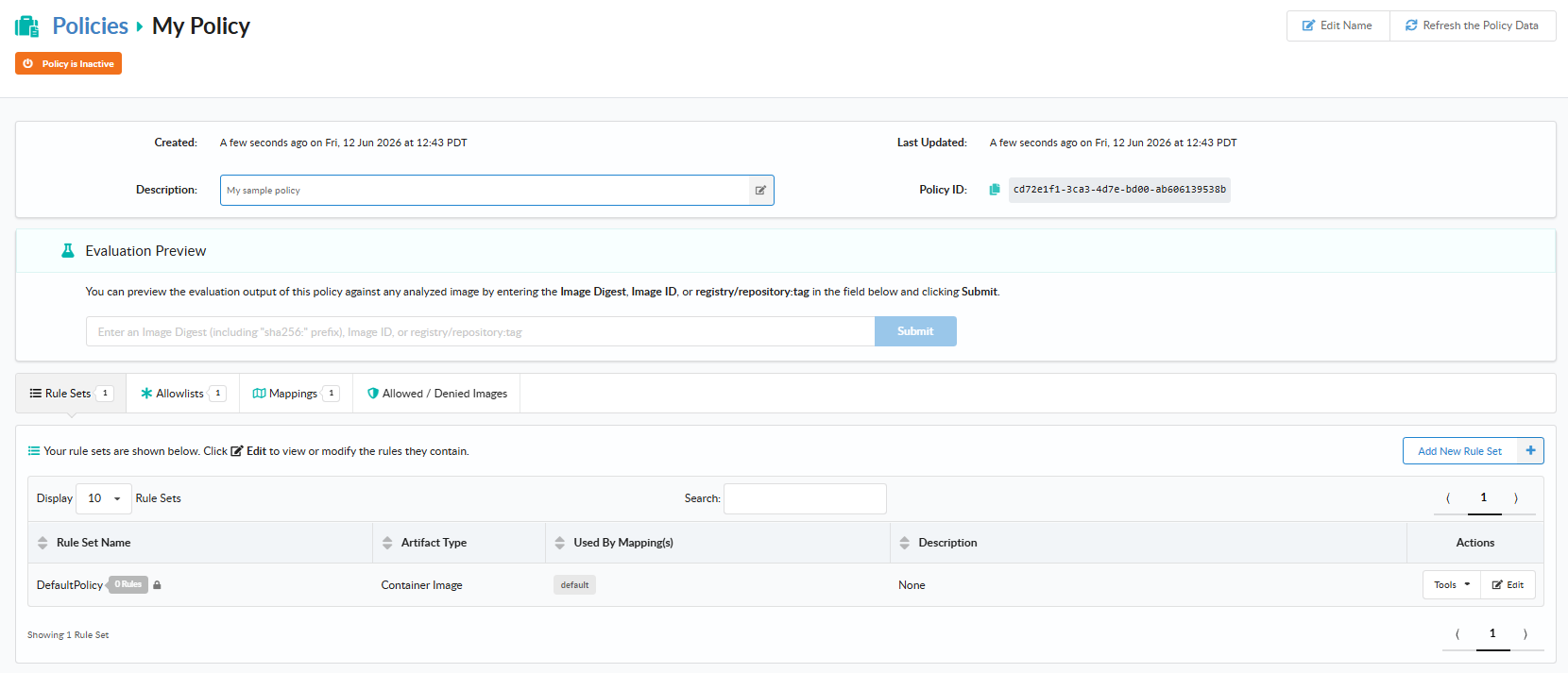
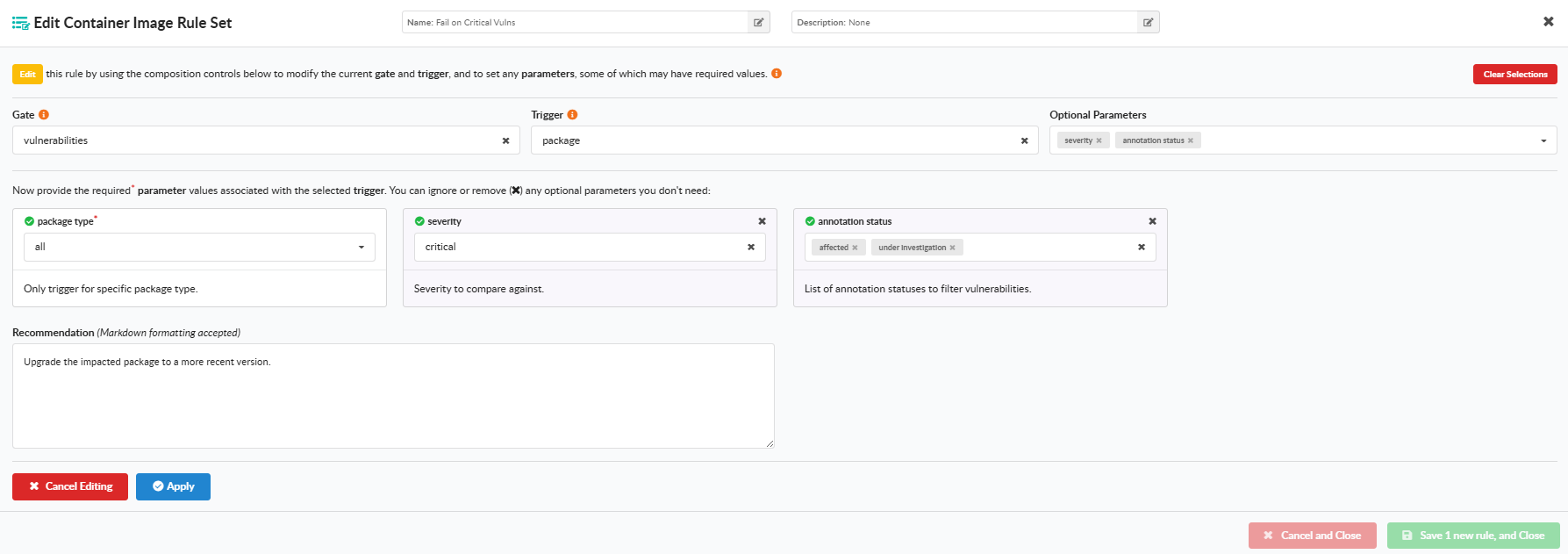
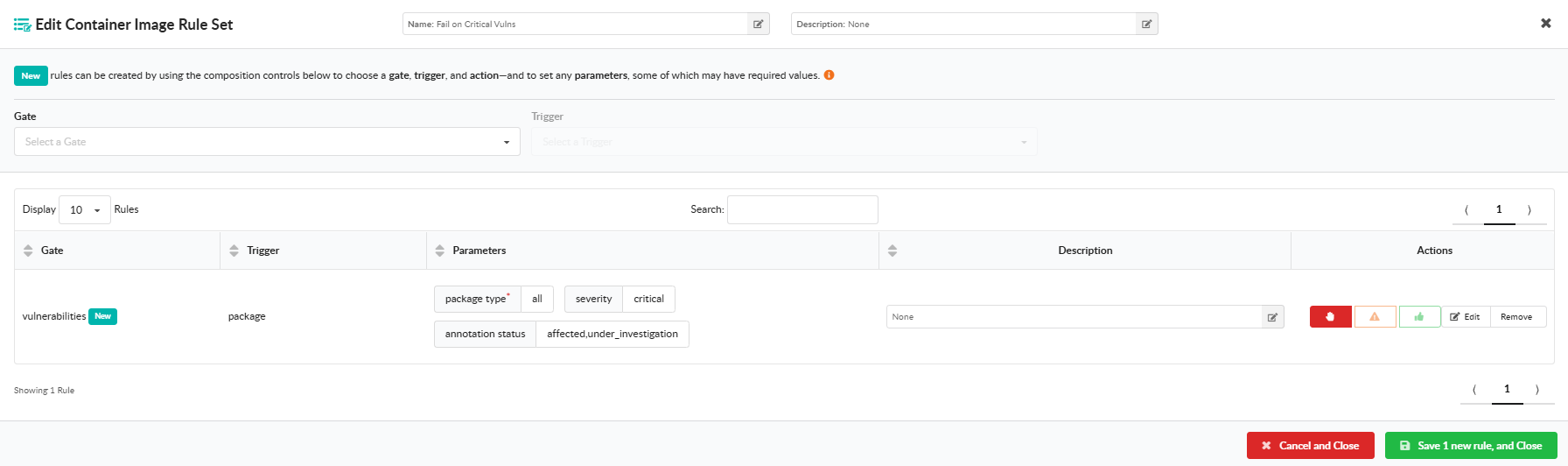
Click Create New Policy and provide a name and description. Then click Add New Rule Set and choose either Container Images or SBOMs for the artifact type the rule set will evaluate. Configure each rule set under Edit by selecting a gate from the dropdown, choosing a trigger within that gate, supplying any required parameters, and selecting an action (STOP, WARN, or GO). Save the rule set when the rule list looks correct.
Edit a Policy in the GUI
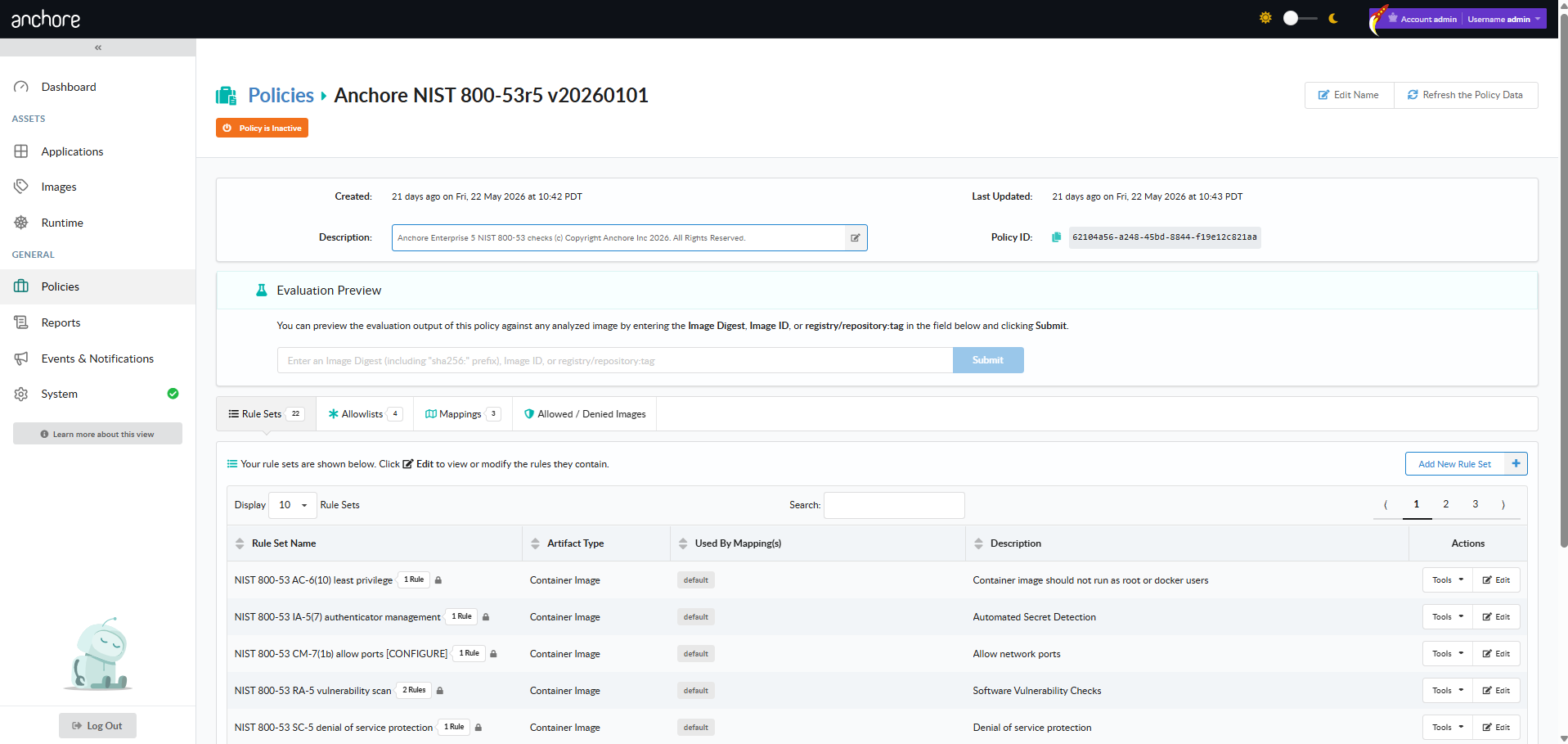
From the policy’s detail page, open the Edit action to modify name, description, rule sets, mappings, allowlists, or the allowed and denied image lists. The same field rules apply as on create.
Activate a Policy in the GUI
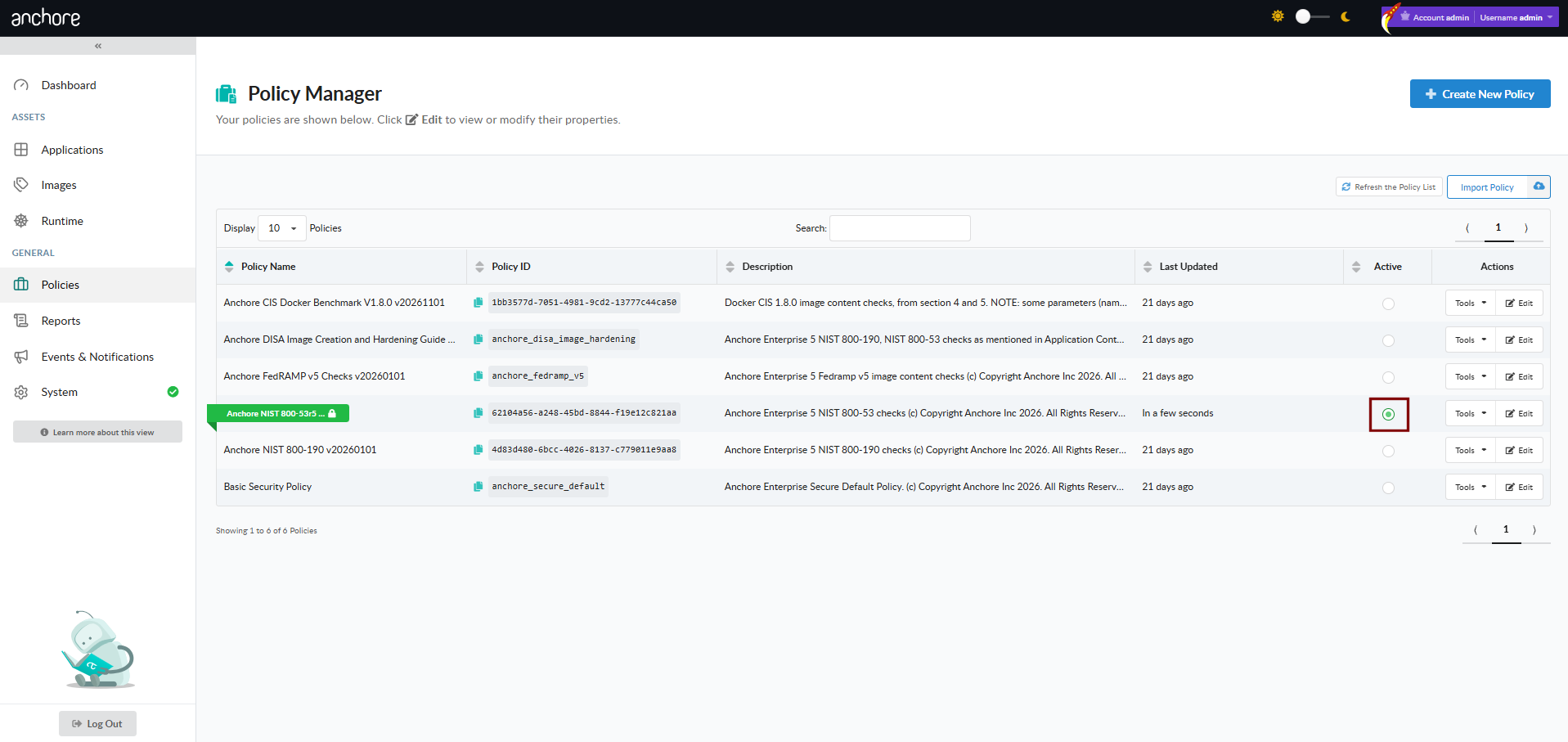
Activating a policy makes it the default used for automated evaluations across the account. Select Activate on a policy’s row; the previously active policy is automatically marked inactive — only one policy is active at a time. The active policy is highlighted in the list with a green indicator.
Copy a Policy in the GUI
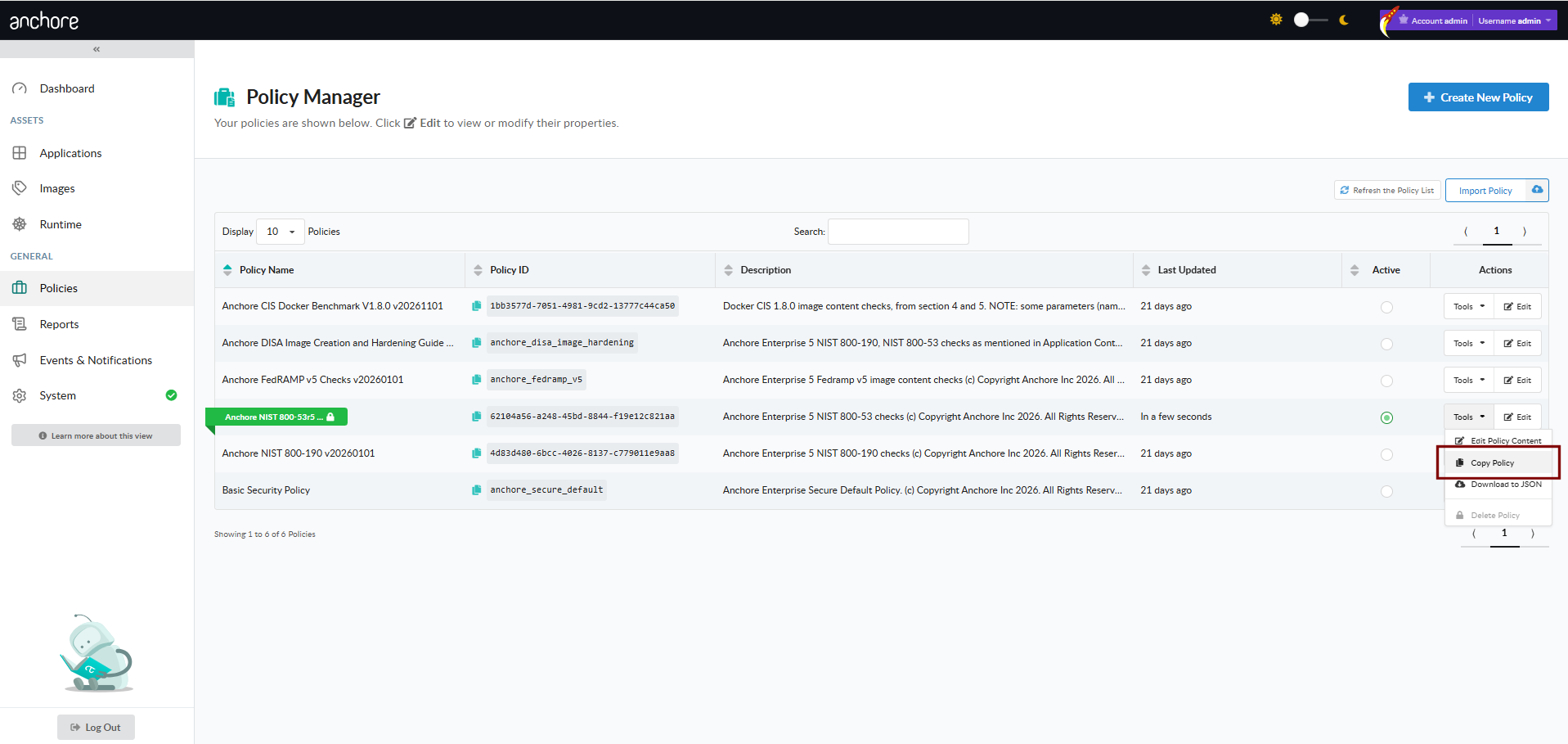
To use an existing policy as a starting point for another, choose Copy Policy from the policy’s Tools menu, then give the copy a new name (and optionally a description). The copy inherits all rule sets, mappings, allowlists, and image lists from the original.
Download a Policy in the GUI
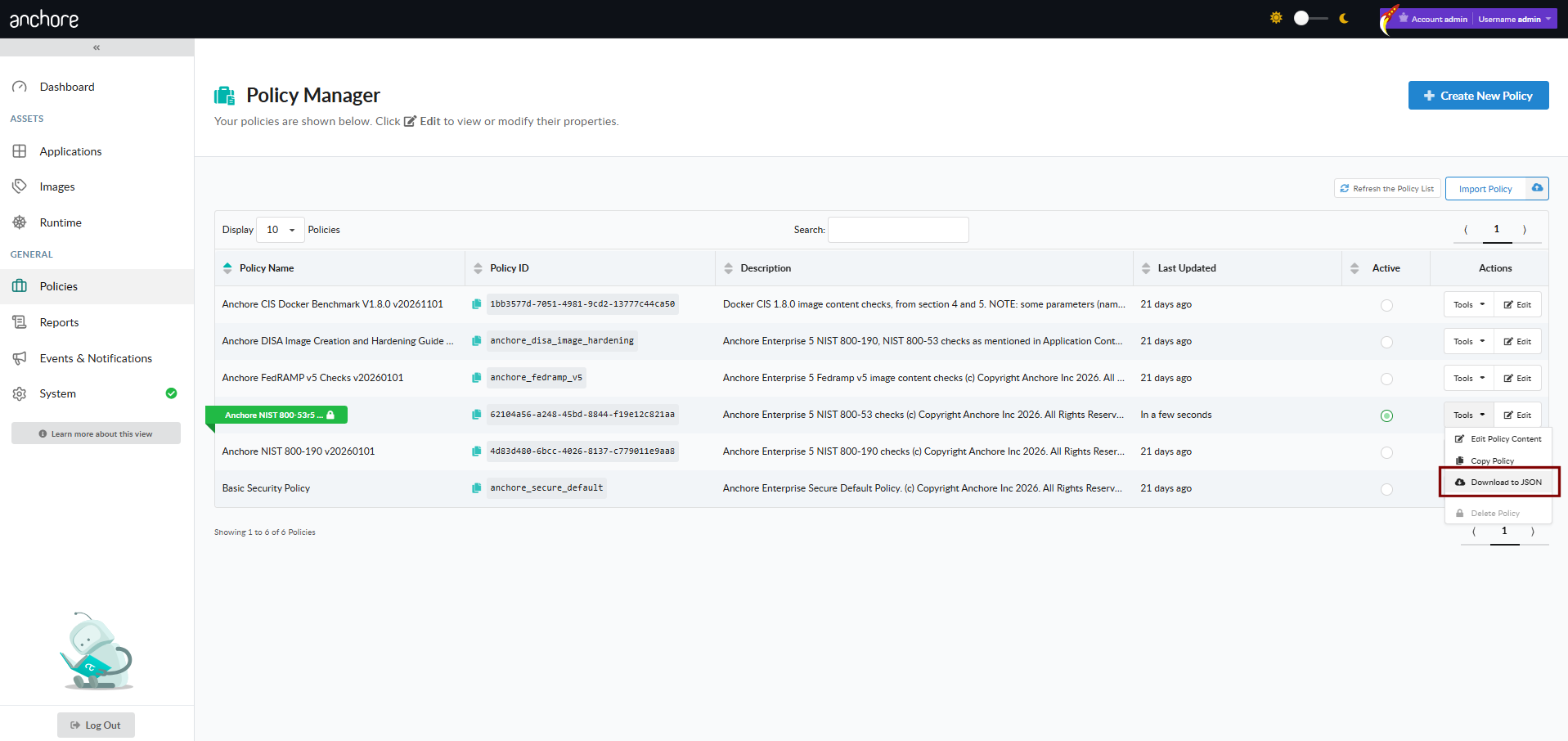
Choose Download to JSON from the policy’s Tools menu to save the policy bundle as a JSON file. Use this when transferring a policy between accounts, archiving a snapshot, or hand-editing the bundle for upload.
Delete a Policy in the GUI
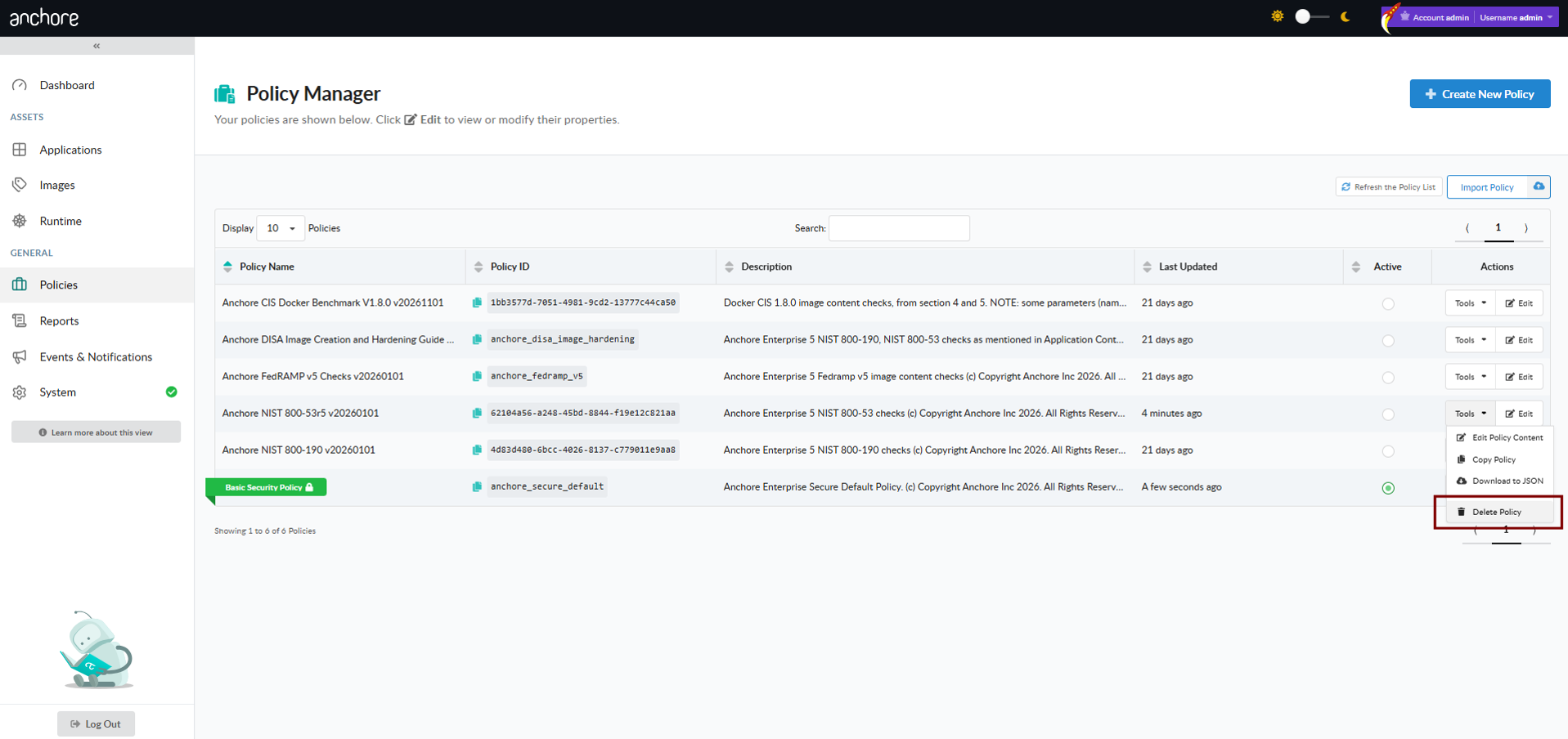
Choose Delete Policy from the policy’s Tools menu. The active policy cannot be deleted — to remove it, first mark another policy as active. Rule sets in use by active mappings also cannot be deleted until they have been removed from every associated mapping.
Manage Policies with AnchoreCTL
Policy CRUD lives under anchorectl policy. The add and update verbs read a bundle from a JSON file; the rest accept the policy name or its UUID.
List Policies
List every policy in the current account, with a terse one-line-per-policy summary by default:
anchorectl policy list
Add --detail together with a JSON output format to retrieve every policy’s full bundle content in one call:
anchorectl policy list --detail -o json
Add a Policy
Upload a bundle from a JSON file:
anchorectl policy add --input ./strict-policy.json
Use - as the input to read from stdin, which is convenient in CI pipelines that template the bundle before submission:
cat strict-policy.json | anchorectl policy add --input -
Adding a policy does not activate it — see Activate a Policy below.
Get a Policy
Retrieve a single policy’s record by either its name or UUID:
anchorectl policy get strict-policy
By default the response includes the full bundle content. Combine with -o json and a file redirect to round-trip a bundle for editing:
anchorectl policy get strict-policy -o json > strict-policy.json
Update a Policy
Replace an existing policy with the contents of a JSON file. The ID inside the input file selects which policy to replace:
anchorectl policy update --input ./strict-policy.json
Update replaces the bundle in full — there is no partial update. To change a single field, retrieve the bundle, edit it locally, and submit the updated file.
Activate a Policy
Make a policy the active default for the account:
anchorectl policy activate strict-policy
The previously active policy is automatically marked inactive. Only one policy is active at a time.
Delete a Policy
Delete a policy by name or UUID:
anchorectl policy delete strict-policy
The active policy cannot be deleted. Activate a different policy first, then delete the one you no longer need.
Manage Policies with the API
Policy CRUD is exposed under /policies — create, list, get, update, and delete operations are all available. The full endpoint inventory, request and response schemas (including the complete bundle schema), and error codes are in the API browser; search for the Policies tag.
A few conventions worth knowing as you call these endpoints:
- The bundle uploaded on
POST /policiesandPUT /policies/{policy_id}is the same JSON shape that AnchoreCTL submits and the GUI emits. There is no separate API-only format. - The
detailquery parameter onGET /policiescontrols whether each entry in the list response carries its full bundle content or just metadata. - Activation is set with the
activequery parameter onPUT /policies/{policy_id}(the update endpoint). Marking a policy active automatically deactivates the previously active one; an active policy cannot be deactivated directly (activate a different policy instead). The AnchoreCTLpolicy activatecommand wraps this. - Cross-account requests follow the standard pattern — see Account Scoping.