Create & Store SBOMs
This guide provides a quick start for creating, viewing, and storing Software Bill of Materials (SBOMs) in Anchore Enterprise.
Understand SBOM Basics and Use Cases
Supported Industry-Standard Formats
Anchore Enterprise supports the following industry-standard SBOM formats:
| Format | Description |
|---|---|
| SPDX | Software Package Data Exchange: An open standard for communicating software bill of material information. |
| CycloneDX | A lightweight SBOM standard designed for use in application security and supply chain contexts. |
Anchore Enterprise also supports the below rich/analysis document format for creating standard SBOMs.
| Format | Description |
|---|---|
| Syft (Native) | SBOM generated in the Anchore Syft (Open Source) format. |
Meet NTIA Requirements
Anchore-generated SBOMs adhere to the minimum required elements defined by the U.S. National Telecommunications and Information Administration (NTIA):
- Data Fields: Supplier name, component name, version, unique identifier (e.g.,
purl), and dependency relationship. - Automation: Support for automated generation and updates.
- Practices & Processes: Covers frequency of generation, depth of component coverage, and accessibility.
Create SBOMs
Anchore Enterprise can create SBOMs from container images or directly from a filesystem artifact.
Create and Store SBOM from a Container Image
Anchore Enterprise uses its component analysis capabilities to inspect a container image and create a comprehensive SBOM.
Create and Store via UI
Add Image
In the Images tab, click Analyze Tag. You can either enter the Docker pull string for the container image you want to analyze or provide the registry, repository, and tag details in their respective fields. To learn more about adding a registry, see this guide.
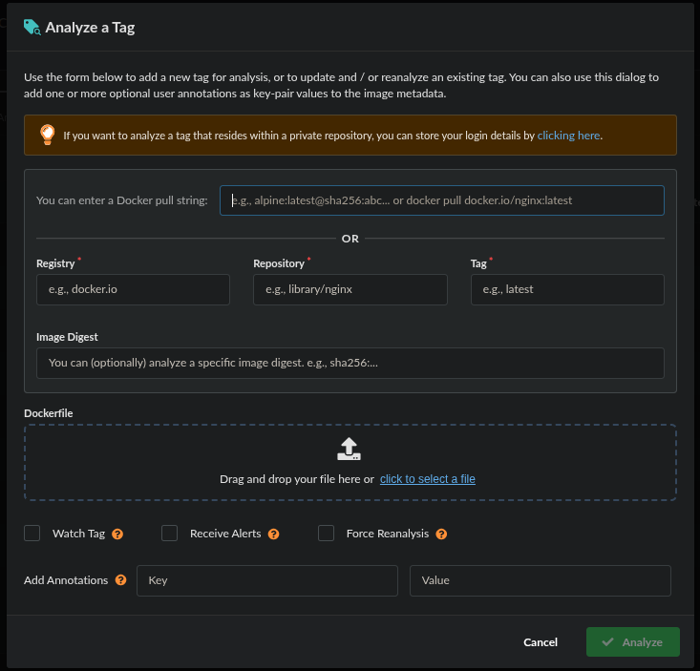
Add Image!
Analyze Image
After the image is added, Anchore Enterprise automatically analyzes it and generates an SBOM as part of the analysis process.
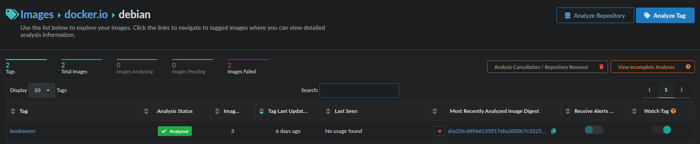
Analysis complete!
View SBOM
To view the SBOM, go to the Images tab and open the image’s detail view. Select the image tag, then navigate to the Content tab on the tag report page. Here, you can browse the SBOM components organized by content type. If you need to download the SBOM, an export/download icon is available in the upper-right corner of the page.
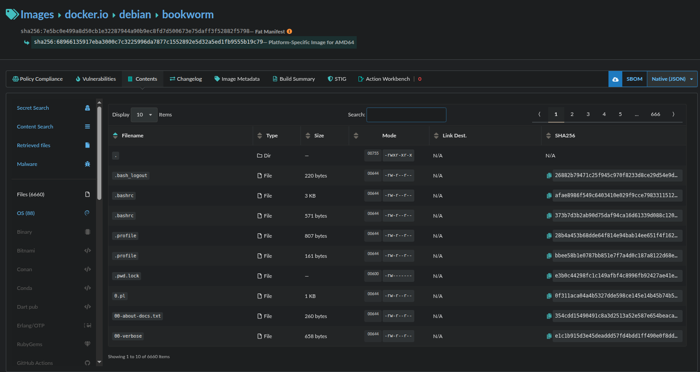
Ready for download!
Downloading the SBOM
On the Images tab, select the repository or registry that contains the image for which you want to download the SBOM. This opens a page listing all available image tags.
Click the tag of interest, then look to the upper-right corner of the screen for the Download icon. From the dropdown menu, choose your preferred SBOM format and click the Download icon to begin the download.
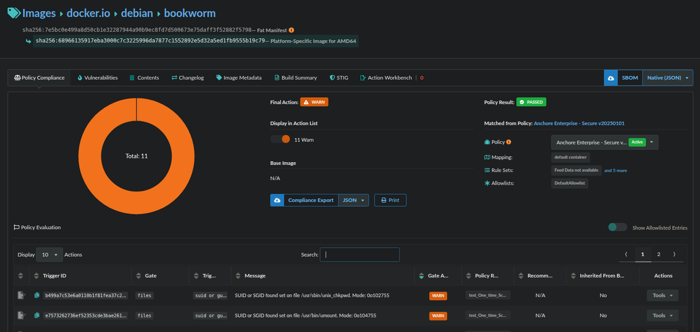
Download SBOM!
Create and Store via AnchoreCTL
Use the anchorectl command-line utility to generate an SBOM for a container image.
anchorectl image add <image_tag_or_digest>
Once the image analysis is completed, you can view the generated SBOM via anchorectl using:
anchorectl image sbom <image_tag_or_digest> -o json | jq .
Create and Store SBOM from a Filesystem (e.g. source code repository)
Create an SBOM from a local directory or set of files which is useful for codebases or non-containerized artifacts involves two steps.
Create the SBOM
You can create the SBOM by pointing anchorectl to the filesystem folder and running:
anchorectl syft <pathtosourcecode > > <name.json >
This command will create an SBOM ready for upload to Anchore Enterprise.
Store the SBOM:
Once the SBOM is created, upload it to Anchore Enterprise for analysis using:
cat <sbomPATH.json > | anchorectl image add <image:tag > --from -
Download SBOM via Anchorectl
To download an SBOM that was added as an image, run
anchorectl image sbom <imageSHA > -o <format >
Where format is the SBOM output format you want to download.
Create and Store SBOMs as Imported SBOMs Using AnchoreCTL
You can also create an SBOM from a filesystem and manage it in Anchore Enterprise.
To do this, point anchorectl to the folder containing your source code:
anchorectl sbom add --from <pathtosourcecode > --name <mytestImage> --version $(date -u +%Y%m%d%H%M%S)
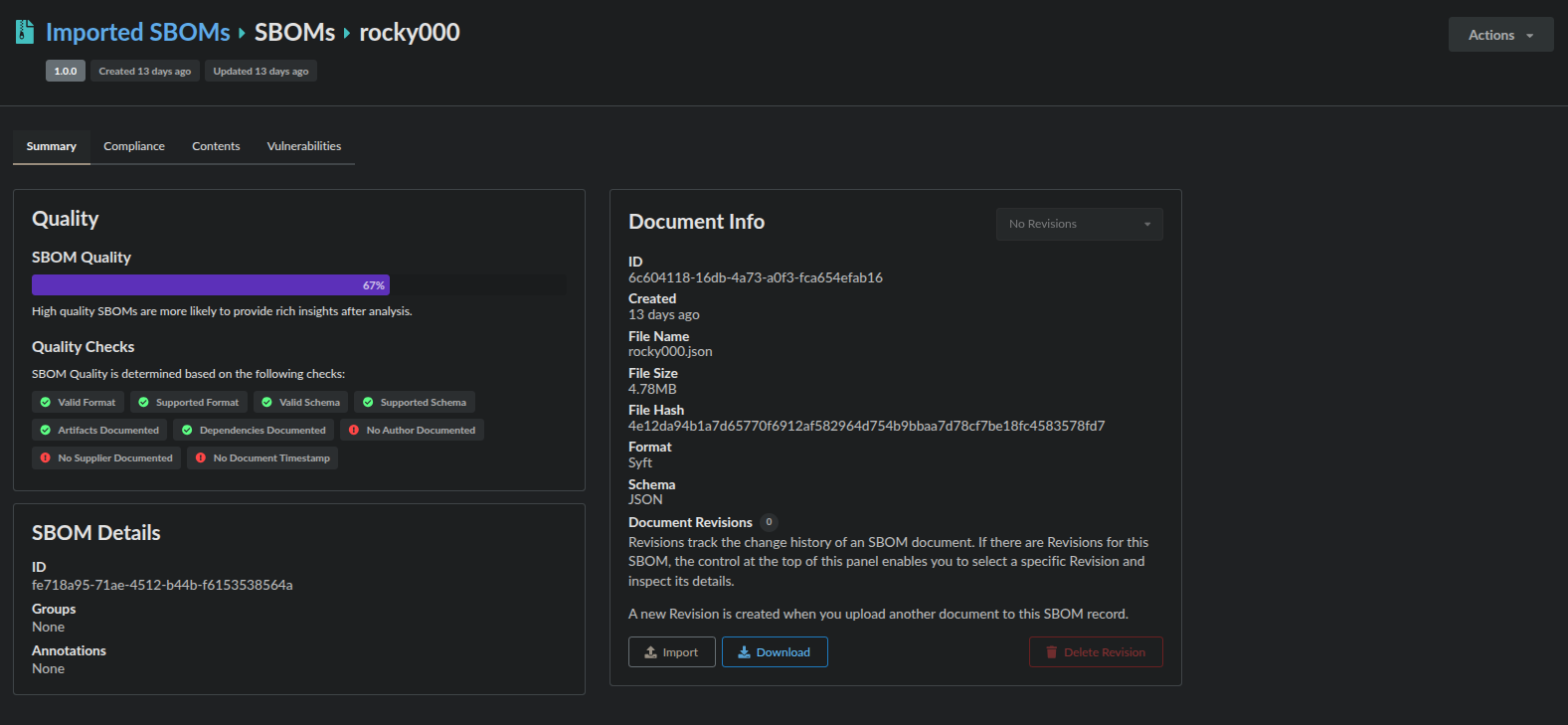
This command creates an SBOM and stores it under the Imported SBOMs section of the UI. You can view and download this SBOM by navigating to that section of the UI.