STIG
This guide provides examples of how to scan a container with DISA STIGs and import the data into Heimdall for a visualization or STIGViewer to create a checklist to provide as an ATO artifact.
This guide requires the dependencies located here to be installed along with the dependency below.
SAF CLI - Install Docs
Once these dependencies are installed, the STIG profiles are written as indicated in the here link and a STIG evaluation has been completed, you are ready to begin.
We will assume that the output of the scan is located in our working directory for the examples below and the STIG --stig-output-dir was saved as results.json like the example below:
anchorectl image add registry.access.redhat.com/ubi9/ubi:latest --stig --stig-profile ./rhel9/rhel9.tar.gz --stig-output-dir results.json
Working with Heimdall
The native format for STIG output in Anchore Enterprise is OASIS Heimdall Data Format (OHDF) and can be easily uploaded to heimdall-lite.mitre.org
From here, you can upload the
results.jsonfile and obtain charts and a map of the NIST 800-53 controls like the images below: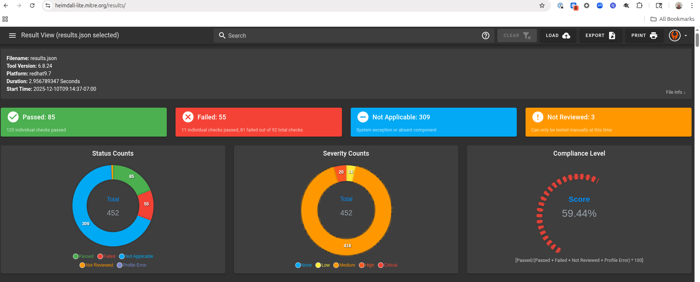
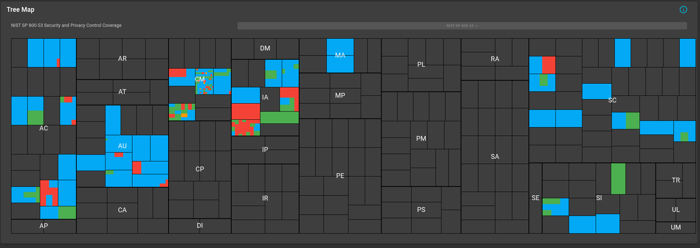
You can easily filter what passed, failed, not reviewed and not applicable. The data can be exported as a DISA Checklist or as XCCDF Results as indicated in the picture below:
The data can be imported back into STIGViewer to audit a checklist as indicated in Step 4 under Working with STIGViewer
Working with STIGViewer
- With safcli installed run the following command to convert the
results.jsonto XCCDF:
saf convert hdf2xccdf -i results.json -o xccdf-results.xml
- Now we want to convert the same
results.jsonto a ckl file:
saf convert hdf2ckl -i results.json -o ubi9-check.ckl
Let’s open STIGViewer and import the
results-xccdf.xmlfile we created in step 1.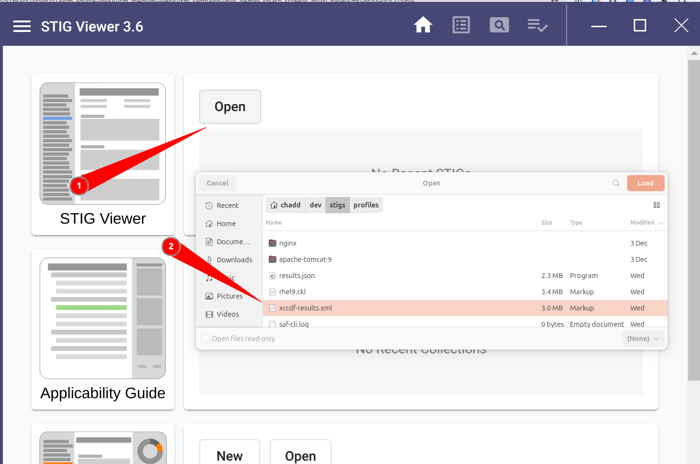
Now we can click the Home Icon and load our checklist:
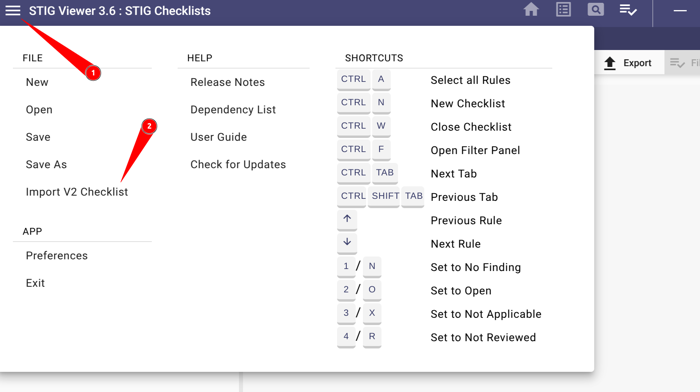
- Click the hamburger menu
- Click Import V2 Checklist and upload
ubi9-check.ckl
The container STIG checklist can now be saved once the findings as either Open, Not a Finding, Not Applicable and submitted with the applicable Body of Evidence (BOE) documentation.
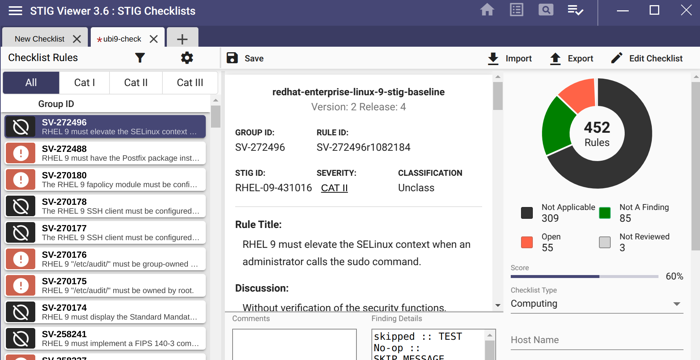
You have now STIG’d a container image and created a checklist
Last modified January 15, 2026