Identify & Evaluate Images In Kubernetes Clusters
Summary
This quickstart page outlines how Anchore Enterprise integrates directly with Kubernetes environments to support continuous security and operational assurance. By connecting the Kubernetes Inventory Agent and running it in your cluster, Anchore Enterprise collects a real-time software inventory of running workloads, aligning containerized operations with vulnerability detection, configuration assessment, and policy controls.
As organizations scale Kubernetes deployments, Anchore Enterprise enables continuous monitoring of runtime images, automated policy evaluation, and actionable reporting to strengthen workload hardening and operational compliance. Through runtime inventory and policy enforcement, teams can standardize security across clusters, surface risk early, and ensure that live container images meet organizational and regulatory requirements.
Prerequisites
- Anchore Enterprise deployed and accessible.
kubectlconfigured for your target Kubernetes cluster.- Cluster access with sufficient privileges to deploy agents.
- Helm (optional, for easier deployment of the agent).
Connect the Kubernetes Inventory Agent
The Anchore Kubernetes Inventory Agent gathers information about running images and resources via an agent running inside your cluster.
To deploy the agent and begin monitoring your cluster;
- Add Anchore’s Helm repository:
helm repo add anchore https://charts.anchore.io
helm repo update
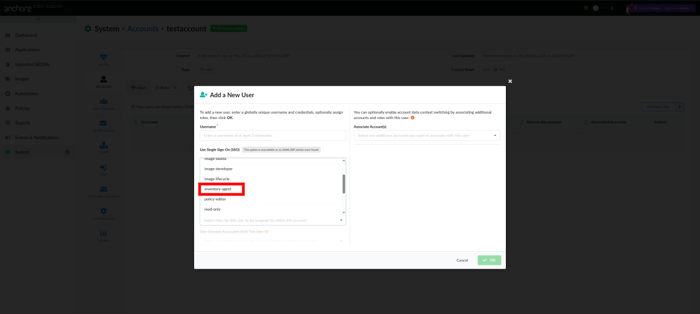
- Create a native user in Anchore Enterprise that uses the
inventory-agentrole permissions.
- Build your
values.yamlfile by setting your username, password, Anchore Enterprise URL and cluster name:
k8sInventory:
  # Path should not be changed, cluster value is used to tell Anchore Enterprise which cluster this inventory is coming from
  kubeconfig:
    cluster: <unique-name-for-your-cluster>

  anchore:
    url: <URL for your deployment>
    # Note: recommend using the inventory-agent role
    user: <user>
    password: <password>
- Install the Kubernetes Inventory Agent using Helm and the values file we just built:
helm install <release> -f <values.yaml> anchore/k8s-inventory
After deployment, verify the pod is up and running:
kubectl get pods -n anchore
The agent will automatically:
- Discover all running pods and containers.
- Collect image metadata and digest information.
- Submit inventory to Anchore Enterprise.
Verification & Best Practices
Once your cluster is connected, verify agent connectivity by checking the logs to confirm it’s reporting inventory and status as expected:
kubectl logs -n anchore <inventory-agent-pod>
Viewing the Vulnerability Results of Running Images
Log in to the Anchore Enterprise UI.
Navigate to the
Kubernetestab to access your running cluster data. Be aware that you may need to wait for a brief period for discovered data to appear.
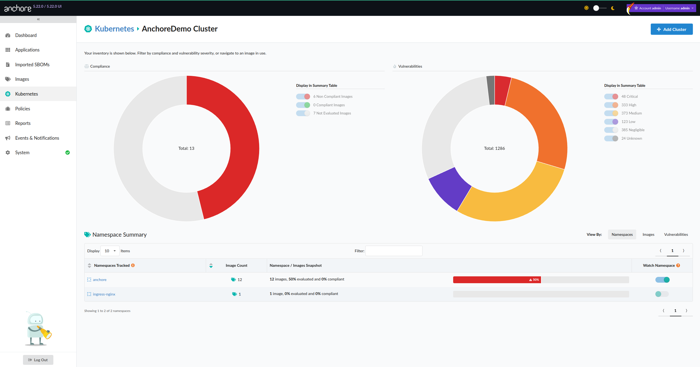
- Select your desired cluster. From here, You will get a real-time snapshot of what images are running and also be able to view:
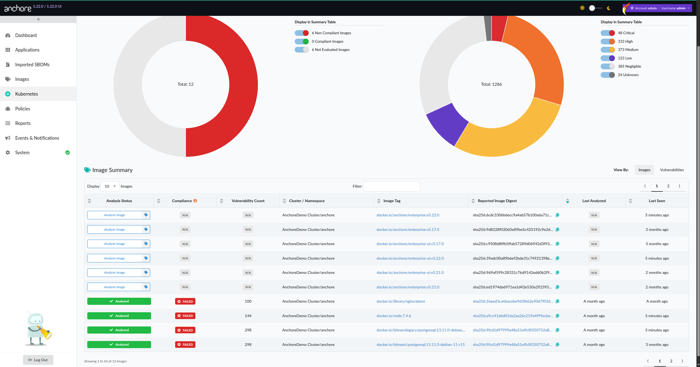
The complete list of the running container images currently in use.
Vulnerabilities associated with each image, mapped to known CVEs.
CVSS scoring, severity distribution, and other helpful risk indicators so you can quickly spot anything that needs attention.
Viewing and Enforcing Policy Evaluations
Anchore Enterprise also lets you apply and enforce security policies directly against your running images—so you’re not just observing problems, you’re controlling them.
In the UI, go to Policies → Evaluation.
Choose the policy bundle you want to assess or enforce (for example, minimum CVSS severity thresholds, banned packages, or disallowed images).
Review the results, including:
- Pass/Fail status for each image or cluster.
- Detailed reasoning for policy violations, helping to guide remediation.
- Optionally - if you want to take things a step further, configure notifications or enforcement actions (e.g., blocking deployment of non-compliant workloads) to keep risky images out of production.
Notes:
Confirm version compatibility between Anchore Enterprise and the Kubernetes Inventory Agent—mismatched versions can cause subtle reporting gaps or failed collections.
Keep the agent and policy bundles current, so you’re always scanning against the latest CVE data and enforcement rules rather than working off stale definitions.
Consider using role-based access control(RBAC) in Anchore Enterprise to protect sensitive results, ensuring that only authorized users can view vulnerability and policy data—especially in environments where findings may have compliance or confidentiality implications.