Managing Assets in an App Version
An asset is an application codebase element that was analyzed and whose SBOM lives inside an app version. It can be an externally supplied SBOM document, a container image, or an analyzed filesystem — all three sit side by side under the same version. The version aggregates packages, vulnerabilities, and policy results across every asset it contains.
Each asset carries a small set of fields:
| Field | Required | Purpose |
|---|---|---|
name | Yes | Human-readable identifier, unique within the parent app version |
type | Yes | One of the values in the AssetType enum (e.g. container, filesystem, library) |
annotations | No | Free-form key=value pairs for build metadata, ownership, environment tags, and so on |
system_metadata | Read-only | UUID and created_at / updated_at timestamps |
The SBOM content for an asset is fetched separately from the asset record itself.
Add an Asset
Assets are added asynchronously through a job. AnchoreCTL exposes an asset-add command per attachment path; the choice depends on what you’re attaching:
- SBOM — upload an existing CycloneDX, SPDX, or Syft-native SBOM produced outside Anchore Enterprise. See Managing SBOM Assets.
- Container image — analyze an image either in distributed or centralized modes. See Managing Container Image Assets.
- Filesystem — analyze a directory tree locally (i.e., source repo, build artifact dir, or a mounted VM) and upload the resulting SBOM. See Managing Filesystem Assets.
- Analysis bundle — attach an analysis previously generated with
anchorectl generate analysis-bundle(see Generating SBOMs), decoupling local analysis from the upload. See Attaching Analysis Bundle Assets.
For the job lifecycle — pending → processing → complete / failed / cancelled — and the full distinction between centralized and distributed image analysis, see How It Works.
Manage Assets in the Anchore Enterprise GUI
A version’s detail page lists every asset attached to that version, with each asset’s type, status, and a quick path to its SBOM, packages, and vulnerabilities.
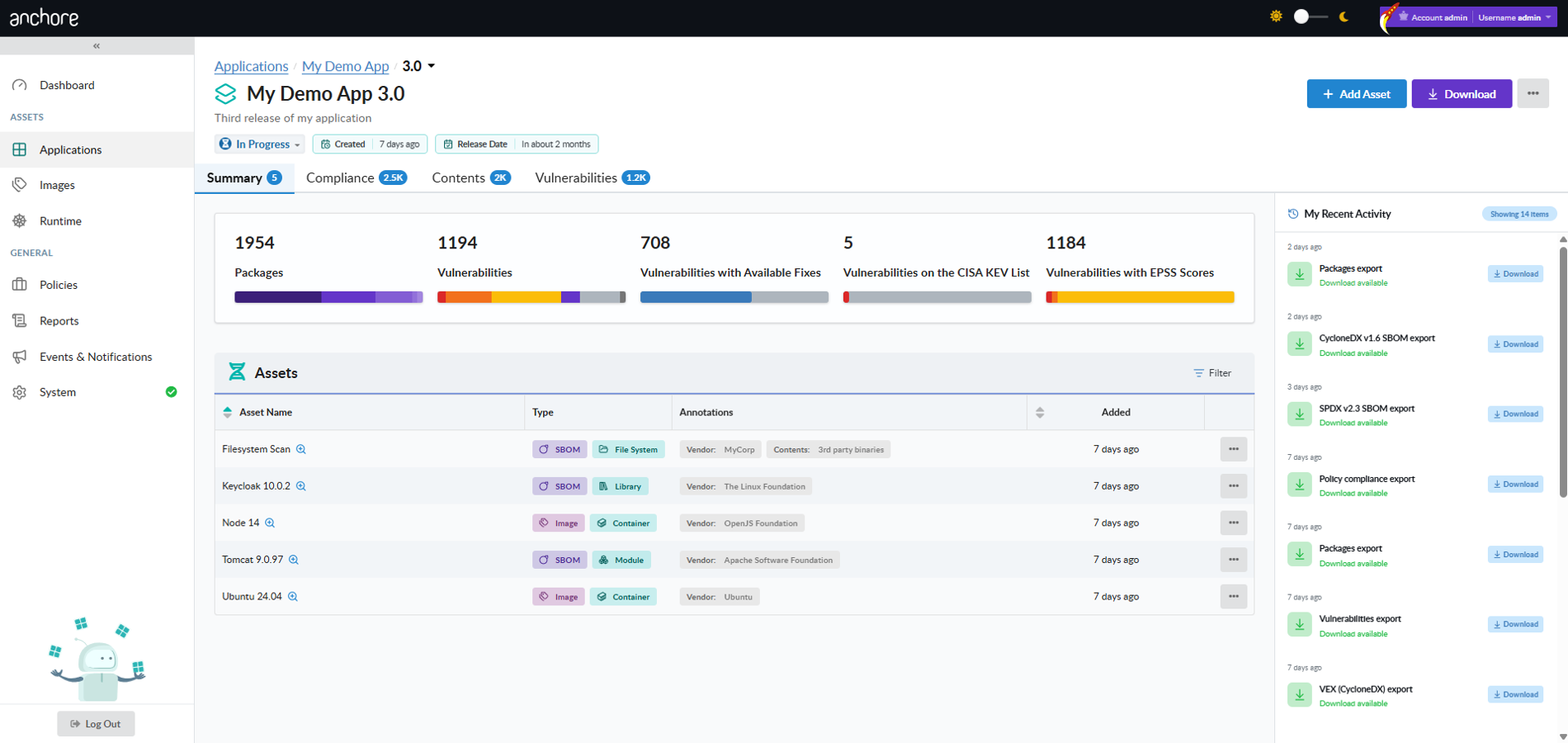
Asset Detail Popup
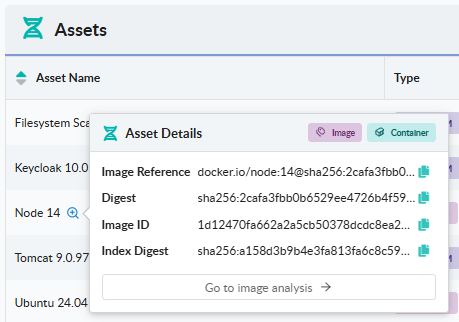
Selecting an asset on the version’s assets list opens a drill-in popup that shows the asset’s metadata. If the asset is an Image, click Go to image analysis to open the advanced images GUI. There you can review additional image details, assess advanced policies like FedRAMP or NIST 800-53, and view STIG results.
Edit an Asset in the GUI
Open an asset’s row action menu to edit its attributes — for example, choose Edit Annotations to manage the key=value annotations on the asset. Annotations are merged with what’s already there; clear a single key by setting its value to empty.
Delete an Asset in the GUI
From the version detail page, open the Delete action on the asset row. Deleting an asset removes it and its SBOM from the version; it does not affect any other asset or version.
Manage Assets with AnchoreCTL
Asset CRUD lives under anchorectl app version asset. Every command requires the parent app and version via --app and --version.
List Assets in a Version
List every asset attached to a specific version. The version name or UUID is the positional argument, and the parent app is identified with --app:
anchorectl app version asset list 1.4.0 --app my-service
To narrow the result to a single asset by exact name, add --name:
anchorectl app version asset list 1.4.0 --app my-service --name api-image
Get an Asset
Retrieve a single asset’s record. The asset argument accepts either its name or UUID:
anchorectl app version asset get api-image --app my-service --version 1.4.0
Use -o json for the structured record, which includes system_metadata and the asset’s annotations.
Get the SBOM for an Asset
The asset’s stored SBOM is fetched through a separate subcommand. Use --file to write the SBOM to disk, or omit it to write to stdout:
anchorectl app version asset sbom get api-image \
  --app my-service \
  --version 1.4.0 \
  --file api-image.sbom.json
Edit an Asset
Edit an asset’s attributes — annotations, name, or type — with the update subcommand:
anchorectl app version asset update api-image \
  --app my-service \
  --version 1.4.0 \
  --annotations "owner=platform-team,commit=a3f7c01"
--annotations accepts a comma-separated list of key=value pairs. The list is merged with existing annotations; remove a single key by setting its value to empty (key=). Rename the asset with --name, or correct its type with --type.
Delete an Asset
Delete an asset by name or UUID. The version it belongs to is identified with --version, and its parent app with --app:
anchorectl app version asset delete api-image \
  --app my-service \
  --version 1.4.0
Deletion is unconditional — there is no --force flag because nothing depends on an asset’s existence other than the version it belongs to.
Manage Assets with the API
Asset management is exposed under /apps/{app_id}/versions/{version_id}/assets — list and get on the collection, get / update / delete on individual assets, and a separate sub-resource for the asset’s SBOM content at /apps/{app_id}/versions/{version_id}/assets/{asset_id}/sbom. Asset creation is performed through the App Jobs endpoints — one job type per add path. The full endpoint inventory, request and response schemas, and error codes are in the API browser; search for the App Version Assets and App Jobs tags.
A few conventions worth knowing as you call these endpoints:
- The list endpoint returns paginated responses — see Pagination — and accepts
?name=<exact-name>and?type=<AssetType>filters. - Cross-account requests are scoped via the
x-anchore-accountheader orANCHORECTL_ACCOUNTenvironment variable. See Account Scoping for the full mechanism. - The query endpoints under the same version path —
packagesandassets-by-package— answer cross-asset questions about a release. They are covered in Viewing an App Version’s SBOM; the vulnerability-side queries (vulnerabilities,packages-by-vulnerability) are covered in Scan an App Version.