Scan a Container Image
Image-scoped vulnerability scanning analyzes a single container image and returns the vulnerabilities discovered in its contents — packages, OS components, and Knowledge Base patches for Windows images. This is the long-standing v5 evaluation path and remains fully supported in v6. For the v6-native release-stage path that aggregates findings across every asset in an app version, see Scan an App Version.
Centralized vs Distributed Analysis
Anchore Enterprise supports two analysis modes. Both produce identical vulnerability results once analysis completes; they differ in where the image bytes are read and where the SBOM is generated.
- Centralized analysis — AnchoreCTL or the API tells Anchore Enterprise to pull the image from your registry and analyze it server-side. This is the default mode. Because the full image contents are available to Anchore Enterprise, centralized analysis is required for malware scanning, which distributed analysis cannot perform.
- Distributed analysis — AnchoreCTL pulls or reads the image where you run the command, generates the SBOM locally, and uploads the result. Anchore Enterprise never sees the image bytes.
See Centralized and Distributed Analysis for the underlying mechanics, diagrams, and the stateless one-time-scan variant.
Scan a Container Image in the Anchore Enterprise GUI
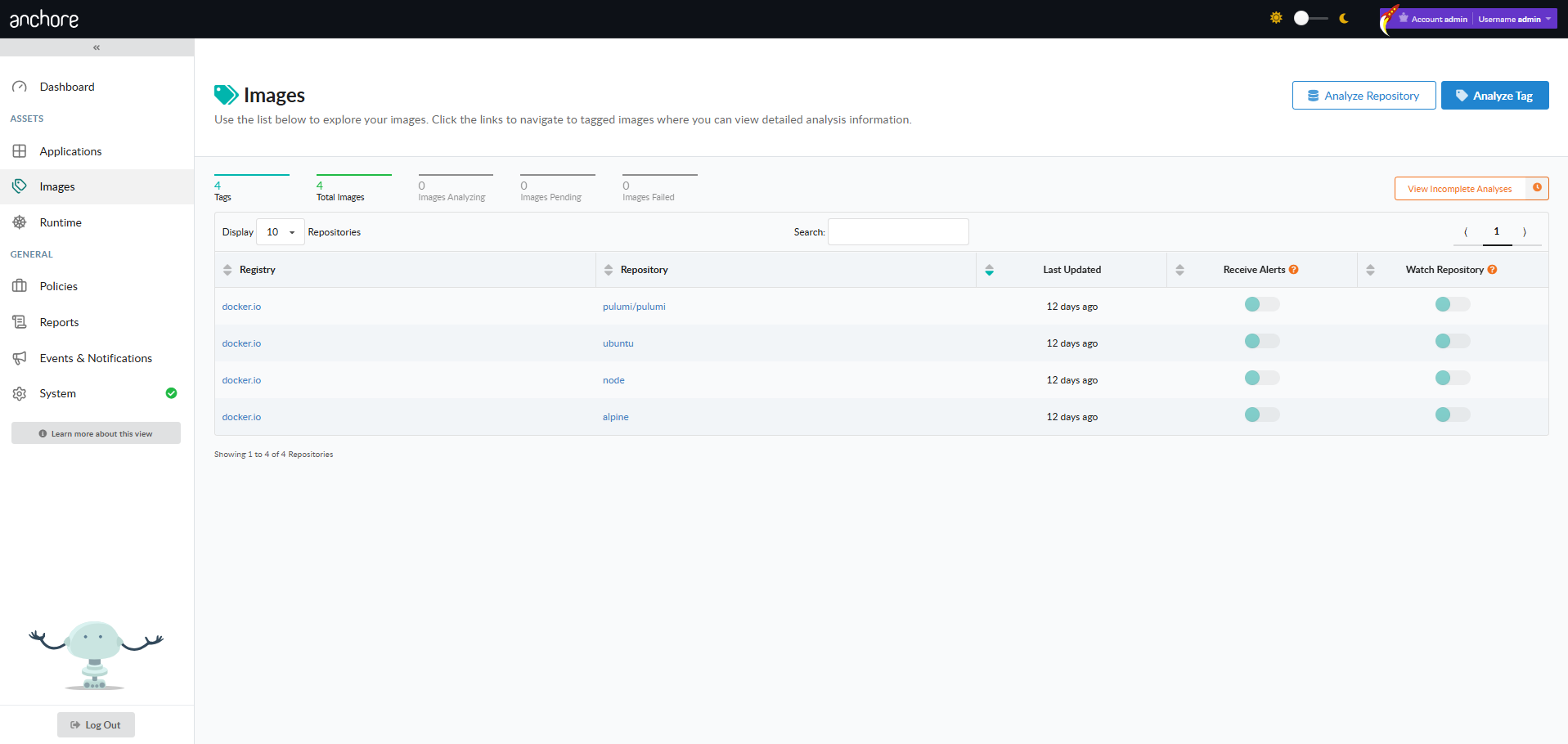
From an authenticated session, the Images menu in the left navigation opens the Image Analysis view. The Image Analysis view lists every image that has been submitted, with Analyze Tag and Analyze Repository controls to submit new work.
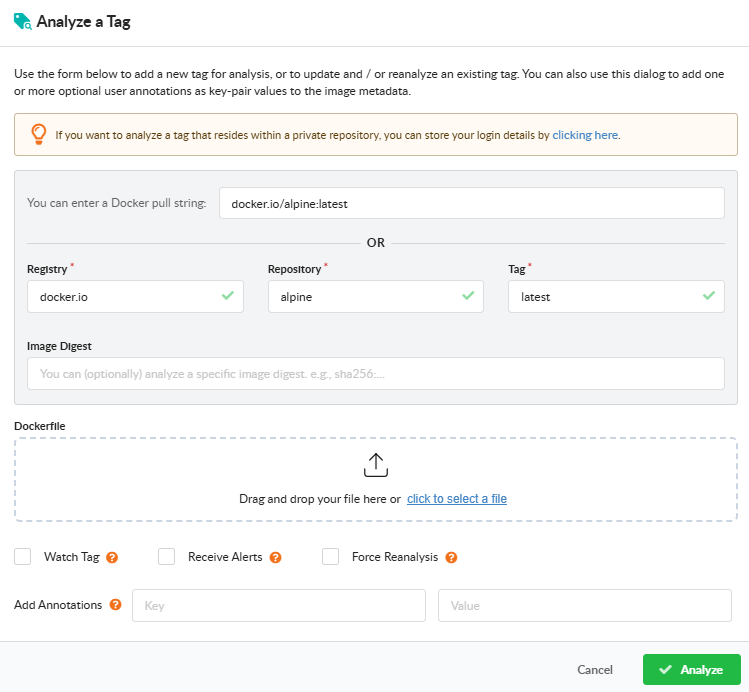
Analyze a Tag
Open Analyze Tag to submit a single image. Fill in the registry, repository, and tag. The dialog also exposes:
- Watch Tag — monitor the tag for updates after the initial analysis. Subsequent pushes to the same tag will be picked up and re-analyzed.
- Receive Alerts — subscribe the tag to the
alertssubscription so Anchore Enterprise raises alerts when new findings are detected for it. See Subscriptions. - Force Reanalysis — re-analyze an already-analyzed tag, regenerating its SBOM. Useful for picking up new analyzer capabilities or a newly attached Dockerfile.
- Add Annotation — attach
key=valuemetadata to the image record. Annotations appear in the image overview, in webhook notifications, and in the API responses. - Dockerfile upload — attach the Dockerfile used to build the image so policy checks can evaluate Dockerfile triggers.
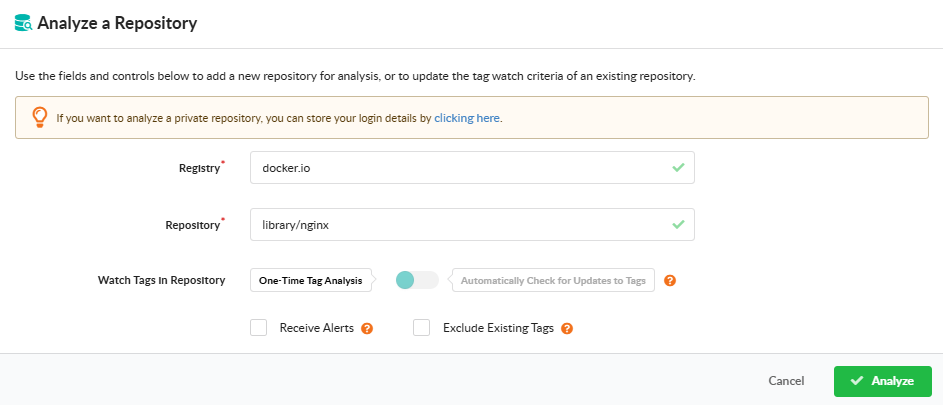
Analyze a Repository
Open Analyze Repository to submit every tag in a repository at once. Provide the registry and repository name, and pick how the repository should be monitored going forward:
- One-Time Tag Analysis — analyze the tags currently present in the repository; do not monitor it for future additions.
- Automatically Check for Updates to Tags — analyze current tags and continue monitoring the repository so new tags are picked up automatically.
The dialog also offers two checkboxes:
- Exclude Existing Tags — when monitoring for updates, analyze only tags added after watching begins; the tags already present in the repository are not analyzed.
- Receive Alerts — subscribe the repository to the
alertssubscription so Anchore Enterprise raises alerts when new findings are detected across its images. See Subscriptions.
After confirmation, the dialog displays a count of the tags that will be queued for analysis so you can review the workload before committing.
View Vulnerabilities for an Image
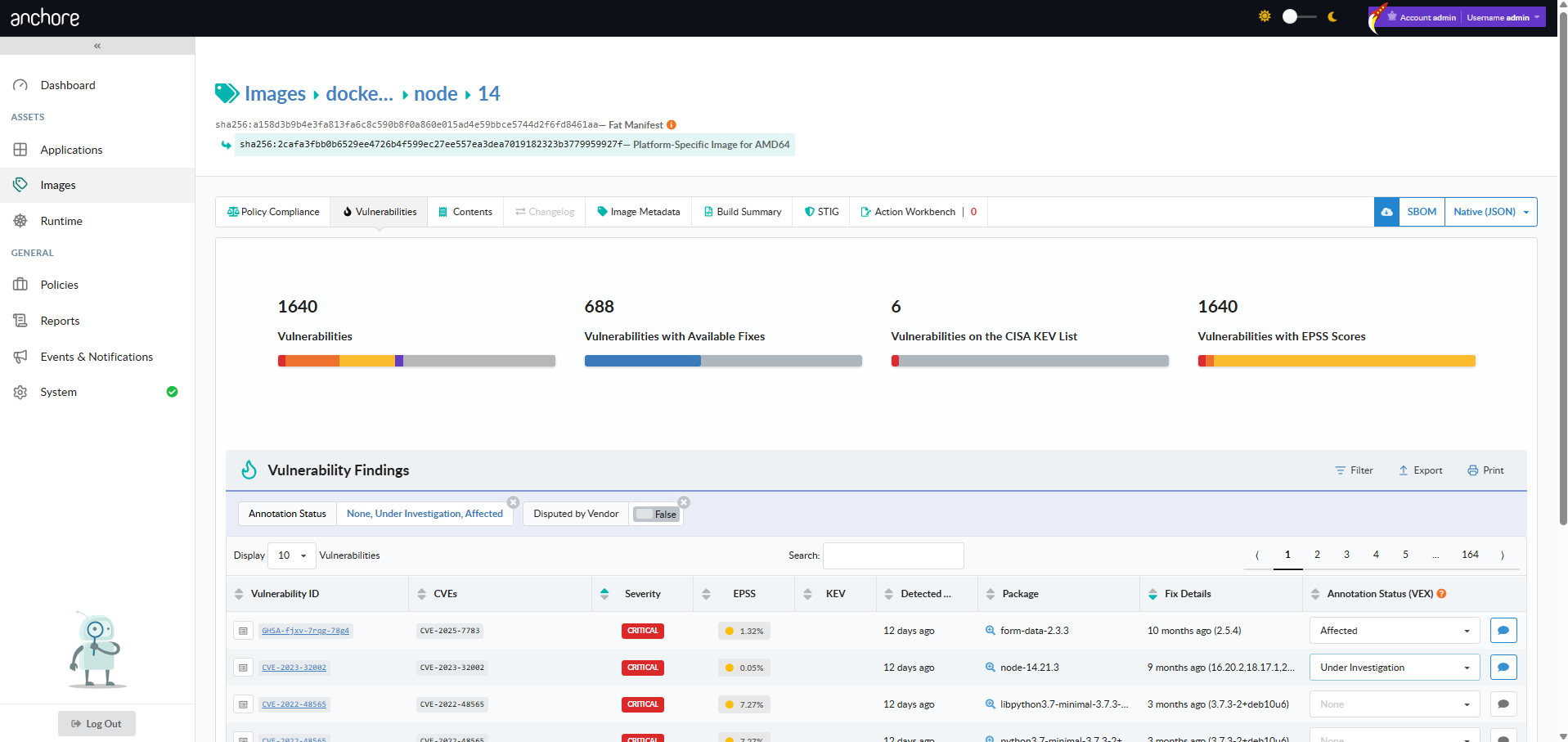
From the Images view, drill into a repository, pick an image digest, and open the Vulnerabilities tab. The tab lists every finding for that image with severity, package, CVE, and fix data. The toolbar exposes a vulnerability-report download in JSON or CSV format.
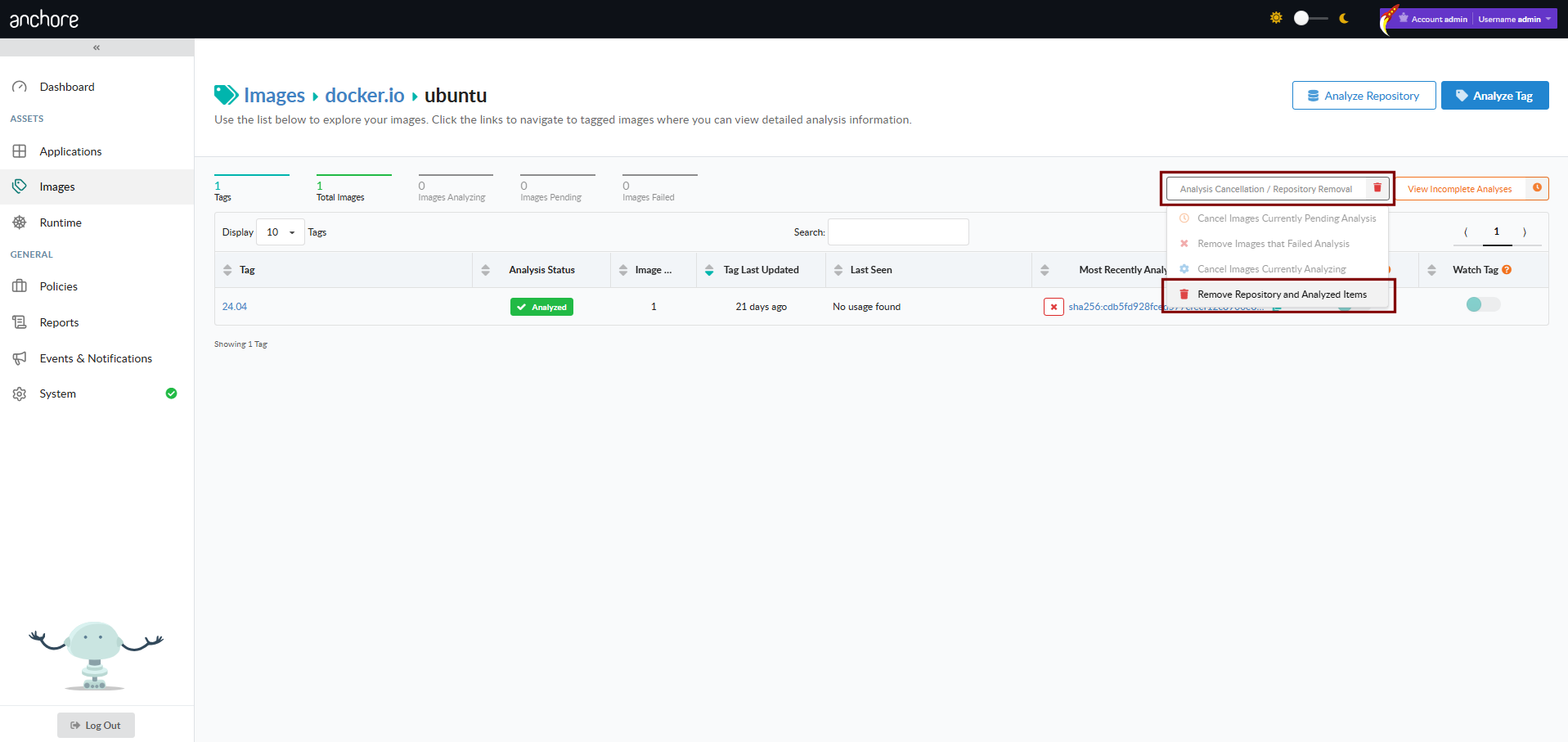
Bulk Removal from a Repository
From a repository view, the Analysis Cancellation / Repository Removal control offers two actions:
- Cancel Images Currently Pending Analysis — drain the analysis queue for tags in this repository that have not yet been analyzed
- Remove Repository and Analyzed Items — remove the repository from view, including every image currently associated with it. If the repository is being watched, that subscription is also removed.
Scan a Container Image with AnchoreCTL
AnchoreCTL exposes the full image lifecycle under anchorectl image. Examples below use docker.io/my-org/api:1.4.0 as the canonical reference image.
Add an Image (Centralized Analysis)
anchorectl image add instructs Anchore Enterprise to pull and analyze the image server-side. The image record is created immediately with status not_analyzed; the status moves to analyzing once a worker picks it up and to analyzed when complete:
anchorectl image add docker.io/my-org/api:1.4.0
Anchore Enterprise can enforce a maximum image size for analysis. Submissions larger than the configured limit are rejected with an HTTP 400; the limit is disabled by default. See Scanning Configuration.
Add an Image (Distributed Analysis)
Pass --from to switch to distributed analysis. AnchoreCTL pulls or reads the image locally, generates the SBOM, and uploads it:
anchorectl image add docker.io/my-org/api:1.4.0 --from registry
Supported --from sources:
| Source | --from value | Notes |
|---|---|---|
| Registry pull | registry | AnchoreCTL pulls the image from the registry (recommended over docker) |
| Local Docker daemon | docker | Reads an image from the local Docker daemon, pulling it from the registry if not present |
| Local Podman daemon | podman | Reads an image from the local Podman store, pulling it from the registry if not present; see Analyzing Images from a Local Podman Daemon for the socket setup |
| Docker archive | docker-archive:/path/to.tar | Loads from a local tar file |
| Syft SBOM stdin | - (combined with piped Syft output) | Imports a Syft-generated SBOM directly |
--from registry over --from docker. The registry source removes the need to have Docker installed locally, produces a consistent image digest, and avoids limitations of the Docker daemon’s manifest and digest handling.With --from set, the image reference must include a tag; a digest-only reference is rejected. Digest-only references are accepted by centralized analysis.
Use --platform to pin a specific platform when the image manifest carries multiple architectures:
anchorectl image add docker.io/my-org/api:1.4.0 --from registry --platform linux/arm64
Attach a Dockerfile
Always pass the Dockerfile for images you build yourself. The Dockerfile is stored alongside the image analysis and is used by the dockerfile policy gate:
anchorectl image add docker.io/my-org/api:1.4.0 --dockerfile /path/to/Dockerfile
To update an image’s Dockerfile, run the same command with --force to re-analyze.
Annotate an Image
Annotations are key=value pairs attached to the image record. They are visible in the image overview and in webhook notification payloads:
anchorectl image add docker.io/my-org/api:1.4.0 \
  --annotation owner=platform-team \
  --annotation commit=a3f7c01
To change an annotation, re-run the command with the updated value; the prior value is overridden.
Re-Analyze an Image
The --force flag resets an image’s analysis state back to not_analyzed and queues it for re-analysis. Use this when you change the Dockerfile or want to pick up new analyzer capabilities introduced in a later Anchore Enterprise release:
anchorectl image add docker.io/my-org/api:1.4.0 --force
Subscribe to Tag Updates
By default, adding an image subscribes the tag to the tag_update subscription so Anchore Enterprise watches the tag for new content. Pass --no-auto-subscribe to skip this:
anchorectl image add docker.io/my-org/api:1.4.0 --no-auto-subscribe
See Subscriptions for the full subscription model.
Add an Image by Digest
To register a specific image by digest with its associated tag — useful for images that have moved off the current :latest pointer but are still available in the registry:
anchorectl image add docker.io/my-org/api:1.4.0@sha256:f586d972a825ad6777a26af5dd7fc4f753c9c9f4962599e6c65c1230a09513a8
Get Vulnerabilities for an Image
Once an image is analyzed, anchorectl image vulnerabilities returns its findings. The default output is a terminal-friendly table:
anchorectl image vulnerabilities docker.io/my-org/api:1.4.0
 ✔ Fetched vulnerabilities
┌────────────────┬──────────┬──────────────┬────────────┬──────┐
│ VULN ID        │ SEVERITY │ PACKAGE      │ FIX        │ TYPE │
├────────────────┼──────────┼──────────────┼────────────┼──────┤
│ CVE-2024-3094  │ Critical │ xz-utils     │ 5.6.2-1    │ os   │
│ CVE-2024-1234  │ High     │ openssl      │ won't fix  │ os   │
│ CVE-2023-5678  │ Medium   │ libcurl      │ 7.85.0     │ os   │
└────────────────┴──────────┴──────────────┴────────────┴──────┘
The output format is controlled with -o. Supported formats are text, json, json-raw, csv, cyclonedx-json, cyclonedx-xml, and html. The flags below combine cleanly with any of them:
| Flag | Purpose |
|---|---|
--type | Filter findings to a specific vulnerability type (for example os, non-os, java) |
--vendor-only | Exclude vulnerabilities the vendor has marked as won’t-fix |
--annotations | Filter by VEX annotation status (not_affected, affected, fixed, under_investigation) |
--include-description | Include the full vulnerability description |
--refresh | Re-run vulnerability matching against the latest data before returning |
To produce a formatted HTML report suitable for saving as a build artifact, combine -o html with -d to write the result to a directory:
anchorectl image vulnerabilities docker.io/my-org/api:1.4.0 \
  -o html \
  -d ./reports
The same flags work for filtering before export — for example, an HTML report of only the findings the team has not yet annotated:
anchorectl image vulnerabilities docker.io/my-org/api:1.4.0 \
  --vendor-only \
  --include-description \
  -o html \
  -d ./reports
Delete an Image
anchorectl image delete removes an analyzed image record. If the image is the only one associated with a tag, or if any subscriptions are active against the tag, pass --force:
anchorectl image delete docker.io/my-org/api:1.4.0 --force
A specific image record can also be deleted by digest:
anchorectl image delete sha256:899a03e9816e5283edba63d71ea528cd83576b28a7586cf617ce78af5526f209
If a tag has an active subscription, deactivate it before deleting:
anchorectl subscription deactivate docker.io/my-org/api:1.4.0 tag_update
Scan a Container Image with the API
Image scanning is exposed under /images and /images/{image_digest}. The full endpoint inventory, request and response schemas, and error codes are in the API browser; search for the Images tag.
Key endpoints:
| Method | Path | Purpose |
|---|---|---|
POST | /images | Submit an image for analysis (centralized) |
GET | /images | List analyzed images |
GET | /images/{image_digest} | Get an image’s full record |
GET | /images/{image_digest}/vuln/{vuln_type} | Get vulnerabilities for an image |
GET | /images/{image_digest}/check | Get the policy evaluation for an image |
DELETE | /images/{image_digest} | Delete an image |
A few conventions worth knowing as you call these endpoints:
- The
vuln_typepath segment acceptsos,non-os,all, and specific package types likejava,python,npm, etc. - The vulnerabilities endpoint can return CycloneDX VEX-style documents via
/images/{image_digest}/vuln/{vuln_type}/cyclonedx-jsonandcyclonedx-xml. - Cross-account requests use the
x-anchore-accountheader — see Account Scoping.
Watch a Repository for New Images
For long-running registry coverage — where every new tag pushed to a repository should be picked up automatically without a manual image add — Anchore Enterprise lets you put a repository under watch. See Watch a Repository for New Images for the full workflow across the GUI, AnchoreCTL, and the API.